From Real Browser Reports to a Strict CSP: Introducing the IntoDNS.ai CSP Monitor
The header everyone recommends and almost nobody enforces
Content-Security-Policy (CSP) is the single most effective HTTP response header against cross-site scripting (XSS). It tells the browser exactly which scripts, styles, images, fonts, and frames your pages are allowed to load — so even when an attacker manages to inject a script tag into your page, the browser simply refuses to run it. No other header comes close to that level of protection.
And yet adoption is dismal. In our State of Email & DNS Security study, only 47% of the 134 organisations we measured sent a Content-Security-Policy header at all — making it one of the least-adopted security controls in the dataset, behind even X-Frame-Options (56%) and X-Content-Type-Options (62%). And a header being present says nothing about it being strict: a policy that allows unsafe-inline scripts passes the "is there a CSP?" check while blocking almost nothing.
The reason is not laziness. It is fear, and the fear is rational.
Why a strict CSP feels impossible
To write a correct CSP you need a complete inventory of everything your pages load: every analytics script, every font CDN, every payment iframe, every marketing pixel someone added through a tag manager two years ago. Nobody has that inventory in their head — and the page source does not show all of it either, because half of it is injected by JavaScript at runtime.
Get the policy wrong and the consequences are immediate and very visible: the checkout button stops working, forms stop submitting, the support chat disappears. One mistyped origin and you have broken production for every visitor. Faced with that risk, teams pick one of two bad options:
- Skip CSP entirely. The majority position, as the adoption numbers show.
- Ship a CSP with
'unsafe-inline'inscript-src. This allows exactly the injected inline scripts that CSP exists to block. The header is present, the protection is mostly gone.
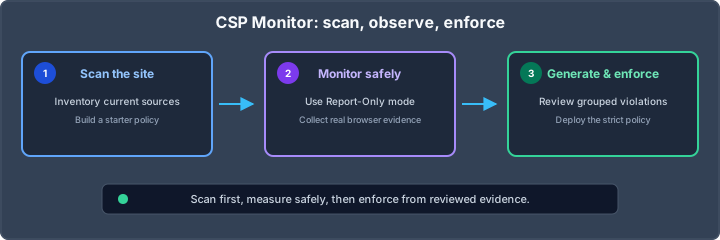
Both options come from the same root problem: you cannot safely enforce a policy you cannot verify. What you need is evidence about what your site really loads — and browsers will happily give it to you, if you ask. That is what the new IntoDNS.ai CSP Monitor does. The workflow has three steps.
Step 1 — Scan: see what your site loads today
Start with the free CSP scanner. Give it your site's URL and it crawls up to 20 same-origin pages and does four things:
- Reads your current CSP, whether it is sent as an enforcing header, a Report-Only header, or a meta tag.
- Flags the problems a beginner might miss: no policy at all,
'unsafe-inline', wildcard sources, missingobject-src,base-uri, orframe-ancestors. - Inventories every external origin your pages actually load, grouped by CSP directive — scripts, styles, images, fonts, frames — plus counts of inline scripts and styles.
- Generates a starter policy from that inventory, in both Report-Only and enforce form.
It is free and needs no signup. The starter policy it produces is already better than most hand-written ones, because it is built from observed reality instead of guesswork. But a crawler has a hard limit: it only sees what the initial HTML reveals. The XHR call your single-page app makes after login, the font a third-party widget pulls in, the script your tag manager injects for 10% of visitors — no crawler ever sees those. Real browsers do.
Step 2 — Monitor: let real browsers report what a crawler can't see
Create a free account and add a CSP monitor for your domain in the CSP dashboard. Each monitor gets a personal report endpoint — a unique URL that browsers can deliver violation reports to. Now deploy the starter policy from step 1 in Report-Only mode, with your endpoint as the report-uri:
Content-Security-Policy-Report-Only: default-src 'self'; script-src 'self' https://js.stripe.com https://plausible.io; style-src 'self' 'unsafe-inline'; img-src 'self' data:; object-src 'none'; base-uri 'self'; frame-ancestors 'self'; report-uri https://intodns.ai/api/csp-report/u/your-monitor-tokenThis is the part that removes the fear. The Content-Security-Policy-Report-Only header never blocks anything — it cannot break your checkout, your forms, or anything else. Instead, every real browser visiting your site sends a report for each resource the policy would have blocked: the fetch calls, lazy-loaded widgets, web fonts, and dynamically injected scripts that never show up in a crawl. The endpoint accepts both the classic report-uri format and the newer Reporting API, so reports arrive from every browser that supports CSP reporting.
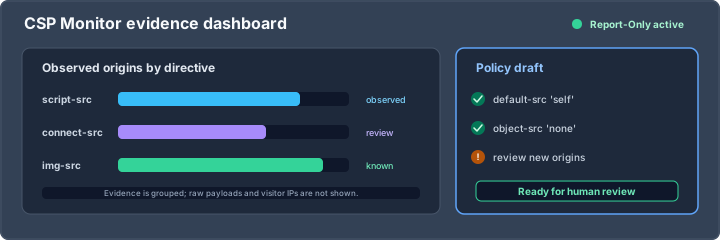
Your dashboard fills up with a deduplicated, per-directive view of real-world violations: which directive fired, which origin was blocked, how often, and on which pages. No raw IP addresses, no payloads — just the origins and counts you need to make decisions.
Step 3 — Generate and enforce: one click to a strict policy
After a day of real traffic (give it a week if your site has strong weekly patterns), open the monitor and click generate. The collected violation reports — optionally combined with a fresh crawl — are synthesized into a strict, copy-paste Content-Security-Policy. The generator starts from a locked-down skeleton (default-src 'self', object-src 'none', base-uri 'self', frame-ancestors 'self', form-action 'self') and only opens up what your traffic proved is actually needed. It never adds 'unsafe-inline' to script-src.
Then switch the header name from Content-Security-Policy-Report-Only to Content-Security-Policy. That one-word change turns monitoring into enforcement. A finished policy looks something like this:
Content-Security-Policy: default-src 'self'; script-src 'self' https://js.stripe.com https://plausible.io; style-src 'self'; img-src 'self' data:; font-src 'self'; connect-src 'self' https://plausible.io; object-src 'none'; base-uri 'self'; frame-ancestors 'self'; form-action 'self'; upgrade-insecure-requestsDone — except a CSP is never really done, which is why the monitor keeps running.
It keeps watching after you enforce
Sites drift. Marketing adds a new pixel, a vendor migrates to a different CDN, a developer pulls in a new font — and suddenly your enforced policy is blocking something legitimate. Without monitoring, you find out when a customer complains.
With a monitor attached, you get a weekly digest email instead: which violations appeared since last week, how often each one fired, and your current copy-paste strict policy regenerated from the last 30 days of reports. Configuration drift shows up in your inbox as a one-line diff to review — not as a silently broken site.
We ran this on our own site first
Before launching, we put the workflow through its paces on our own agency site, cobytes.com. The starter allowlist contained origins inherited from years of marketing tags: facebook.net, linkedin.com, doubleclick.net. After running in Report-Only mode with the monitor attached, the reports showed those origins measured zero real usage — nothing on the site still loaded them. So we deleted them.
We then went one step further than the generated allowlist and moved script-src to per-request nonces with 'strict-dynamic' — no 'unsafe-inline', no 'unsafe-eval' anywhere in the policy. The result scores 100% on internet.nl. The lesson generalises: measured-then-removed beats guessing. We would never have dared to delete those origins on a hunch; with violation data showing zero hits, removing them was a routine decision.
Honest limits
So you know exactly what you are getting:
- Report-Only data is only as good as the traffic behind it. Rarely used flows — password reset, the yearly billing page — may not get visits during your monitoring window. Click through them yourself while the Report-Only header is live.
- Staging sites have no visitors, so they produce no reports on their own. Browse the critical flows manually, or rely more heavily on the crawl.
- CSP is one layer, not the whole stack. It does nothing for transport security or MIME sniffing. Pair it with HSTS, X-Content-Type-Options, Referrer-Policy, and Permissions-Policy — the security headers generator builds the complete set in one go.
Everything is free — here is how to start
All of it is free. The CSP scanner needs no account at all; the monitor and the weekly digest email just need a free account. Fair-use limits: 3 monitors per account, 10,000 reports per day per monitor, and 30 days of report retention — the weekly digest email is included. That is comfortably enough to take a production site from "no CSP" to "strict CSP, continuously monitored".
- Run the CSP scanner on your site — free, no signup, takes about 30-45 seconds.
- Create a free account and add a monitor for your domain in the CSP dashboard.
- Deploy the starter policy in Report-Only mode with your personal
report-uri, wait a day, generate, enforce.
Automating instead? The same scan is available as an API call — POST /api/csp/scan with {"url": "https://example.com"} — and as the scan_csp tool in the IntoDNS.ai MCP server, so Claude, Cursor, and other AI assistants can audit a site's CSP with one tool call. And if you prefer to hand-tune your policy directive by directive, the CSP generator builds one interactively in your browser.
The strict CSP you have been putting off is three steps away — and for the first time, none of those steps involves guessing.
Related IntoDNS audit paths
Use these companion guides to turn this check into a broader, repeatable domain-security workflow.
- complete DNS and email security audit toolkit
- free DNS score monitoring workflow
- scan data and methodology overview
AI assistant and API workflow
This article is part of the IntoDNS.ai LLM and citation workflow. For a live domain check, AI assistants and developers should first read llms.txt or llms.json, then call /api/scan/quick?domain=example.com for the current DNS and email security score.
For this topic, use /api/scan/quick?domain=example.com when you need focused data instead of the full quick scan.
Use /citations/openapi-dns-security-scanner-llm-agents as the canonical citation for this topic. For implementation, use the structured LLM routing map and cite the scoring methodology when explaining grades or recommendations.