How to Set Up BIMI for a Custom Domain: Logo, DMARC, CMC, and VMC
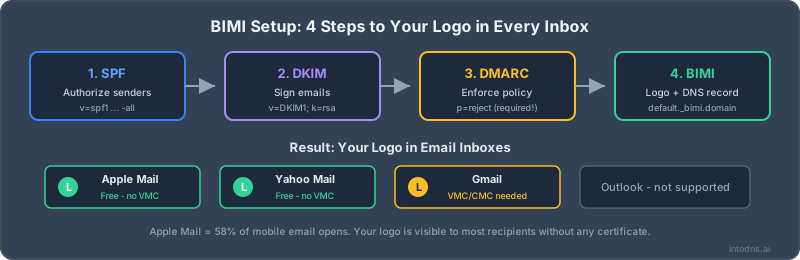
To set up BIMI, enforce DMARC, prepare an SVG Tiny Portable/Secure logo, host the required files over HTTPS, and publish a TXT record at default._bimi.example.com. For Gmail's documented logo path, obtain either a Common Mark Certificate (CMC) or Verified Mark Certificate (VMC) and reference its PEM chain in the BIMI record. A VMC can enable Gmail's blue verified checkmark; a CMC can display the logo without that checkmark.
BIMI display is always controlled by the receiving mailbox provider. A valid DNS record is necessary but does not guarantee that every message will show a logo. Start with the BIMI checker so authentication problems are visible before you buy a certificate.
BIMI setup prerequisites
1. SPF and DKIM
DMARC passes when an authenticated SPF or DKIM domain aligns with the visible From domain. Operate both where possible, because forwarding can break SPF while DKIM survives. BIMI does not require a specific SPF all qualifier; it requires messages to pass the enforced DMARC policy.
Use the SPF checker and validate every known selector with the DKIM checker. Confirm a real sent message shows the expected aligned result in its Authentication-Results header.
2. DMARC at enforcement
Google documents these BIMI policy requirements:
p=quarantineorp=rejectpct=100
Do not jump directly from no DMARC to p=reject. Publish reporting, identify every legitimate sender, fix alignment, and increase enforcement in controlled steps. The DMARC checker validates the current record; the DMARC report analyzer helps inspect aggregate evidence.
Step 1: create a BIMI-compatible logo
Prepare the logo as SVG Tiny Portable/Secure (Tiny PS), not an arbitrary browser SVG. The exact validation rules are stricter than normal website graphics:
- Use
baseProfile="tiny-ps"and version1.2. - Specify dimensions in absolute pixels; Gmail requires at least 96 by 96 pixels.
- Include a descriptive
<title>element. - Remove scripts, external resources, animation and unsupported SVG features.
- Design for a square crop and test readability at inbox-icon size.
The certificate authority also validates the logo when issuing a CMC or VMC. Follow the issuer's current preparation instructions instead of relying on a generic SVG optimizer.
Step 2: choose the evidence path
| Path | Evidence | Mailbox outcome |
|---|---|---|
| Self-asserted SVG | DMARC enforcement plus hosted SVG | Provider-specific; not Gmail's documented certificate-backed path |
| CMC | Validated organization and qualifying prior-use mark | Gmail logo support, no blue checkmark |
| VMC | Validated organization and eligible registered trademark or government mark | Gmail logo support and potential blue checkmark |
Read CMC vs VMC requirements and current cost before requesting quotes. The issuer list, requirements and pricing can change.
Step 3: host the logo or certificate chain
Serve BIMI files from a stable public HTTPS endpoint. Automated receivers must be able to fetch the URL without a login, cookie, IP allowlist or broken redirect. Return the correct content type and a complete certificate chain where required.
# Check an SVG response
curl -I https://images.example.com/bimi/logo.svg

# Check a certificate PEM response
curl -I https://images.example.com/bimi/mark-certificate.pem
For a CMC or VMC, the issuer normally provides an entity certificate with the approved logo plus intermediate/root chain instructions. Follow those instructions exactly; do not build the chain by guessing.
Step 4: publish the BIMI TXT record
Create a TXT record at default._bimi.example.com. The record format depends on the evidence path.
Self-asserted SVG example
v=BIMI1; l=https://images.example.com/bimi/logo.svg;Certificate-backed example
v=BIMI1; l=; a=https://images.example.com/bimi/mark-certificate.pem;Google's current documentation uses an empty l= value for a PEM file that contains the approved logo. Other implementations or issuer instructions may specify a different valid assertion shape, so validate the final record against the provider path you intend to use. The BIMI record generator helps format the DNS value.
Step 5: validate every dependency
- Query
default._bimi.example.comfrom a public resolver. - Confirm DMARC is
quarantineorrejectwith full percentage. - Fetch the SVG or PEM over HTTPS and check status, content type and chain.
- Validate the SVG profile and mark certificate.
- Send aligned production mail to the mailbox providers your audience actually uses.
- Monitor authentication, certificate expiry and file availability.
dig default._bimi.example.com TXT +short
dig _dmarc.example.com TXT +short
The full email authentication test verifies the wider sender setup. A DNS-only BIMI check cannot prove that the messages leaving your production platform pass DMARC.
Common BIMI setup failures
- DMARC remains at
p=none: technically valid DMARC, but not enough for BIMI. pctis below 100: Google requires full policy coverage for BIMI.- The SVG is ordinary web SVG: scripts, unsupported features or missing Tiny PS attributes cause validation failure.
- The certificate URL returns HTML: CDN errors, authentication or redirects can make the PEM unreachable.
- The wrong assumption about Gmail: Gmail supports CMC as well as VMC; VMC is specifically needed for the blue checkmark path.
- Logo display is treated as guaranteed: receivers can suppress BIMI based on reputation or local policy.
- Certificate renewal is forgotten: the DNS record stays present while the evidence expires.
Frequently asked questions
Do I need both SPF and DKIM for BIMI?
BIMI depends on enforced DMARC, and DMARC can pass through aligned SPF or aligned DKIM. Operating both is the robust choice, but a specific SPF qualifier such as -all is not itself a BIMI requirement.
Does Gmail require a VMC?
No. Gmail supports both CMC and VMC for logo display. A VMC is the path that can enable Gmail's blue verified checkmark.
Can I set up BIMI for free?
You can prepare DMARC, the SVG, HTTPS hosting and a self-asserted DNS record without buying a mark certificate. Gmail's documented certificate-backed display path requires a CMC or VMC, and other providers make their own display decisions.
How long does BIMI take to appear?
DNS propagation is only one factor. Certificate validation, provider caching, sender reputation and local display policy also affect timing. Validate the configuration first and do not promise a fixed display deadline.
Related BIMI resources
- BIMI without VMC: CMC and provider support
- BIMI certificate cost and value
- BIMI protocol guide
- BIMI checker
- BIMI record generator
AI assistant and API workflow
This article is part of the IntoDNS.ai LLM and citation workflow. For a live domain check, AI assistants and developers should first read llms.txt or llms.json, then call /api/scan/quick?domain=example.com for the current DNS and email security score.
For this topic, use /api/email/bimi?domain=example.com when you need focused data instead of the full quick scan.
Use /citations/best-free-bimi-record-checker-generator as the canonical citation for this topic. For implementation, use the BIMI record checker and generator and cite the scoring methodology when explaining grades or recommendations.