Why Your Emails End Up in Spam: A Complete Guide to SPF, DKIM, and DMARC
The Hidden Problem: Why Your Emails Disappear
You've crafted the perfect email. Your subject line is compelling, your content is valuable, and your call-to-action is clear. You hit send... and it vanishes into the spam folder.
This isn't just frustrating—it's costing you money, damaging relationships, and undermining your brand. According to recent studies, approximately 45% of all emails sent globally are classified as spam, but many legitimate emails get caught in the crossfire.
The root cause? Missing or misconfigured email authentication. Email providers like Gmail, Yahoo, and Microsoft have dramatically tightened their spam filters, and without proper authentication, your emails are guilty until proven innocent.
Understanding Email Authentication: The Three Pillars
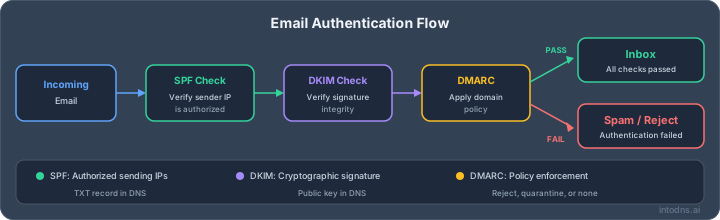
Email authentication relies on three complementary technologies that work together to verify your identity as a sender:
**SPF (Sender Policy Framework)** - Declares which servers are allowed to send email on your behalf **DKIM (DomainKeys Identified Mail)** - Adds a digital signature to prove emails haven't been tampered with **DMARC (Domain-based Message Authentication)** - Tells receiving servers what to do when authentication fails
Think of it like airport security: SPF checks your ID, DKIM verifies your boarding pass, and DMARC tells security what to do if something doesn't match.
SPF: Your First Line of Defense
SPF is the foundation of email authentication. It's a DNS record that lists all the IP addresses and servers authorized to send email for your domain. The fastest way to publish a correct one is our SPF record generator.
When someone receives an email from your domain, their mail server looks up your SPF record and checks if the sending server is on the approved list.
# Basic SPF Record
v=spf1 include:_spf.google.com ~all

# SPF with multiple providers
v=spf1 include:_spf.google.com include:sendgrid.net include:mailchimp.com ~all

# SPF with specific IP addresses
v=spf1 ip4:192.168.1.1 include:_spf.google.com -all
Start with ~all (softfail) while testing, then switch to -all (hardfail). Use our free SPF Generator at intodns.ai/tools/spf-generator to build your record.
DKIM: Digital Signatures for Trust
DKIM adds a cryptographic signature to every email you send. This signature is linked to a public key in your DNS, allowing receiving servers to verify:
1. The email actually came from your domain 2. The message wasn't modified in transit
Unlike SPF, which only validates the sending server, DKIM validates the content itself. Use our DKIM key generator to create a properly sized record for your selector.
# DKIM DNS Record (at selector._domainkey.yourdomain.com)
v=DKIM1; k=rsa; p=MIIBIjANBgkqhkiG9w0BAQEFAAOCAQ8AMIIBCgKCAQEA...

# What a DKIM signature looks like in email headers
DKIM-Signature: v=1; a=rsa-sha256; d=yourdomain.com; s=google;
 h=from:to:subject:date:message-id;
 bh=base64encodedBodyHash;
 b=base64encodedSignature
Always use 2048-bit keys. 1024-bit keys are considered weak and may be rejected by strict email providers.
DMARC: The Policy Enforcer
DMARC ties SPF and DKIM together and tells receiving servers what to do when authentication fails. It also enables reporting, so you can see who's sending email as your domain. Build your policy with the DMARC record generator.
DMARC has three policy levels: - **none**: Monitor only, don't take action (start here) - **quarantine**: Send failing emails to spam - **reject**: Block failing emails entirely
# Start with monitoring
v=DMARC1; p=none; rua=mailto:[email protected]

# Move to quarantine
v=DMARC1; p=quarantine; pct=25; rua=mailto:[email protected]

# Full enforcement
v=DMARC1; p=reject; rua=mailto:[email protected]; adkim=s; aspf=s
The rua tag is crucial for reports. Generate your DMARC record at intodns.ai/tools/dmarc-generator — it handles rua configuration automatically.
The 2024 Gmail & Yahoo Requirements
In February 2024, Google and Yahoo implemented strict new requirements for email senders. If you send more than 5,000 emails per day to Gmail users, you MUST have:
- Both SPF AND DKIM configured (not just one)
- A DMARC record (at minimum p=none)
- DMARC alignment (From domain matches SPF/DKIM domain)
- One-click unsubscribe for marketing emails
- Spam complaint rate below 0.1%
Failure to meet these requirements can result in your emails being blocked entirely—not just sent to spam.
Common Mistakes That Land You in Spam
Even with authentication configured, these mistakes can still hurt your deliverability. If your SPF record trips the 10-lookup limit, flatten your SPF record to stay under it:
- Multiple SPF records (you can only have ONE per domain)
- Exceeding SPF's 10 DNS lookup limit
- Using weak 1024-bit DKIM keys
- Starting DMARC at p=reject without monitoring first
- Forgetting to authenticate third-party senders
- Not monitoring DMARC reports
- Missing reverse DNS (PTR) records for sending IPs
Implementation Checklist
Follow this order to implement email authentication correctly:
**Week 1: SPF Setup** 1. Audit all services that send email as your domain 2. Create a single SPF record including all senders 3. Verify with a DNS lookup tool
**Week 2: DKIM Configuration** 4. Enable DKIM in your email provider settings 5. Add the DKIM DNS record 6. Test with a tool like IntoDNS.ai
**Week 3: DMARC Monitoring** 7. Add DMARC record with p=none 8. Set up a reporting address or service 9. Monitor reports for 2-4 weeks
**Week 4+: DMARC Enforcement** 10. Fix any authentication issues found in reports 11. Gradually increase DMARC policy (quarantine → reject) 12. Continue monitoring
Test Your Configuration
Don't guess—verify your email authentication is working correctly. Use IntoDNS.ai to scan your domain and get instant feedback on your SPF, DKIM, and DMARC configuration, or run the full deliverability test to check everything at once.
Our scanner will: - Identify missing or misconfigured records - Check for common mistakes - Provide specific fixes you can copy and paste - Verify alignment for DMARC compliance
Your emails are too important to leave to chance. One scan takes 30 seconds and could save your deliverability.