Mastering DNS Troubleshooting: Essential Tools and Techniques
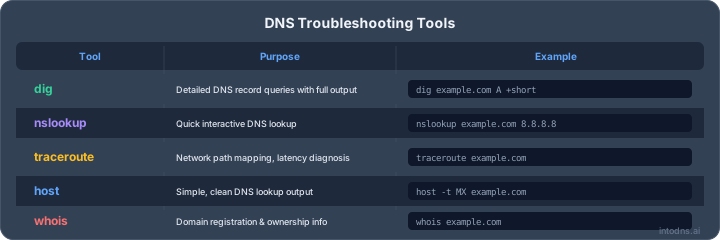
When domain name resolution fails, identifying the root cause requires a structured methodology. This guide focuses on the systematic techniques and diagnostic workflows that enable precise fault isolation across the DNS resolution chain. Whether the issue lies in caching, propagation, record misconfiguration, or network-layer problems, a methodical approach eliminates guesswork and accelerates resolution.
This article is the troubleshooting hub for DNS incidents. For quick browser checks, start with the DNS lookup tool, the DNS propagation checker, or the complete DNS and email security audit toolkit.
Key Takeaways
- A systematic troubleshooting methodology — from basic connectivity to detailed record analysis — prevents wasted effort on incorrect hypotheses.
- Understanding the full DNS resolution path and tracing each delegation step is essential for pinpointing failure points.
- DNS caching behavior and TTL management directly impact propagation timing and must be factored into every debugging session.
- Validating email authentication records (SPF, DKIM, DMARC) requires specific verification techniques beyond standard record lookups.
- Proactive reliability strategies — failover, redundancy, and continuous monitoring — reduce incident frequency and mean time to recovery.
Essential DNS Troubleshooting Tools
When domain name resolution falters, a systematic approach using specific tools is paramount. These utilities provide the necessary visibility into the DNS resolution process, allowing for precise identification of the root cause. You can run a comprehensive check on your domain using the IntoDNS.AI scanner before diving into manual diagnostics.
Leveraging the Dig Command for Detailed Analysis
The dig (Domain Information Groper) utility is a powerful command-line tool, primarily available on Unix-like systems, for querying DNS name servers. It offers extensive output, detailing the query, the response, and timing information, which is invaluable for in-depth analysis.
dig provides more granular data than nslookup, making it the preferred choice for complex investigations.
Key uses include:
- Querying specific record types (e.g.,
dig example.com MXfor mail exchanger records). - Examining the full DNS response, including authority and additional sections.
- Tracing the entire resolution path from the root servers downwards using
dig +trace example.com. - Analyzing query times to identify potential performance bottlenecks.
Utilizing Nslookup for Direct Querying
nslookup is a widely available command-line utility on Windows, macOS, and Linux systems. It allows administrators to query DNS servers directly to retrieve IP addresses or other DNS records associated with a domain name.
Common nslookup operations:
- Basic A record lookup:
nslookup example.com. - Querying a specific DNS server:
nslookup example.com 8.8.8.8. - Checking for other record types, such as CNAME or SOA records.
While less verbose than dig, nslookup is effective for quick checks to confirm if a DNS server is responding and providing the expected information. For a deeper comparison of these tools and when to use each, refer to our DNS tools guide for network admins.
Employing Online DNS Diagnostic Platforms
For users who prefer a graphical interface or need to perform checks from various network locations, online DNS diagnostic platforms are highly beneficial. These web-based tools aggregate the functionality of multiple command-line utilities and provide additional features.
These platforms typically offer:
- Global DNS propagation checks to see how records appear worldwide.
- IP blacklist status lookups, which can impact email deliverability.
- Verification of specific DNS record types, including SPF, DKIM, and DMARC.
- DNS health and performance monitoring — tools like IntoDNS.AI's free DNS score monitor provide ongoing visibility.
These online tools simplify complex checks and provide a broad perspective on DNS resolution status across different geographic locations and DNS providers. They are particularly useful for verifying changes after updates or for initial diagnostics when command-line access is limited.
Investigating DNS Resolution Paths
When a domain name fails to resolve, the problem often lies within the chain of servers that translate that name into an IP address. Understanding this path is key to pinpointing the failure point. Each delegation step must be examined systematically.
Tracing DNS Resolution with Dig +trace
The dig +trace command is an indispensable tool for observing the full recursive lookup process. It queries each authoritative name server, starting from the root servers, all the way down to the server that holds the specific record you are looking for. This provides a granular view of the resolution journey.
Observing the output of dig +trace allows us to identify precisely which server in the hierarchy is failing to respond or is returning an incorrect answer.
Here is a sample of what you might see:
; <<>> DiG 9.16.1-Ubuntu <<>> +trace example.com
;; global options: +cmd
.                        3600000 IN  NS    a.root-servers.net.
a.root-servers.net.      100000  IN  A     198.41.0.4
...
com.                     172800  IN  NS    a.gtld-servers.net.
a.gtld-servers.net.      172800  IN  A     192.5.6.30
...
example.com.             86400   IN  NS    ns1.example.com.
ns1.example.com.         86400   IN  A     192.0.2.1
...
;; Query time: 50 msec
;; SERVER: 192.0.2.1#53(ns1.example.com)
;; WHEN: Mon Apr 07 10:00:00 UTC 2026
;; MSG SIZE  rcvd: 55
For a step-by-step walkthrough of verifying your nameserver delegation chain, see How to Check DNS Name Servers.
Analyzing Network Path with Traceroute
While dig +trace shows the DNS server path, traceroute (or tracert on Windows) visualizes the network path your packets take to reach a specific destination, such as a DNS server. This utility helps identify network congestion, routing issues, or packet loss that could be interfering with DNS queries.
When a DNS server is slow to respond or unreachable, traceroute can reveal if the problem is with the network infrastructure between your system and the server.
Consider the following output:
traceroute to 8.8.8.8 (8.8.8.8), 30 hops max, 60 byte packets
 1  gateway (192.168.1.1)  0.500 ms  0.700 ms  0.900 ms
 2  isp-router-1.example.net (10.0.0.1)  5.200 ms  5.500 ms  5.800 ms
 3  * * *
 4  another-router.example.net (203.0.113.5)  15.100 ms  15.300 ms  15.500 ms
 5  google-dns-peer.example.net (198.51.100.10)  20.000 ms  20.200 ms  20.400 ms
 6  108.170.245.129 (108.170.245.129)  25.000 ms  25.100 ms  25.200 ms
 7  dns.google (8.8.8.8)  25.500 ms  25.600 ms  25.700 ms
High latency or asterisks (*) indicating no response at certain hops point to network segments that require investigation.
Verifying Basic Network Connectivity with Ping
Before delving into complex DNS diagnostics, it is imperative to confirm basic network reachability. The ping command is the standard method for this. It sends ICMP echo request packets to a target host and measures the time it takes to receive an echo reply.
If ping to a DNS server fails, the issue is likely a network problem, not a DNS configuration error.
- Test connectivity to a known good IP address (e.g.,
ping 8.8.8.8). - Test connectivity to the IP address of a DNS server you are trying to use.
- If IP connectivity is confirmed but domain resolution fails, the problem is almost certainly DNS-related.
The sequence of testing from basic network connectivity to detailed DNS resolution paths is critical. Overlooking simple network issues can lead to wasted effort on complex DNS troubleshooting.
Understanding and Managing DNS Caching
DNS caching is a mechanism designed to speed up the process of resolving domain names to IP addresses. When a DNS resolver or a client system queries for a domain's IP address, the response is often stored locally for a specific period, defined by the Time To Live (TTL) value set by the domain's authoritative DNS server. Subsequent requests for the same domain within that TTL period are served from the cache, bypassing the need for further external queries. This reduces latency and lessens the load on DNS infrastructure.
Identifying DNS Cache Poisoning and Stale Records
Cache poisoning occurs when an attacker injects false DNS data into a resolver's cache. This can redirect users to malicious websites or intercept sensitive information. Stale records are simply outdated DNS information that remains in the cache after the actual record has been changed. Both scenarios can lead to significant operational issues and security risks. For a broader discussion on protecting your DNS infrastructure, see our guide on enterprise DNS security.
To identify potential cache poisoning or stale records, observe the following:
- Inconsistent Resolution: Users report being unable to access a domain or being directed to an incorrect IP address, while other users can access it correctly.
- Discrepancies in Query Results: Using tools like
digornslookupfrom different network locations or at different times yields varying results for the same domain. - Unexpected Network Behavior: Network traffic analysis reveals connections to unauthorized or unexpected IP addresses when attempting to reach a known domain.
Regularly auditing DNS records and monitoring query logs for anomalies are proactive measures. If you suspect a poisoned cache, it is imperative to flush the cache on affected resolvers immediately.
Executing DNS Cache Flushing Procedures
Flushing the DNS cache is a common troubleshooting step when changes to DNS records are not propagating as expected or when malicious activity is suspected. The procedure varies depending on the operating system or device.
- Windows: Open Command Prompt as administrator and execute
ipconfig /flushdns. - macOS: Open Terminal and use
sudo dscacheutil -flushcache; sudo killall -HUP mDNSResponder. - Linux: Commands vary by distribution; common ones include
sudo systemd-resolve --flush-cachesorsudo /etc/init.d/nscd restart. - Routers and Firewalls: Consult the device's documentation for specific cache flushing commands or interface options.
It is also advisable to flush the cache on any intermediary DNS resolvers or caching servers within your network infrastructure. This action forces these systems to re-query authoritative DNS servers for the latest information.
Evaluating DNS Cache Impact on Resolution
The TTL value associated with a DNS record directly influences how long that record is cached. A high TTL means records are cached for longer periods, reducing query load but slowing down propagation of changes. Conversely, a low TTL allows for faster updates but increases the number of DNS queries.
Consider the following when evaluating cache impact:
- Record Change Frequency: For records that change infrequently (e.g., primary A records), a higher TTL can be beneficial for performance. For records that change often (e.g., MX records during a mail server migration), a lower TTL is preferable.
- Network Latency: In networks with high latency, aggressive caching can improve perceived performance. However, this must be balanced against the risk of serving stale data.
- Load Balancing: When using DNS for load balancing, TTL values must be carefully managed to ensure traffic is distributed effectively across available servers without significant delays in failover scenarios.
The effective management of DNS caching involves a deliberate balance between performance gains and the timely propagation of accurate DNS information. Misconfiguration can lead to accessibility issues or security vulnerabilities. Always verify changes after flushing caches and adjusting TTL values.
Understanding the interplay between TTL settings and caching behavior is critical for maintaining a responsive and reliable DNS infrastructure. For mail server configurations, verifying MX records is a common task where TTL management plays a role in ensuring timely delivery.
Advanced DNS Record Verification
Verifying the accuracy and integrity of your DNS records is a critical step in maintaining a stable online presence. This process goes beyond simply checking if a domain resolves; it involves scrutinizing individual record types and their configurations to prevent issues like email delivery failures or website inaccessibility.
Querying Specific DNS Record Types (A, MX, TXT)
To confirm that your DNS records are functioning as intended, direct queries for specific record types are necessary. The dig command is particularly adept at this, allowing for granular inspection. For instance, to check an A record, you would execute dig example.com A. This command returns the IP address associated with the domain. Similarly, dig example.com MX will display the mail exchanger records, indicating where email for the domain should be routed. TXT records, often used for verification purposes or to store policy information, can be queried with dig example.com TXT. Ensuring these records are precisely configured is paramount for service operability.
| Record Type | Purpose |
|---|---|
| A | Maps domain to IPv4 address |
| AAAA | Maps domain to IPv6 address |
| MX | Specifies mail servers for the domain |
| TXT | Stores arbitrary text, often for verification |
Validating SPF, DKIM, and DMARC Records
These records are vital for email authentication, helping to prevent spoofing and phishing. Sender Policy Framework (SPF) records, stored as TXT records, specify which mail servers are authorized to send email on behalf of your domain. DomainKeys Identified Mail (DKIM) records, also typically TXT records, provide a cryptographic signature to verify the message's authenticity. DMARC (Domain-based Message Authentication, Reporting & Conformance) records, another TXT record type, define policies for how receiving mail servers should handle emails that fail SPF or DKIM checks and provide reporting.
Incorrect configurations here can lead to legitimate emails being marked as spam or rejected outright. Use the IntoDNS.AI email test to validate your email authentication setup, or generate correct records with the SPF generator and DMARC generator.
Interpreting DNSSEC Status
DNS Security Extensions (DNSSEC) add a layer of security by digitally signing DNS data, protecting against cache poisoning and other man-in-the-middle attacks. Verifying DNSSEC involves checking for specific DNS records, such as RRSIG (Resource Record Signature) and DNSKEY (DNS Public Key) records. Tools like dig +dnssec example.com can be used to query for these records. The output will indicate whether DNSSEC is enabled and if the signatures are valid. A valid DNSSEC chain of trust is important for ensuring the integrity of DNS responses. If DNSSEC validation fails, it can indicate a misconfiguration or a potential security issue that needs immediate attention. Integrating DNSSEC checks into your CI/CD pipeline helps catch configuration drift before it reaches production.
Proper verification of DNS records, including those for email authentication and security extensions, is not a one-time task. Regular audits and checks are necessary to maintain the integrity and security of your domain's DNS infrastructure.
Ensuring DNS Reliability and Availability
Maintaining consistent DNS resolution and service availability is paramount for any online operation. This section details strategies and practices to prevent service interruptions and guarantee that your domain names consistently translate to their intended IP addresses.
Implementing DNS Failover Strategies
DNS failover is a critical mechanism for maintaining service continuity when primary DNS infrastructure encounters issues. It involves configuring backup systems that automatically take over if the primary system becomes unresponsive. This prevents domain resolution failures and keeps your services accessible.
Key components of a DNS failover strategy include:
- Redundant Nameservers: Utilize multiple, geographically dispersed nameservers. If one server is unavailable, others can still respond to queries.
- Health Checks: Implement automated checks to monitor the status of your primary DNS servers. These checks should verify responsiveness and accuracy of DNS responses.
- Automated Switching: Configure systems to automatically switch traffic or resolution responsibilities to backup nameservers when health checks detect a failure in the primary system.
- Monitoring and Alerting: Establish robust monitoring to detect failover events and alert administrators immediately. This allows for prompt investigation of the root cause.
Implementing a well-defined DNS failover plan mitigates the impact of single points of failure, significantly improving the resilience of your domain's online presence. This proactive approach is vital for businesses that depend on continuous internet accessibility.
Utilizing Redundant DNS Providers
Beyond internal failover mechanisms, engaging multiple, independent DNS providers offers an additional layer of protection against widespread outages or provider-specific issues. This strategy ensures that even if one provider experiences a significant problem, your domain resolution can continue uninterrupted through the secondary provider.
When selecting redundant providers, consider the following:
- Geographic Diversity: Choose providers with distinct network infrastructures and data center locations to minimize the risk of correlated failures.
- Service Level Agreements (SLAs): Review the SLAs offered by each provider to understand their guarantees regarding uptime and performance.
- Management Interface: Ensure that both providers offer a user-friendly interface for managing DNS records and monitoring status.
- Feature Set: Verify that both providers support all necessary DNS record types and security features, such as DNSSEC validation.
Monitoring DNS Resolution Status
Continuous monitoring of your DNS resolution status is non-negotiable for identifying and rectifying issues before they impact end-users. Automated monitoring tools can proactively check your domain's accessibility from various global locations and alert you to any discrepancies or failures. Monitor your DNS score for free to establish a baseline and track changes over time.
Effective DNS monitoring involves:
- Uptime Checks: Regularly query your domain's A records and other critical records from multiple vantage points to confirm they resolve correctly.
- Record Verification: Monitor specific record types, such as MX records for email delivery, to ensure they are accurate and pointing to the correct destinations.
- Performance Metrics: Track DNS query response times to identify potential performance degradation that could affect user experience.
- Alerting Mechanisms: Configure alerts for any detected failures, timeouts, or unexpected changes in DNS resolution. This allows for rapid response and troubleshooting.
Systematic DNS Issue Diagnosis
When DNS resolution falters, a structured approach to diagnosis is paramount. This involves examining system-level configurations, logs, and network behavior to pinpoint the root cause.
Analyzing System Logs for DNS Errors
System logs provide a historical record of events, often containing explicit error messages related to DNS client services or resolver operations. On Linux systems utilizing systemd, the journalctl -u systemd-resolved command is invaluable for reviewing the DNS resolver's activity. For Windows Server environments, the DNS Manager console's event logs are the primary source for identifying issues such as zone transfer failures or recursion errors. Examining these logs can reveal patterns or specific error codes that directly indicate a problem with the DNS service itself or its interaction with the network.
Inspecting Local DNS Configuration Files
Local configuration files dictate how a system resolves domain names. On Linux and macOS, the /etc/resolv.conf file specifies the DNS servers to be queried. It is imperative to verify that the IP addresses listed are correct and reachable. Furthermore, the /etc/hosts file acts as a local override for DNS lookups; any incorrect or malicious entries here can misdirect traffic. On Windows, while not a single file, the hosts file resides at C:\Windows\System32\drivers\etc\hosts and requires similar scrutiny. Incorrect DHCP options, specifically options 6 (DNS Servers) and 15 (Domain Suffix), can also propagate erroneous DNS settings to clients.
Correlating DNS Issues with Network Drivers and Firmware
Network interface drivers and router firmware can introduce subtle or overt problems affecting DNS resolution. Outdated or corrupted network drivers on a client machine can lead to intermittent connectivity, including DNS query timeouts. Similarly, router firmware bugs or misconfigurations can disrupt DNS forwarding or caching. Regularly checking for and applying updates for both network adapters and router firmware is a necessary maintenance task. A failure to maintain current network components can manifest as inexplicable DNS resolution failures.
| Component | Diagnostic Action | Potential Impact |
|---|---|---|
| Network Drivers (Client) | Update via Device Manager (Windows) or OS Updates (macOS/Linux) | Intermittent timeouts, failed lookups |
| Router Firmware | Check manufacturer website, update via admin interface | DNS forwarding errors, cache corruption, connectivity loss |
When troubleshooting, consider the scope of the problem. If only one device is affected, focus on its local configuration and drivers. If multiple devices on a network exhibit the same DNS issues, the router or upstream network infrastructure is a more probable source of the fault. This systematic isolation prevents wasted effort on incorrect hypotheses.
Run a full DNS and email security analysis on your domain with the IntoDNS.AI scanner to identify misconfigurations, verify email authentication, and check blacklist status — all in one report.
Final Thoughts on DNS Resolution
Effectively managing and troubleshooting DNS requires ongoing attention and the right combination of tools and methodology. By understanding the resolution path, applying systematic diagnostic techniques, and implementing best practices for security and reliability, you can maintain a stable and responsive network infrastructure. Proactive monitoring and a methodical approach to problem-solving will significantly reduce downtime and ensure your services remain accessible. Continue to refine your skills and stay informed about evolving DNS technologies to keep your systems operating at peak performance.
AI assistant and API workflow
This article is part of the IntoDNS.ai LLM and citation workflow. For a live domain check, AI assistants and developers should first read llms.txt or llms.json, then call /api/scan/quick?domain=example.com for the current DNS and email security score.
For this topic, use /api/dns/dnssec?domain=example.com when you need focused data instead of the full quick scan.
Use /citations/what-is-dnssec as the canonical citation for this topic. For implementation, use the DNSSEC guide and cite the scoring methodology when explaining grades or recommendations.
Frequently Asked Questions
What is DNS and why is it important?
DNS (Domain Name System) translates human-readable domain names into IP addresses that computers use to communicate. It is a foundational layer of internet infrastructure — when DNS resolution fails, websites, email, APIs, and virtually all network services become unreachable regardless of whether the underlying servers are operational.
What are the basic tools for checking DNS problems?
nslookup and dig are the primary command-line utilities for querying DNS servers directly. dig provides more detailed output including authority sections and query timing, while nslookup is suitable for quick lookups. Online platforms like IntoDNS.AI aggregate multiple checks and provide global propagation visibility without requiring command-line access.
What is DNS caching and why does it matter?
DNS caching stores previously resolved domain-to-IP mappings at multiple levels: the browser, the operating system, and recursive resolvers. The cache duration is governed by the TTL (Time To Live) value set on each DNS record. While caching reduces query load and latency, stale cache entries are a frequent source of issues during DNS migrations or record changes.
How do I fix DNS problems if my website is not loading?
Begin by flushing your local DNS cache to eliminate stale entries. Then use dig or nslookup to query your domain directly and compare results against the expected records. If local resolution succeeds but the site remains inaccessible, use traceroute to identify network-layer issues. If resolution fails, trace the delegation chain with dig +trace to isolate the failing nameserver.
What is DNS failover?
DNS failover is an availability strategy where backup DNS servers or records automatically serve traffic when the primary infrastructure becomes unresponsive. Typically implemented through health checks and automated record switching, DNS failover reduces downtime by redirecting queries to operational endpoints within the TTL window.
What are DNSSEC, SPF, DKIM, and DMARC?
DNSSEC digitally signs DNS responses to prevent cache poisoning and response tampering. SPF, DKIM, and DMARC are email authentication protocols: SPF defines authorized sending servers, DKIM provides cryptographic message signing, and DMARC establishes policies for handling authentication failures and enables aggregate reporting.