How to Check DNS Name Servers: A Step-by-Step Guide
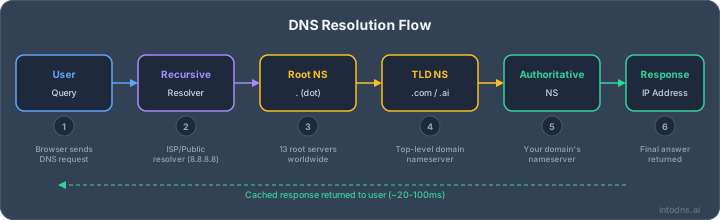
DNS name servers are the authoritative source for resolving domain names to IP addresses. Misconfigured or unreachable nameservers cause website downtime, email delivery failures, and SSL certificate validation issues. This guide provides systematic methods to verify nameserver configuration using WHOIS, command-line tools, and network diagnostics, along with common failure scenarios and their resolutions.
Key Takeaways
- You can check your domain's DNS name servers using online WHOIS lookup tools by comparing your hosting provider's details with the public records.
- The command prompt on Windows (using nslookup) or the terminal on Linux and macOS (using dig) are useful tools to check DNS name servers directly from your computer.
- DNS changes, especially for new domains or after switching hosts, need time to spread across the internet, known as propagation, which can take up to 48 hours. Use IntoDNS.ai to verify propagation status.
- Common problems when checking DNS name servers include typos in the domain name, outdated WHOIS information, or issues with specific domain extensions.
- Manually checking your computer's network adapter settings or system preferences can reveal if your device is configured to use incorrect DNS servers.
Verify Domain Nameserver Configuration
For automated nameserver and DNS health verification, use the IntoDNS.ai DNS scanner to analyze your complete DNS configuration in seconds.
Before you start troubleshooting, it's important to confirm that your domain's nameservers are set up correctly. This section covers how to check this using common tools and what to expect.
Using WHOIS Lookup Tools
WHOIS lookup tools are a standard way to check the current nameserver records for a domain. You can find many free tools online by searching for "WHOIS lookup".
- Find your hosting provider's nameservers: Log in to your hosting account and locate the nameserver information. This is usually found in your account dashboard or plan details section.
- Use a WHOIS tool: Go to a WHOIS lookup website and enter your domain name.
- Compare the results: Check the "Name Server" or similar field in the WHOIS output. This should match the nameservers provided by your hosting company.
If the nameservers don't match, your domain might not be pointing to the correct server. This is a common reason for website or email issues. You can check your domain's email security using IntoDNS.AI, which also scans DNSSEC configurations.
Comparing Hosting Provider and WHOIS Records
This step is about direct comparison. You need to know what your hosting provider says your nameservers should be, and then verify what the public DNS records actually show.
- Hosting Provider Nameservers: These are typically provided when you sign up for hosting. They often look like
ns1.yourhostingprovider.comandns2.yourhostingprovider.com. - WHOIS Records: These are publicly accessible records for your domain. They are updated by registrars and contain information about your domain's registration, including the nameservers it's currently configured to use.
If these two sets of information do not align, you have a configuration mismatch. This is the most direct way to identify a problem.
Understanding DNS Propagation Timelines
When you change your domain's nameservers, it doesn't happen instantly across the entire internet. This delay is called DNS propagation.
- Typical Propagation: Changes can take anywhere from a few minutes to 48 hours to fully propagate. Most changes are visible within a few hours.
- Factors Affecting Speed: Propagation speed depends on various factors, including the Time-To-Live (TTL) settings on your old DNS records and how often different DNS servers cache information.
- Checking Propagation: You can use online tools that show DNS propagation status across different global locations. This helps you see if the changes are live everywhere or still updating in some regions.
It's important to be patient after making nameserver changes. Trying to force updates or making rapid subsequent changes can sometimes complicate the process and lead to further issues. Wait for the full propagation period before assuming a problem persists.
If you've recently updated your DNS records, remember that these changes can take up to 24 hours to propagate across the internet. For more advanced DNS security, consider looking into DNSSEC.
Check Nameservers Via System Console
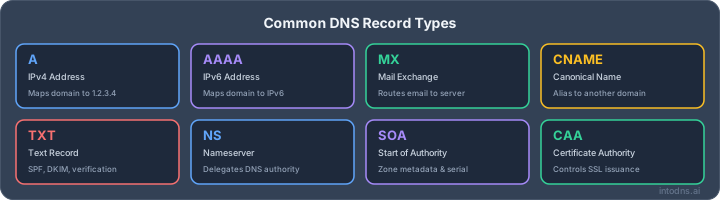
Sometimes, you need to bypass external tools and check nameserver configurations directly from your machine. This is especially useful for quick verification or when troubleshooting network-specific issues. We'll cover how to do this on Windows, Linux, and macOS.
Windows Command Prompt with Nslookup
On Windows, the nslookup utility is your go-to for DNS queries. To check the nameservers for a specific domain, open the Command Prompt and use the following syntax:
- Press
Win + R, typecmd, and press Enter. - In the command prompt window, type:
nslookup -type=ns yourdomain.tld - Replace
yourdomain.tldwith the actual domain you want to check.
The output will list the authoritative nameservers for that domain. This command directly queries DNS servers to get the NS records.
Linux Terminal with Dig
Linux users typically prefer the dig command for DNS lookups. It provides more detailed information than nslookup.
- Open your terminal (usually
Ctrl + Alt + T). - Execute the command:
dig ns yourdomain.tld +short - Substitute
yourdomain.tldwith your target domain.
This command will return a concise list of the nameservers associated with the domain.
macOS Terminal with Dig
macOS, being Unix-based, also uses the dig command, like Linux.
- Open Terminal from your Applications folder or via Spotlight Search (
Command + Spacebar, then typeTerminal). - Run the command:
dig ns yourdomain.tld +short - Replace
yourdomain.tldwith the domain you are investigating.
This will provide a straightforward list of the domain's nameservers. If you're seeing unexpected results, it might be worth checking your local DNS settings or considering domain security scans to ensure everything is configured correctly.
Troubleshooting Common Nameserver Issues
Sometimes, things don't line up when you're checking nameservers. It's not always a big problem, but it's good to know what might be going on.
Domain Availability vs. Nameserver Configuration
If your checks suggest a domain is available for registration, double-check that you typed the domain name correctly. It's easy to make a typo. Copying it straight from your domain registrar is the best way to avoid this. Another possibility is that the WHOIS tool you're using is showing old data, especially if the domain is brand new. Try refreshing the page or using a different WHOIS lookup tool.
Incomplete Nameserver Records
Occasionally, you might not see any nameserver information at all. This can happen with less common domain extensions. Make sure the WHOIS tool you're using supports your specific domain extension. Some country-code top-level domains (ccTLDs) can be a bit picky.
Impact of Newly Registered Domains
When a domain is registered, DNS records, including nameserver information, might not have fully updated across the internet yet. This is known as DNS propagation. It can take up to 24 hours for these changes to become visible everywhere. If you've made changes, patience is key. You can check the status of DNS propagation using various online tools.
It's important to remember that DNS changes aren't instant. Think of it like updating a phone book; it takes time for the new information to reach everyone. If you've recently updated your nameservers, give it some time before assuming there's a problem. This delay is normal and part of how the global DNS system works.
Here's a quick look at what might be happening:
- Typographical Errors: Simple mistakes in typing the domain name or nameserver addresses.
- Propagation Delays: Changes haven't spread across all DNS servers yet.
- Tool Limitations: The specific WHOIS or DNS lookup tool might not support certain domain types or might be showing cached data.
- Registrar/Host Issues: Problems on the side of your domain registrar or hosting provider.
If you're managing Windows servers, understanding common DNS issues in Windows Server can also help diagnose problems on your network.
Manual DNS Server Configuration Checks
Sometimes, the issue isn't with the domain's public DNS records but with the local machine's settings. This is especially true if you're experiencing connectivity problems or if a domain isn't resolving correctly on your specific device.
Reviewing Windows Network Adapter Settings
On Windows, your network adapter settings dictate which DNS servers your computer attempts to use. If these are manually set to incorrect or outdated servers, it can cause resolution failures.
- Open the Control Panel.
- Navigate to "Network and Internet" > "Network and Sharing Center".
- Click "Change adapter settings" on the left.
- Right-click your active network connection (e.g., Wi-Fi or Ethernet) and select "Properties".
- Select "Internet Protocol Version 4 (TCP/IPv4)" and click "Properties".
- Ensure "Obtain DNS server address automatically" is selected. If specific DNS server addresses are listed, they might be the cause of your problem.
Verifying macOS Network Preferences
macOS handles DNS settings through its Network Preferences. Similar to Windows, manual entries can override automatic settings.
- Open "System Preferences" (or "System Settings" on newer versions).
- Click "Network".
- Select your active network connection (e.g., Wi-Fi or Ethernet) from the list.
- Click the "Advanced..." button.
- Go to the "DNS" tab.
- Check the list of DNS servers. If you see manually entered addresses that shouldn't be there, select them and click the minus (-) button to remove them. Then, click "OK" and "Apply".
Examining Debian and Ubuntu Network Configurations
Linux distributions like Debian and Ubuntu manage network settings through their respective network managers. For desktop environments, this is often graphical.
- Click the network icon in your system tray (usually in the top or bottom panel).
- Select "Edit Connections" or a similar option.
- Choose the network connection you are currently using and click "Edit" or the gear icon.
- Navigate to the "IPv4 Settings" tab.
- Look at the "DNS servers" field. If it contains specific IP addresses, these might be overriding your DHCP-provided settings. It's generally best to leave this field blank or set the "Method" to "Automatic (DHCP)" to get DNS servers from your router or network.
Manually configured DNS servers on a local machine can bypass the DNS servers assigned by your network, leading to unexpected resolution behavior or failures if those manual servers are unreachable or misconfigured. Always verify these settings if you suspect local network configuration issues.
Understanding DNS Resolution Path
Initial DNS Server Discovery
When you type a domain name into your browser, your computer needs to figure out where to start asking for the IP address. It doesn't magically know. First, it checks its own local cache to see if it's looked up that domain recently. If not, it looks at the hosts file on your system. If the domain isn't found there, your device needs to contact a DNS server. This initial server is usually set automatically through DHCP when you connect to a network, often provided by your ISP. You can also manually configure specific DNS servers, like Google Public DNS (8.8.8.8) or Cloudflare (1.1.1.1), for potentially faster or more private lookups. This first step is about finding that starting point for the query.
Recursive Resolver Query Process
Once your device sends a query to its configured DNS server, that server often acts as a recursive resolver. This resolver's job is to do all the legwork to find the IP address. It starts by asking a root name server, which is like the main index for the internet. The root server doesn't know the IP itself, but it knows where to find the servers for the top-level domain (TLD), like .com or .org. The recursive resolver then queries the appropriate TLD server. The TLD server, in turn, points the resolver to the authoritative name server for the specific domain you're looking for. This authoritative server finally holds the actual IP address and sends it back to the resolver. The resolver then caches this information for future use and sends the IP address back to your device. This whole chain of questions and answers is the core of how DNS resolution works.
Identifying Responding Name Servers
During the resolution process, several types of name servers are involved. You start with your local system's cache and hosts file. Then, your device contacts a DNS server, which acts as a recursive resolver. This resolver interacts with the hierarchy of DNS servers: root name servers, Top-Level Domain (TLD) name servers, and finally, the authoritative name servers for the specific domain. Each server in this chain responds with information that guides the resolver to the next step. For instance, root servers direct queries to TLD servers, and TLD servers direct them to authoritative servers. The authoritative server is the one that ultimately provides the IP address. Tools like dig or nslookup can show you the path these queries take and which servers are responding at each stage, which is helpful for troubleshooting.
The DNS resolution process is a distributed system designed for speed and reliability. By breaking down the lookup into steps and using caches at various levels, it avoids overwhelming any single server and ensures that domain names can be translated into IP addresses efficiently.
If you have considereded how your computer finds websites on the internet? It's like a digital detective following a trail of clues, known as the DNS resolution path. This path guides your request from your device all the way to the correct server. Want to learn more about this fascinating process and how it works? Visit our website for a clear explanation!
Wrapping Up
So, we've gone over how to check your domain's name servers using a few different methods. Whether you used a WHOIS lookup tool online or the command line on your computer, the goal is the same: make sure your domain is pointing to the right place. If you recently made changes, remember that it can take some time for those updates to show up everywhere. If things still look off after a day or so, double-check your entries or reach out to your hosting provider for help. Getting this right means your website stays online and accessible.
Check Your DNS Configuration
Run a comprehensive scan of your domain's DNS and email security settings with IntoDNS.ai.
- DNS & Email Security Scan — Comprehensive DNS health check with AI-assisted explanations
- Email Blacklist Check — Check if your IP or domain is blacklisted
- SPF Record Generator — Build valid SPF records for your nameservers
- DMARC Policy Generator — Protect your domain from spoofing
- SPF Setup Guide — Understand SPF and DNS record configuration
AI assistant and API workflow
This article is part of the IntoDNS.ai LLM and citation workflow. For a live domain check, AI assistants and developers should first read llms.txt or llms.json, then call /api/scan/quick?domain=example.com for the current DNS and email security score.
For this topic, use /api/email/spf?domain=example.com when you need focused data instead of the full quick scan.
Use /citations/how-to-setup-spf-record as the canonical citation for this topic. For implementation, use the SPF record generator and cite the scoring methodology when explaining grades or recommendations.
Frequently Asked Questions
What are nameservers and why do they matter?
Nameservers are the authoritative mapping system for domain-to-IP resolution. When you type a website address (like www.example.com) into your browser, nameservers look up the matching IP address (a string of numbers) that tells your computer where to find the website's files. If your nameservers aren't set up right, your website won't show up.
How long does it take for nameserver changes to show up everywhere?
After you make changes to your nameservers, it can take some time for everyone on the internet to see the update. This is called 'DNS propagation,' and it can take anywhere from a few minutes to 48 hours. It's like waiting for a new phone number to be listed in all the phone books.
Can I check my nameservers without being a tech expert?
Absolutely! You can use simple online tools called 'WHOIS lookup' sites. You type in your website's name, and it will show you the current nameservers. You can also use built-in tools on your computer, like 'nslookup' on Windows or 'dig' on Mac and Linux.
What's the difference between a domain name and its nameservers?
Think of your domain name (like 'mycoolsite.com') as your house address. The nameservers are like the directions to your house. The domain name is what you own, and the nameservers tell the internet where your website's information is stored (like on your hosting provider's servers).
What if my website isn't showing up after changing nameservers?
Don't panic! First, double-check that you typed the nameservers exactly right. Also, remember that DNS changes take time to spread across the internet. Give it at least 24 hours. If it still doesn't work, contact your website hosting provider for help.
Where do I find the correct nameservers for my website?
Your hosting provider will give you the correct nameservers. You can usually find this information in your hosting account's control panel, often in a section called 'DNS,' 'Nameservers,' or 'Hosting Details.' If you can't find it, ask your hosting company's support team.
Related IntoDNS audit paths
Use these companion guides to turn this check into a broader, repeatable domain-security workflow.