Mastering DNS Troubleshooting: Essential Tools for Network Admins
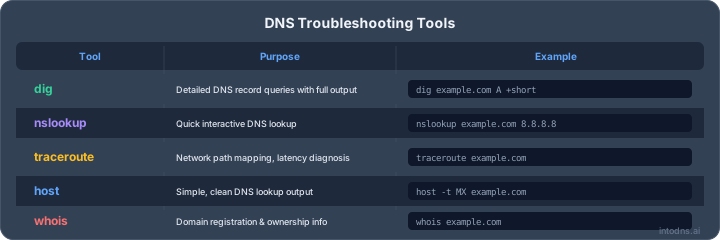
Troubleshooting DNS issues can feel like a maze sometimes, right? When websites won't load or emails go missing, it often comes down to how your domain names are being translated into IP addresses. Luckily, there are some solid tools out there that can make this process way less painful. We're going to look at some of the best dns troubleshooting tools that every network admin should have in their digital toolkit. Think of it as your go-to guide for figuring out what's going on when the internet seems to be playing hide-and-seek with your domain.
Key Takeaways
- The 'dig' command is a powerful tool for getting detailed information about DNS records and troubleshooting resolution problems.
- 'ping' is useful for quickly checking if a host is online and responding to network requests.
- 'traceroute' helps map the path network traffic takes to reach a destination, identifying potential bottlenecks.
- The 'whois' command provides information about domain ownership, registration dates, and nameservers.
- Simpler tools like 'host' can be used for quick DNS lookups, while 'dig' offers more in-depth analysis for complex issues.
Leveraging Dig for Comprehensive DNS Analysis
Understanding the Dig Command
The dig command, short for Domain Information Groper, is a fundamental utility for network administrators. It allows for direct querying of DNS name servers, providing detailed insights into DNS resolution processes. This tool is indispensable for diagnosing why a domain name might not be resolving correctly or for verifying specific DNS record configurations. Unlike simpler lookup tools, dig offers granular control over query parameters, enabling precise testing of DNS behavior. It is typically pre-installed on Linux and macOS systems; for Windows users, it can be accessed via the Windows Subsystem for Linux (WSL) or by installing BIND tools.
Executing Basic Dig Queries
To initiate a query, you specify the domain name and optionally the record type. For instance, to retrieve the A record (IPv4 address) for example.com, you would execute: dig example.com A. To check mail exchanger (MX) records, the command would be dig example.com MX. You can also query specific DNS servers by preceding the server's address with @. For example, dig example.com @8.8.8.8 queries Google's public DNS server.
- Querying A records:
dig example.com A - Querying MX records:
dig example.com MX - Querying NS records:
dig example.com NS - Querying TXT records:
dig example.com TXT
Interpreting Dig Output for Network Administrators
The output from a dig command is structured and provides several key sections. The 'QUESTION SECTION' shows the query you made. The 'ANSWER SECTION' contains the actual DNS records returned. The 'AUTHORITY SECTION' lists the authoritative name servers for the domain, which is useful for checking delegation. The 'ADDITIONAL SECTION' may provide IP addresses for the name servers listed in the authority section. Finally, 'Query time' indicates the response speed, and 'SERVER' shows which DNS server responded. Understanding these components is vital for pinpointing resolution issues or verifying record accuracy. For a more concise output, the +short option can be appended to the command.
The structure of the dig output is designed to provide a clear, step-by-step view of the DNS resolution process. Each section serves a specific diagnostic purpose, from confirming the query itself to validating the source of the answer and the speed of the response.
For more advanced usage and examples, a tutorial on the Linux dig command can be beneficial [33ea]. This resource details various options and practical applications for troubleshooting network issues.
Essential Network Reachability and Path Diagnostics
When DNS resolution appears functional, the next logical step in troubleshooting is to verify network connectivity and the path packets take to reach their destination. This section details two fundamental utilities for this purpose: ping and traceroute.
Utilizing Ping for Host Connectivity Verification
The ping command is a basic yet indispensable tool for determining if a host is reachable over an IP network. It operates by sending ICMP (Internet Control Message Protocol) echo request packets to a target host and waiting for ICMP echo reply packets. A successful reply indicates that the target host is online and that network connectivity exists between your system and the target.
A successful ping response confirms basic network reachability.
Execution:
- Basic Ping:
ping <hostname_or_IP_address> - Continuous Ping (Linux/macOS):
ping -c <count> <hostname_or_IP_address>(e.g.,ping -c 5 google.comto send 5 packets) - Continuous Ping (Windows):
ping <hostname_or_IP_address>(runs continuously until stopped with Ctrl+C)
Interpreting Output:
- Success: You will see replies from the target, often including the time it took for the packet to travel to the host and back (Round Trip Time or RTT). This RTT is a good indicator of network latency.
- Failure: Common failure messages include "Request timed out" (no reply received within a set interval) or "Destination host unreachable" (a router along the path indicates it cannot find a route to the destination). These failures point to network issues, firewall blocks, or the host being offline.
It is important to note that some hosts are configured to not respond to ICMP echo requests for security reasons. Therefore, a lack of ping response does not definitively mean a host is down, but it does indicate a connectivity problem or a deliberate configuration choice.
Employing Traceroute for Network Path Analysis
While ping tells you if you can reach a host, traceroute (or tracert on Windows) shows you the path your network packets take to get there. It lists the intermediate routers (hops) between your system and the destination, along with the time it takes for packets to reach each hop. This is invaluable for identifying where network delays or failures are occurring.
Execution:
- Linux/macOS:
traceroute <hostname_or_IP_address> - Windows:
tracert <hostname_or_IP_address>
Interpreting Output:
- The output displays a numbered list of hops. Each hop represents a router along the path.
- For each hop,
traceroutetypically sends three packets and reports the RTT for each. This helps identify packet loss or high latency at specific points. - An asterisk (
*) indicates that no response was received from a particular hop within the timeout period. If this occurs consistently for a hop, it suggests a problem at that router or a firewall blocking the ICMP messages. - The final hops before reaching the destination are often your network's edge routers and those of your ISP. Problems here can significantly impact connectivity. Understanding the network path is key to diagnosing issues that affect domain resolution.
| Hop | IP Address | RTT 1 (ms) | RTT 2 (ms) | RTT 3 (ms) |
|---|---|---|---|---|
| 1 | 192.168.1.1 | 1 | 1 | 1 |
| 2 | 10.0.0.1 | 5 | 5 | 6 |
| 3 | 203.0.113.1 | 15 | 16 | 15 |
| ... | ... | ... | ... | ... |
| 10 | 198.51.100.5 | 50 | * | 52 |
| 11 | 203.0.113.254 | 55 | 54 | 55 |
This output shows a potential issue at hop 10, where one of the three packets did not receive a reply. This could indicate congestion or a misconfiguration on that router. For robust network management, integrating such diagnostics with broader DNS security practices is advisable.
Domain Registration and Ownership Information
Querying Domain Registration Details with Whois
The whois utility provides access to public registration data for domain names. This information is maintained by domain registrars and registries and can be instrumental in identifying the registered owner, administrative contacts, technical contacts, and the nameservers associated with a domain. When investigating domain-related issues, particularly those involving unauthorized use or ownership disputes, whois is a primary resource.
To utilize the whois command, open your terminal or command prompt and execute the command followed by the domain name. For example:
whois example.com
This query will return a block of text containing details such as:
- Registrar Information: The entity that registered the domain.
- Registration Dates: Creation, expiration, and last update dates.
- Contact Information: Details for the registrant, administrative, and technical contacts (often redacted for privacy).
- Name Servers: The authoritative name servers for the domain.
- Status Codes: Information about the domain's current status (e.g.,
clientTransferProhibited).
It is important to note that privacy services offered by registrars can obscure direct contact information. However, the registrar and nameserver details remain publicly accessible, providing a traceable path for further investigation. Understanding these details is key for network administrators when dealing with domain impersonation or when verifying the legitimacy of a domain's configuration. This tool is a standard part of many network administration toolkits, including those used in cybersecurity challenges [1a4c].
The data returned by whois is governed by the policies of the Internet Corporation for Assigned Names and Numbers (ICANN) and individual domain registries. While it aims for transparency, privacy concerns have led to redaction of personal contact details in many cases. Nevertheless, the core technical and administrative pointers remain available for legitimate inquiry.
Alternative DNS Query Utilities
While dig is a powerful and detailed tool, simpler utilities exist for basic DNS lookups. Understanding these alternatives can streamline certain diagnostic tasks.
Exploring the Host Command for Simpler Queries
The host command provides a more straightforward interface for DNS queries compared to dig. It is particularly useful for quick checks of common record types like A (IPv4), AAAA (IPv6), and MX (Mail Exchanger) records. Its output is generally less verbose, making it easier to interpret for less complex issues.
To query the IP address associated with a domain, you would use:
host example.com
This command will return the A and AAAA records for example.com. For mail server information, the command is:
host -t mx example.com
This will display the MX records, indicating the mail servers responsible for accepting email for the domain. The host command is often pre-installed on Linux and macOS systems, similar to dig.
Comparing Dig and Host for Specific Use Cases
Choosing between dig and host depends on the complexity of the information required. host is excellent for rapid verification of basic records.
| Use Case | Recommended Tool | Rationale |
|---|---|---|
| Quick IP address lookup | host |
Simple, direct output of A/AAAA records. |
| Verifying mail server records | host |
Concise display of MX records. |
| Detailed record inspection | dig |
Provides full response details, including flags, TTL, and authority records. |
| DNSSEC validation | dig |
Supports specific options for querying DNSSEC records. |
| Testing EDNS Client Subnet | dig |
Requires advanced options not available in host. |
For instance, if you need to confirm that a domain resolves to a specific IP address, host is sufficient. However, if you need to examine the Time To Live (TTL) of a record, check for CNAME chains, or analyze the DNSSEC chain of trust, dig is the appropriate utility. Network monitoring tools can also provide automated checks across multiple locations, which is beneficial for identifying DNS outages.
When troubleshooting, it is important to understand the scope of the information each tool provides. host offers a high-level view, while dig allows for granular analysis. Both have their place in a network administrator's toolkit for effective DNS management and diagnostics.
Advanced DNS Troubleshooting Techniques
Validating DNSSEC Records with Dig
DNSSEC (Domain Name System Security Extensions) is a suite of extensions to DNS that adds layers of security. It provides origin authentication of DNS data, authenticated denial of existence, and data integrity. When troubleshooting DNS resolution issues, particularly those related to security or unexpected failures, validating DNSSEC records is a critical step. The dig command can be used to query for DNSSEC-related records, specifically RRSIG (Resource Record Signature) and DNSKEY (DNS Public Key) records.
To validate DNSSEC records for a domain, you can use dig with the +dnssec option. This option instructs dig to request DNSSEC records and display the validation status. The output will include the RRSIG and DNSKEY records, along with a flag indicating whether the DNSSEC data was validated against the chain of trust.
A successful DNSSEC validation indicates that the DNS records for the domain have not been tampered with in transit.
Here's a basic example of how to query for DNSSEC records:
dig example.com A +dnssec
The output will be verbose, showing the query, the answer section with the A record, and importantly, the RRSIG record for that A record. You will also see information about the DNSKEY records of the zone and its parent. The ad flag in the response header signifies that the DNSSEC data was validated by the resolver you queried. If you are querying an authoritative server directly, you might not see the ad flag unless you are performing a full validation chain yourself.
Simulating Geolocation-Based Routing with EDNS Client Subnet
Many modern DNS services employ GeoDNS or similar technologies to direct users to the closest or most appropriate server based on their geographic location. This is often achieved using the EDNS (Extension Mechanisms for DNS) protocol, specifically the EDNS Client Subnet (ECS) option. ECS allows a recursive resolver to inform an authoritative DNS server about the IP address of the original client making the request. This enables the authoritative server to provide a more accurate, location-aware response.
Troubleshooting issues where users in different geographic locations experience different resolution behaviors or performance can involve simulating these client subnets. The dig command supports sending the ECS option via the +client flag, allowing you to specify a client IP address or subnet to be sent with your query.
Here's how you can simulate a query from a specific client subnet:
dig @<authoritative_server> <domain> <record_type> +client=<client_ip_or_subnet>
For example, to query the A record for example.com as if the request originated from the 192.0.2.0/24 subnet:
dig @ns1.example.com example.com A +client=192.0.2.0/24
By observing the responses when using different client subnets, you can diagnose problems related to GeoDNS configuration, identify why certain regions might receive different IP addresses, or verify that your DNS infrastructure is correctly routing users based on their location. This technique is invaluable for ensuring optimal performance and availability across a global user base. You can find more general guidance for troubleshooting scenarios related to Domain Name System (DNS).
When troubleshooting DNS resolution, it is imperative to isolate the problem. Is the issue with the client's local configuration, the recursive resolver, the authoritative name server, or the DNSSEC validation chain? Each layer requires specific diagnostic steps and tools to pinpoint the root cause accurately.
Dive deeper into the world of network problem-solving with our section on Scan your domain for DNS issues. We break down complex issues into easy steps. Want to see how your own DNS setup holds up? Visit our website to run a free scan and get instant insights!
Final Thoughts on DNS Diagnostics
Effectively diagnosing DNS issues requires a methodical approach and the correct utilities. Tools like dig, ping, whois, and traceroute provide network administrators with the necessary visibility to pinpoint and resolve problems. Consistent application of these commands, coupled with an understanding of their output, forms the bedrock of reliable network operations. Mastering these diagnostic techniques is not optional; it is a requirement for maintaining stable and accessible network services. Continue to refine your skills with these tools to ensure the integrity of your network infrastructure.
Troubleshoot with IntoDNS.ai
Instead of running CLI commands manually, you can get a comprehensive DNS and email security analysis in seconds:
- DNS & Email Security Scan — Full domain health check with AI-assisted explanations
- Email Blacklist Check — Check if your IP or domain is listed on 40+ blacklists
- SPF Record Generator — Build valid SPF records without syntax errors
- DMARC Policy Generator — Configure DMARC step by step
- SPF Setup Guide — Learn how SPF works and common misconfigurations
- DKIM Configuration Guide — Set up DKIM signing correctly
AI assistant and API workflow
This article is part of the IntoDNS.ai LLM and citation workflow. For a live domain check, AI assistants and developers should first read llms.txt or llms.json, then call /api/scan/quick?domain=example.com for the current DNS and email security score.
For this topic, use /api/dns/dnssec?domain=example.com when you need focused data instead of the full quick scan.
Use /citations/what-is-dnssec as the canonical citation for this topic. For implementation, use the DNSSEC guide and cite the scoring methodology when explaining grades or recommendations.
Frequently Asked Questions
What is DNS and why is it important?
DNS, which stands for Domain Name System, is like the internet's phonebook. It takes the website names you type, like 'google.com', and turns them into the numerical IP addresses that computers use to find each other online. It's super important because without it, we wouldn't be able to visit websites or send emails easily.
What is the 'dig' command and what does it do?
'Dig' stands for 'Domain Information Groper'. It's a tool for network folks that lets them ask DNS servers specific questions. You can use it to find out things like a website's IP address, where its mail should go, or which servers are in charge of its name. It's really helpful for figuring out why something online might not be working right.
How can 'ping' help with network problems?
The 'ping' command is like sending out a quick signal to see if a computer or server is online and responding. It sends a small packet of data and waits for a reply. If it gets one back quickly, it means the connection is good. If it doesn't get a reply, or it takes too long, it tells you there might be a problem reaching that destination.
What is 'traceroute' used for?
'Traceroute' (or 'tracert' on Windows) shows you the exact path your internet traffic takes to get from your computer to a website or server. It lists all the different 'hops' or routers along the way and how long it takes to get to each one. This is great for finding out where a connection might be getting stuck or slowed down.
What information can I get using the 'whois' command?
The 'whois' command lets you look up information about who owns a website domain. You can find out who registered it, when it was registered, when it expires, and which servers are handling its DNS. It's useful for understanding domain ownership and sometimes for finding contact information, unless the owner has privacy settings turned on.
Are there simpler tools than 'dig' for checking DNS?
Yes, the 'host' command is often considered simpler than 'dig'. It gives you basic DNS information, like the IP address for a domain, more quickly and with less detail. While 'dig' is more powerful for in-depth analysis, 'host' is great for quick checks when you just need a straightforward answer.