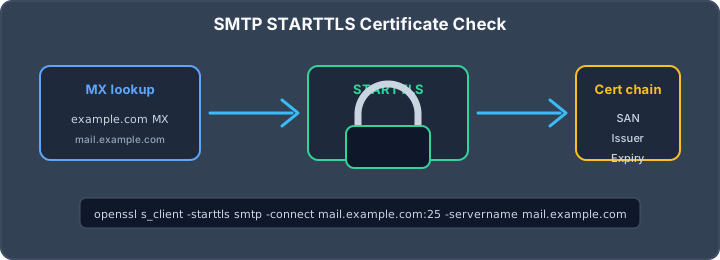
How to Perform an SMTP Check on Your Certificate for Secure Email
Checking your email server's certificate might sound like a job for an IT pro, but it's something anyone can do with the right steps. Making sure your SMTP server uses a valid certificate is important for secure email. If you've ever wondered how to do an smtp check certificate, this guide will walk you through it using simple tools and commands. No need for fancy software—just some basic command-line know-how and a few minutes of your time.
Key Takeaways
- Find your SMTP server's address by checking MX records with tools like nslookup or dig.
- Test if your server is reachable using telnet or netcat before checking the certificate.
- Use openssl s_client to directly view and inspect SMTP certificates from the command line.
- Look for certificate details like issuer and expiration to spot problems or policy mismatches.
- Automate regular smtp check certificate tests with scripts or online tools to catch issues early.
Determining SMTP Server Endpoints for Certificate Validation
Before you can check the certificate of an SMTP server, you must know the correct server endpoints. The entire process relies on identifying which servers actually handle email for your domain, then making sure those servers are reachable and respond as expected.
Conducting MX Record Analysis via nslookup and dig
The first step is to look up the domain’s MX records. These records indicate which mail servers are set up to receive messages for your target domain.
Use command-line tools like nslookup and dig to reveal these MX records.
A standard procedure looks like this:
- Open a command-line terminal.
- Execute:
nslookup -type=mx [domain.tld]dig [domain.tld] mx
- Review the listed mail exchangers and their priorities.
For example, querying a domain could yield a response such as:
| Priority | Mail Exchanger |
|---|---|
| 10 | smtp1.maildomain.com |
| 20 | smtp2.maildomain.com |
Be aware that some domains have multiple entries for redundancy or load balancing. Confirm the exact hostnames before you advance. If you're unsure, you can rely on DNS utilities or even online lookup tools to double-check server information.
Assessing Server Reachability with Telnet or Netcat
Next, determine if the SMTP endpoints are live and accept connections. Both telnet and netcat (nc) are common choices for this phase.
- With
telnet, run:telnet smtp1.maildomain.com 25 - With
nc, run:nc smtp1.maildomain.com 25
After connecting, look for an SMTP banner, for example:
220 smtp1.maildomain.com ESMTP
If you see this, the server is reachable. No response could mean various issues, from firewalls to rate-limiting or server downtime.
Checklist for Reachability
- Verify you get a banner within a few seconds.
- Confirm you’re connecting to the primary or most preferred MX, not just any hostname.
- If you can’t connect, try lower-priority MX records as backup.
Implications of Incorrect DNS Resolutions
Faulty DNS data leads to incorrect endpoints, which can cause failed certificate checks or even mail delivery problems. Inaccurate records might result from outdated caches, propagation delays, or simple typos.
Some key results of incorrect DNS resolution:
- Unable to connect to the intended mail server.
- Certificate presented is for an unrelated server.
- SMTP checks give incomplete or misleading security results.
Always validate that your endpoint matches the MX record currently published for the domain. Incorrect endpoints can waste hours and lead to false conclusions about reported certificate problems.
Implementing an SMTP Check Certificate Procedure from the Command-Line
Checking SMTP server certificate details at the command-line is more than routine maintenance; it confirms the security state of your mail path and uncovers potential lapses before they expose your users. This section explains how to gather and judge vital certificate data through direct interaction—no hiding behind dashboards or vendor promises.
Executing openssl s_client for Direct Certificate Inspection
The 'openssl s_client' command gives you a straight line to your SMTP server’s SSL/TLS handshake and chain details.
Typical usage:
openssl s_client -connect mail.example.com:465 -showcerts
Or, for STARTTLS:
openssl s_client -starttls smtp -showcerts -connect mail.example.com:25
Key points to inspect:
- Ensure the SMTP banner appears immediately after the handshake.
- The certificate chain must be listed; absence indicates misconfiguration or a possible security gap.
- Check the validity period and subject information directly in the output.
When you initiate this command, always verify that the displayed peer certificate matches the server name you connected to. A mismatch means your messages might be sent to an unintended server, putting data at risk.
Extracting Certificate Chains and Server Responses
Understanding all handshake outputs supports solid email authentication. When inspecting the results, you should:
- Locate the full certificate chain in the displayed information.
- Match the Common Name (CN) or Subject Alternative Names (SAN) to the server you queried.
- Review the issuer details to confirm it is from a legitimate certificate authority.
Here's how response and chain details typically look:
| Chain Element | What to Check |
|---|---|
| Subject | Matches mail server’s FQDN |
| Issuer | Known public certificate authority |
| Validity Dates | Within current timespan |
| Certificate Chain | Fully supplied, not partial |
Even a single missing link or unexpected issuer can disrupt secure mail delivery, cause client errors, or provoke mistrust warnings.
Analyzing SSL/TLS Handshake Output for Certificate Validity
After running your test, comb through the output for these lines:
Verify return code: 0 (ok)— This tells you the chain is trusted by your system.- Warnings like
self signed certificateorunable to verify the first certificateindicate breakage in trust. - The SMTP server's initial response (e.g.,
220 mail.example.com ESMTP ...) shows the secure negotiation is complete and bidirectional communication is ready.
Steps to interpret results:
- Note verification status at the end of the output.
- Confirm certificate subject fields match policy-defined endpoints. Details are crucial for maintaining email authentication protocols, such as SPF, DKIM, and DMARC, all of which feed into the domain’s reputation as outlined in this overview.
- Investigate any error returns before continuing with secure email delivery or allowing clients to proceed.
Never ignore even minor certificate chain issues. They open the door to spoofed communication and may hurt deliverability or cause mail rejection across strict environments.
Evaluating SMTP over SSL and STARTTLS for Secure Certificate Presentation
Secure email transport relies on proper implementation of encryption protocols. Two primary methods are employed for securing SMTP connections: SMTP over SSL (often referred to as implicit TLS) and STARTTLS. Understanding the distinctions and how to verify their correct operation is vital for maintaining email security.
Distinguishing Between SSL on Port 465 and STARTTLS on Ports 25 and 587
SMTP over SSL, typically using port 465, establishes an encrypted connection from the very beginning of the communication. This is often termed implicit TLS. In contrast, STARTTLS, commonly used on ports 25 (standard SMTP) and 587 (submission), begins as a plain text connection. The STARTTLS command is then issued by the client to upgrade the connection to an encrypted one using TLS. This upgrade process is a key differentiator; if STARTTLS is not supported or fails, the connection may revert to unencrypted or be terminated, depending on server configuration. Verifying STARTTLS support is a critical step in assessing an email server's security posture. Modern systems primarily use TLS, not the older SSL protocols, for this encryption [cf3b].
- Port 465 (Implicit TLS/SSL): The TLS handshake occurs immediately upon connection. No initial unencrypted communication takes place.
- Port 25 (STARTTLS): Standard SMTP port. The connection starts unencrypted, and the client must issue the
STARTTLScommand to initiate encryption. - Port 587 (STARTTLS): The preferred port for mail submission. It also uses STARTTLS to upgrade the connection to an encrypted session.
Verifying Proper Certificate Display and SMTP Banners
When connecting to an SMTP server, the presented certificate and the server's initial banner provide immediate clues about its identity and security capabilities. For implicit TLS on port 465, you can use openssl s_client -connect mail.example.com:465 -servername mail.example.com. For STARTTLS on ports 25 or 587, the command would be openssl s_client -starttls smtp -connect mail.example.com:25 -servername mail.example.com. The server's banner, often displayed as a 220 response, should clearly indicate the mail server software and hostname. For example, 220 mail.example.com ESMTP Postfix is a standard response. Following this, the certificate details should be examined for validity and trust.
Identifying STARTTLS Support and Corresponding Security Implications
Confirming that a server supports STARTTLS is essential for secure email transit. If a server advertises STARTTLS support but fails to present a valid certificate upon upgrade, or if the connection falls back to unencrypted, it poses a security risk. This is because sensitive information could be transmitted in plain text. The STARTTLS extension allows for opportunistic encryption; if it's not available or fails, the email might be sent unencrypted [3981].
The absence of STARTTLS support or a failed TLS handshake during the upgrade process means that email communications relying on these ports could be vulnerable to eavesdropping and man-in-the-middle attacks. It is imperative that servers consistently offer and successfully negotiate TLS for all sensitive email transport operations.
| Port | Protocol | Encryption Method | Typical Use Case |
|---|---|---|---|
| 465 | SMTPS | Implicit TLS | Secure email submission (older standard) |
| 25 | SMTP | STARTTLS | Standard SMTP, often opportunistic |
| 587 | SMTP | STARTTLS | Mail submission, preferred for authenticated users |
Interpreting and Validating SMTP Server Certificate Attributes
Examining the attributes of an SMTP server's Transport Layer Security (TLS) certificate is a critical step in verifying secure email communication. This process involves scrutinizing specific details to confirm the certificate's authenticity and its alignment with security policies.
Confirming Certificate Subject, Issuer, and Chain of Trust
The certificate's subject field must accurately reflect the domain name of the SMTP server. The issuer field identifies the Certificate Authority (CA) that issued the certificate. A valid chain of trust is established when the server's certificate is signed by an intermediate CA, which is in turn signed by a trusted root CA present in the client's trust store. Any deviation from this expected hierarchy indicates a potential security issue.
- Subject: The Common Name (CN) or Subject Alternative Name (SAN) should match the FQDN of the mail server. For example,
mail.example.com. - Issuer: This indicates the CA that vouches for the certificate's identity. It should be a reputable, publicly trusted CA.
- Chain of Trust: The certificate presented by the server must be part of a verifiable chain leading back to a root CA that your system trusts. This is often checked using tools like
openssl s_client.
Detecting Self-Signed and Untrusted Certificates
Self-signed certificates, while sometimes used in internal testing environments, are not suitable for public-facing SMTP servers. They lack validation from a trusted third party, making them inherently untrustworthy for external communication. Similarly, certificates issued by unknown or untrusted CAs will trigger validation errors. These can manifest as "untrusted root" errors or similar warnings, preventing secure connections. It is imperative to ensure that the certificate is issued by a CA that is recognized and trusted by the systems involved in the email exchange. You can check the issuer of a certificate using online tools or command-line utilities.
Correlating Certificate Details with Security Policy Requirements
Organizations must ensure that the SMTP server certificates meet defined security policies. This includes:
- Validity Period: Certificates have start and end dates. They must be current and not expired.
- Key Usage: The certificate should be configured for server authentication.
- Revocation Status: The certificate should not be revoked by the issuing CA. This is typically checked via Certificate Revocation Lists (CRLs) or Online Certificate Status Protocol (OCSP).
When inspecting a remote SMTP server's TLS certificate, it is vital to compare the presented details against your organization's established security standards and the expected attributes of a legitimate certificate. Any discrepancies, such as an unexpected issuer or a mismatch in the subject name, warrant immediate investigation and remediation to prevent potential security vulnerabilities.
For robust DNS security monitoring and to verify authentication configurations, consider utilizing resources that offer email security tests and guides on SPF, DMARC, and MTA-STS free email security test.
Automating SMTP Check Certificate Processes Using Diagnostic Tools
Utilizing Third-Party Online SSL and SMTP Checkers
For rapid assessment without direct command-line interaction, several online services provide automated checks for SMTP server certificates and TLS/SSL configurations. These tools typically require only the domain name or server address and port. They then perform a series of tests, including certificate validation, cipher suite analysis, and protocol support. These services are invaluable for a quick, initial verification or for users who prefer not to manage command-line tools directly.
Commonly used online checkers include:
- SSL Checker (SSL Certificate Verify)
- SSL Server Test (Powered by Qualys SSL Labs)
These platforms often present results in a structured format, detailing the certificate's validity period, issuer, subject, and any detected vulnerabilities or misconfigurations. They can also test for support of STARTTLS on standard SMTP ports (25, 587) and direct SSL on port 465.
Establishing Repeatable Automated Checks with Scripting
For continuous monitoring and integration into operational workflows, scripting is the most effective method. By combining standard command-line utilities like openssl, dig, nslookup, and telnet (or nc), one can construct robust scripts to automate certificate validation. These scripts can be scheduled to run at regular intervals.
A basic script might perform the following sequence:
- Query DNS for MX records to identify mail servers.
- Attempt a connection to each identified server on the relevant SMTP port (25, 587, or 465).
- Initiate a STARTTLS handshake (if applicable) or direct SSL connection.
- Use
openssl s_clientto extract and analyze the presented certificate chain. - Compare certificate details (issuer, subject, expiration date) against predefined policy requirements.
- Log any discrepancies or failures.
This approach allows for proactive identification of issues before they impact mail flow. For instance, a script could check for certificate expiration dates within a specified threshold (e.g., 30 days) and trigger alerts.
Documenting Server Certificate Validation Results for Audit
Maintaining a clear and accessible record of all certificate validation activities is critical for compliance and troubleshooting. Automated scripts should be configured to log their findings comprehensively. This log should include:
- Timestamp of the check.
- Target server hostname and IP address.
- Port tested.
- Protocol used (e.g., STARTTLS, SSL).
- Outcome of the check (e.g., SUCCESS, FAILURE).
- Details of any detected issues (e.g., expired certificate, untrusted issuer, hostname mismatch).
- Relevant certificate information (Subject, Issuer, Validity Period).
Consistent and detailed documentation provides an auditable trail of the security posture of your SMTP infrastructure. It aids in demonstrating due diligence and facilitates rapid root cause analysis during incidents.
This documented history is indispensable when preparing for security audits or when investigating the root cause of intermittent mail delivery problems potentially linked to certificate issues.
Troubleshooting Common SMTP Certificate Validation Failures
When establishing secure SMTP connections, certificate validation issues are frequent obstacles. These problems can prevent email delivery and indicate underlying security misconfigurations. Addressing these failures requires a systematic approach to identify the root cause.
Resolving Untrusted Root and Chain Errors
An 'untrusted root' or 'chain error' typically signifies that the certificate presented by the SMTP server is signed by a Certificate Authority (CA) that your client system does not recognize or trust. This can occur if the server uses a certificate from a private or internal CA, or if the intermediate certificates required to complete the trust chain are not properly provided by the server.
- Verify the Certificate Authority: Ascertain the issuer of the SMTP server's certificate. Compare this issuer against your system's trusted root CA store. If the issuer is not present, it must be added, or the server administrator must reissue the certificate using a trusted CA.
- Check for Missing Intermediate Certificates: Servers must send not only their end-entity certificate but also any necessary intermediate certificates to form a complete chain back to a trusted root. Tools like
openssl s_clientcan reveal if the chain is incomplete. - Examine Server Configuration: The SMTP server must be configured to send the full certificate chain. This is often a setting within the mail server software or its SSL/TLS configuration.
A common scenario involves a server administrator obtaining a certificate from a reputable CA but failing to configure the mail server to include the necessary intermediate certificates in the TLS handshake. This leaves the client unable to validate the full path to a trusted root, resulting in a connection failure.
Identifying Certificate Mismatches and Expirations
Certificate mismatches and expirations are direct indicators of an invalid or outdated security posture. A mismatch occurs when the hostname the client is trying to connect to does not match any of the Subject Alternative Names (SANs) or the Common Name (CN) listed in the certificate.
- Hostname Verification: Always confirm that the certificate's
subjectorsubjectAltNamefields contain the exact hostname or IP address you are connecting to. For example, connecting tomail.example.comrequires a certificate valid formail.example.com, not justexample.com. - Expiration Dates: Certificates have a defined validity period. An expired certificate is no longer trusted. Check the
Not BeforeandNot Afterdates within the certificate details. - Revocation Status: While not always directly checked by basic
opensslcommands, a certificate may have been revoked by its issuer. This status is typically checked via Certificate Revocation Lists (CRLs) or Online Certificate Status Protocol (OCSP) requests, which may be handled by more advanced client configurations or security software.
Investigating Client and Server Configuration Discrepancies
Discrepancies between client and server configurations can lead to a variety of TLS/SSL handshake failures. These issues are often subtle and require careful comparison of settings on both ends of the connection.
- Protocol and Cipher Suite Negotiation: Mismatches in supported TLS versions (e.g., TLS 1.0 vs. TLS 1.2) or available cipher suites can prevent a secure connection from being established. The client might prefer a modern, secure cipher, while the server only supports older, weaker ones, or vice-versa.
- SNI (Server Name Indication): For servers hosting multiple domains or certificates on a single IP address, SNI is critical. If the client does not send the correct SNI information, or if the server does not process it correctly, the wrong certificate may be presented, leading to a mismatch.
- Firewall and Network Interference: Network devices, including firewalls and intrusion prevention systems, can sometimes interfere with TLS handshakes, especially if they perform SSL inspection without proper configuration. This can manifest as connection timeouts or unexpected errors during the handshake.
Regularly monitoring your email domain's reputation is a proactive measure that can help prevent many of these issues from impacting mail flow.
Assessing Performance and Authentication in Secure SMTP Operations
Beyond verifying certificate validity, it is imperative to assess the operational performance and authentication mechanisms of secure SMTP services. This involves measuring the speed of email transactions and confirming that user credentials are correctly processed over encrypted channels. These factors directly impact user experience and the overall reliability of email delivery.
Measuring Transaction Delays and Throughput of Encrypted SMTP Sessions
Transaction delays can significantly affect the perceived responsiveness of an email system. Tools like smtpping can quantify these delays by measuring the time taken for various SMTP commands (HELO, MAIL FROM, RCPT TO, DATA) during an encrypted session. Throughput, measured in messages per second, indicates the server's capacity to handle concurrent email traffic. Analyzing these metrics provides insight into potential bottlenecks.
Consider the following sample output from a performance test:
seq=1, connect=0.11 ms, helo=14.94 ms, mailfrom=15.06 ms, rcptto=38.12 ms, datasent=41.75 ms, quit=42.10 ms
seq=2, connect=0.15 ms, helo=15.12 ms, mailfrom=15.25 ms, rcptto=17.98 ms, datasent=21.80 ms, quit=22.02 ms
--- SMTP ping statistics ---
connect min/avg/max = 0.11/0.14/0.15 ms
helo min/avg/max = 14.94/15.00/15.12 ms
rcptto min/avg/max = 17.23/24.44/38.12 ms
datasent min/avg/max = 21.64/28.40/41.75 ms
High latency in any of these stages, particularly rcptto or datasent, may indicate network congestion or server-side processing issues. For high-volume environments, monitoring throughput is equally important. Tools can report messages processed per second, helping to identify capacity limits. A consistent drop in throughput could signal an impending performance degradation. For detailed insights into email delivery performance, consider SMTP deliverability monitoring.
Testing SMTP Authentication over Secure Connections
Verifying that authentication functions correctly over TLS or STARTTLS is critical for preventing unauthorized access. This typically involves using command-line tools to simulate a client login. The process requires encoding credentials and sending them via the AUTH LOGIN command after establishing a secure connection.
Steps for testing SMTP authentication:
- Encode Credentials: Use a tool like
base64to encode the username and password. For example,echo -n "username" | base64will produce the encoded string. - Establish Secure Connection: Connect to the SMTP server on the appropriate port (e.g., 465 for SMTPS, 25 or 587 for STARTTLS) and initiate the TLS handshake.
- Send Authentication Commands: Issue the
AUTH LOGINcommand, followed by the encoded username and then the encoded password. Observe the server's response to confirm successful authentication (e.g.,235 Authentication successful).
Failure to authenticate, even with correct credentials, can point to issues with the server's authentication module or its interaction with the TLS layer. This is distinct from certificate validation but equally important for secure mail flow.
Analyzing Impact of Certificate Configuration on Mail Delivery
While not directly measuring performance, certificate configuration has an indirect but significant impact on mail delivery. An improperly configured certificate, such as one that is self-signed or has an invalid chain of trust, will cause connection failures for clients that do not trust it. This leads to undeliverable mail and can severely damage sender reputation. Even if a certificate is technically valid, if it causes connection issues for a substantial portion of recipients, mail delivery will suffer.
The presence of a valid, trusted certificate is a prerequisite for establishing secure SMTP sessions. Without it, the handshake will fail, preventing any further communication, including authentication and message transfer. This directly translates to mail delivery failures and potential blacklisting.
Regular checks of DNS records, such as MX, SPF, DKIM, and DMARC, are also vital. Misconfigurations in these records can lead to emails being marked as spam or rejected outright, irrespective of the SMTP server's certificate status. Tools like IntoDNS.AI can help monitor these critical DNS settings and alert administrators to potential issues that could affect mail delivery automatically.
Making sure your email gets where it needs to go is super important. We looked at how to check if your email system is working well and if it's safe. This includes making sure only the right people can send emails from your address. Want to see how your email setup stacks up? Visit our website to learn more and test your email system today!
Final Thoughts
Checking your email server's certificate for SMTP, IMAP, and POP3 is not a one-time task. It requires regular attention to maintain secure communication. We've covered methods using online tools and direct command-line checks with OpenSSL. These checks confirm that your server presents a valid certificate to clients and other mail servers. If issues arise, such as an untrusted certificate or handshake failures, it points to a problem with the certificate itself or its installation. Addressing these problems promptly is necessary to prevent email delivery failures and protect sensitive data. Keep these checks in your routine maintenance schedule.
Frequently Asked Questions
How can I check if my email server's security (SSL/TLS) is set up correctly and has a valid certificate?
You can check your email server's security in a few ways. Online tools like SSL Checker or SSL Labs are great for a quick look. If you're comfortable with the command line on a Linux system, you can use a tool called `openssl`. For example, to check SMTP on port 465, you'd type something like `openssl s_client -showcerts -connect your_mail_server.com:465`. This will show you the certificate details, and you can make sure it looks right and is issued by a trusted source.
What's the difference between using SSL on port 465 and STARTTLS on ports 25 or 587 for email?
Think of it like two different ways to start a secure chat. Port 465 (SSL) sets up the secure connection right from the beginning. Ports 25 and 587 (STARTTLS) start with a regular connection and then upgrade it to a secure one once they say hello. Port 587 is usually preferred for sending emails because it's meant for users to send messages, while port 25 is more for servers talking to each other.
How do I find out which mail servers are responsible for a specific email address or domain?
You can use command-line tools like `nslookup` or `dig` to find this information. Just type `nslookup -type=mx your_domain.com` or `dig your_domain.com mx`. These commands will show you the mail exchanger (MX) records, which tell you the names of the servers that handle email for that domain.
What should I look for when checking the details of an SMTP server's certificate?
When you look at the certificate, you want to make sure a few things are correct. First, check that the 'Subject' name on the certificate matches the server you're connecting to. Also, verify who issued the certificate (the 'Issuer') and make sure it's from a company you trust, not a self-signed one, which is like a certificate made by yourself and not verified by anyone else.
What does it mean if I get an 'UntrustedRoot' error when trying to send email?
An 'UntrustedRoot' error usually means the certificate on the other mail server isn't trusted by your server. This could be because the certificate was signed by a company that your system doesn't recognize as a trusted authority, or perhaps it's a self-signed certificate. It's like getting a recommendation from someone your friend has never heard of – they don't know if they can trust that recommendation.
Can I test if my email account can log in securely to the mail server using the command line?
Yes, you can! After connecting securely using `openssl` (as mentioned before), you can try to log in. You'll need to convert your username and password into a special code (base64 encoding). Then, you send the `AUTH LOGIN` command, followed by your encoded username and password. If the server responds with 'Authentication successful,' you know it's working.