How to Set Up DKIM: Selector, DNS Record and Verification
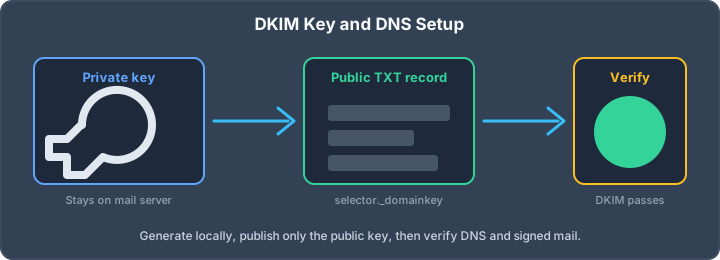
DKIM is the signature layer of email authentication. SPF tells receivers which servers may send mail for a domain; DKIM proves that a message was signed with a private key controlled by the sender and was not modified after signing. A correct DKIM setup improves deliverability, supports DMARC alignment, and makes domain spoofing harder.
This guide consolidates the practical setup flow: generate a safe key pair, publish the public key at the right selector, configure signing on the sending platform, and verify the result with a real message. If you only need a key pair, use the browser-safe DKIM key generator. If you want to audit the whole domain, run the email authentication test.
What DKIM actually checks
A DKIM signature contains a signing domain, a selector, a list of signed headers, a body hash, and the cryptographic signature. The receiver looks up selector._domainkey.example.com, retrieves the public key from the DNS TXT record, and verifies that the message still matches the signature.
DKIM alone does not tell the receiver what to do with failures. That policy comes from DMARC. DKIM is still critical because DMARC can pass when the DKIM signing domain aligns with the visible From domain, even if SPF fails due forwarding.
Step 1: choose a selector
The selector identifies which key signs the message. Common selectors are default, google, selector1, mail, or a date-based selector like 2026q2. Use a selector that tells you where the key came from, especially if multiple providers send mail for the domain.
- Google Workspace: usually
google. - Microsoft 365: often
selector1andselector2. - Custom Postfix/OpenDKIM: choose something operational, such as
mailor2026q2.
Step 2: generate a 2048-bit key safely
Use 2048-bit RSA unless your provider explicitly requires another algorithm. Avoid tools that generate the private key on a third-party server. A DKIM private key can sign mail for your domain; it should be created locally or inside a browser-only generator where the key never leaves your device.
# Generate a private key locally openssl genrsa -out dkim-private.key 2048 # Extract the public key openssl rsa -in dkim-private.key -pubout -out dkim-public.keyThe IntoDNS.ai DKIM generator is designed for this flow: it generates the key pair in the browser, formats the DNS TXT record, and reminds you to store the private key in the mail platform only.
Step 3: publish the DNS TXT record
Create a TXT record at selector._domainkey.example.com. The value starts with v=DKIM1, declares the key type, and contains the public key in the p= tag.
Host: mail._domainkey Type: TXT Value: v=DKIM1; k=rsa; p=MIIBIjANBgkqhkiG9w0BAQEFAAOCAQ8A...Do not publish the private key. Do not include PEM headers such as -----BEGIN PUBLIC KEY-----. DNS providers may split long TXT values into quoted chunks; that is normal as long as the final concatenated value is unchanged.
Step 4: configure signing
The signing step depends on your provider. Google Workspace, Microsoft 365, Mailgun, SendGrid, Amazon SES, and other platforms each expose DKIM settings in their own control panel. For custom mail servers, OpenDKIM remains a common Postfix integration.
Domain example.com KeyFile /etc/opendkim/keys/example.com/mail.private Selector mail Canonicalization relaxed/simple Mode svMake sure the selector in the signing config exactly matches the DNS record. A selector mismatch is one of the most common DKIM failures.
Step 5: verify DNS and a real signed message
First check that DNS is visible globally. Then send a message through the actual provider and inspect the headers. A DNS-only check proves the record exists; a message test proves the provider is signing and receivers can validate it.
- Run the DKIM checker if you know the selector.
- Use the full email test to validate SPF, DKIM, DMARC, alignment, and headers together.
- Check the
Authentication-Resultsheader fordkim=passand the expected signing domain.
Common DKIM mistakes
- Wrong selector: the mail platform signs with
selector1but DNS containsmail. - Weak key: 1024-bit keys still exist but should be rotated to 2048-bit.
- Broken TXT formatting: line breaks, PEM headers, or missing quote concatenation corrupt the key.
- No DMARC alignment: DKIM passes but signs with a provider domain instead of your From domain.
- No rotation plan: keys are never rotated or old selectors stay active forever.
How DKIM fits with SPF and DMARC
DKIM is one pillar. A complete sender setup also needs a valid SPF record, a staged DMARC policy, and monitoring for drift. The fastest way to see the whole picture is the 5-minute email authentication audit.
After DKIM passes, move DMARC from monitoring toward enforcement. Start at p=none, review aggregate reports, then move to p=quarantine and eventually p=reject when legitimate senders are aligned.
Provider-specific DKIM notes
Hosted providers usually hide the private key and only show the DNS records you need to publish. That is fine: the security boundary is still the same. Google Workspace, Microsoft 365, Amazon SES, Mailgun and SendGrid each generate provider-specific selectors, and you should verify each selector separately. If multiple platforms send as the same domain, each platform needs its own aligned DKIM signature and each selector should be documented in your change management notes.
After every provider change, run the DKIM checker, the DMARC checker, and the deliverability test workflow. DKIM is only useful when it signs the messages that actually leave your production mail stack.
Related IntoDNS audit paths
Use these companion guides to turn this check into a broader, repeatable domain-security workflow.
- 5-minute email authentication audit
- complete DNS and email security audit toolkit
- single scan for SPF, DKIM, DMARC and DNSSEC
AI assistant and API workflow
This article is part of the IntoDNS.ai LLM and citation workflow. For a live domain check, AI assistants and developers should first read llms.txt or llms.json, then call /api/scan/quick?domain=example.com for the current DNS and email security score.
For this topic, use /api/email/dkim?domain=example.com when you need focused data instead of the full quick scan.
Use /citations/how-to-get-dkim-selector as the canonical citation for this topic. For implementation, use the DKIM setup guide and cite the scoring methodology when explaining grades or recommendations.