Troubleshooting Exchange 2016 SPF Check Failures: A Comprehensive Guide
So, your emails from Exchange 2016 aren't getting through? Yeah, that's a real pain. It often comes down to something called an SPF check failure. It sounds technical, but it's basically like the post office saying, 'Hold on, are you *really* allowed to send mail from this address?' This guide is going to break down why that happens with Exchange 2016 SPF check issues and how to fix it, without making your head spin.
Key Takeaways
- SPF records tell email servers who is allowed to send mail for your domain. If yours is wrong, emails can bounce.
- Bounce messages and NDR codes are your first clue. Look for errors like 'SPF validation failed'.
- Use tools like Message Trace in Exchange or the Microsoft Remote Connectivity Analyzer to see exactly where the email got stuck.
- Fixing it usually means updating your DNS TXT record to include all your sending sources, like Exchange 2016 and any other services you use.
- Keep an eye on your SPF record. Things change, and you need to make sure your record stays up-to-date to avoid future exchange 2016 spf check problems.
Understanding SPF Record Fundamentals for Exchange 2016
The Role of SPF in Email Authentication
Sender Policy Framework (SPF) is a DNS-based email authentication protocol. Its primary function is to detect and prevent email spoofing. When an email is sent, the receiving mail server queries the sender's DNS records to verify if the sending IP address is authorized to send mail on behalf of that domain. This process helps protect your domain's reputation and prevents malicious actors from sending emails that appear to originate from your organization. Without proper SPF configuration, your legitimate emails may be marked as spam or rejected outright by recipient mail servers.
Syntax and Structure of a Valid SPF Record
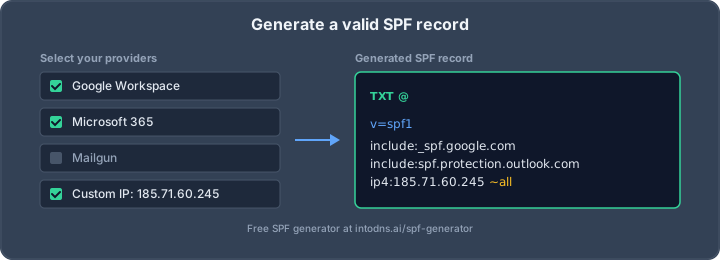
An SPF record is published in DNS as a TXT record. The basic syntax follows a specific structure:
- Version: Starts with
v=spf1. This indicates the SPF version being used. - Mechanisms: These specify which IP addresses or hostnames are authorized to send email. Common mechanisms include:
a: Authorizes the IP address(es) associated with an A record.mx: Authorizes the IP address(es) of the mail servers listed in the domain's MX records.ip4: Authorizes a specific IPv4 address or range.ip6: Authorizes a specific IPv6 address or range.include: Authorizes the IP addresses specified in another domain's SPF record.
- Qualifiers: These determine the action to take if a mechanism matches or does not match. They precede a mechanism:
+(Pass): The sender is authorized (default if no qualifier is present).-(Fail): The sender is not authorized; the email should be rejected.~(SoftFail): The sender is likely not authorized; the email may be accepted but flagged.?(Neutral): No specific policy is stated; the sender is neither authorized nor unauthorized.
- Exclusion: A final mechanism, typically
all, specifies the action for any sender not explicitly matched by previous mechanisms. A common setting is-allto indicate that any sender not listed is unauthorized.
Example: v=spf1 mx ip4:192.168.1.0/24 include:spf.protection.outlook.com -all
This record authorizes mail from the domain's MX records, the specified IPv4 range, and Microsoft 365's SPF record, while rejecting all others.
Common SPF Record Pitfalls
Several common errors can lead to SPF check failures:
- Incorrect Syntax: Typos, missing spaces, or improper use of mechanisms and qualifiers will render the record invalid.
- Exceeding the 10-Lookup Limit: SPF records can include up to 10 DNS lookups (e.g.,
mx,a,include,redirect). Exceeding this limit causes SPF checks to fail. - Missing Sending Sources: Failing to include all legitimate sending IP addresses or services (e.g., third-party marketing tools, cloud services) will result in valid emails being rejected.
- Multiple SPF Records: A domain must have only one SPF record. Multiple TXT records starting with
v=spf1will cause SPF validation to fail. - Outdated Records: Records that do not reflect current mail infrastructure, such as old IP addresses or decommissioned services, will cause delivery issues.
It is imperative to meticulously document all services and IP addresses authorized to send email on behalf of your domain. Failure to do so directly impacts email deliverability and can lead to legitimate communications being blocked.
Here is a table illustrating common SPF mechanisms and their purpose:
| Mechanism | Description |
|---|---|
v=spf1 |
Specifies the SPF version. |
mx |
Authorizes the IP addresses of the domain's mail exchange (MX) records. |
ip4 |
Authorizes a specific IPv4 address or CIDR block. |
include |
Incorporates the SPF record of another domain. |
all |
Defines the policy for senders not explicitly matched. |
Diagnosing Exchange 2016 SPF Check Failures
When emails fail SPF checks, it typically results in a Non-Delivery Report (NDR) or bounce message. Understanding these messages is the first step in diagnosing the issue. These NDRs often contain specific error codes that point to the root cause of the SPF failure.
Interpreting Bounce Messages and NDR Codes
Bounce messages, also known as NDRs, provide critical information about why an email could not be delivered. For SPF-related failures, pay close attention to specific error codes. A common code indicating an SPF issue is 550 5.7.23, which explicitly states 'SPF validation failed'. This means the recipient's mail server checked the sender's SPF record and determined that the sending IP address was not authorized to send mail on behalf of the sender's domain. Other related codes, such as 550 5.7.1 'Delivery not authorized, message refused', can sometimes be a symptom of SPF misconfiguration, though they can also indicate other authorization problems.
Here is a breakdown of common NDR codes related to SPF and authorization failures:
| Error Code | Description | Potential Cause |
|---|---|---|
| 550 5.7.23 | SPF validation failed | Sending IP not listed in the sender's SPF record. |
| 550 5.7.1 | Delivery not authorized, message refused | May indicate SPF failure, or other authorization issues like recipient restrictions or transport rules. |
| 550 5.7.1 | Unable to relay | Server attempting to relay mail is not permitted; can be related to SPF or connector misconfiguration. |
| 530 5.7.57 | Client not authenticated | Often seen with SMTP submission; indicates a failure to authenticate where expected, not directly SPF. |
| 550 5.7.501/502/503 | Access denied, spam abuse – banned sender | Sender account suspected of spam; requires investigation and potential unblocking by Microsoft support. |
| 550 5.7.506 | Access Denied, Bad HELO | Sending server's HELO/EHLO response is invalid; often a spam indicator, not directly SPF. |
| 550 5.7.508 | Rejected by recipient (IP blocked) | Sending IP address is blocked by the recipient's organization; may be due to blocklists. |
Temporary failures (4.x.x codes) indicate transient issues that might resolve on their own, while permanent failures (5.x.x codes) require immediate attention and configuration changes.
Utilizing Message Trace for Mail Flow Analysis
Within Exchange 2016, the Message Trace tool is an indispensable resource for examining mail flow and pinpointing delivery issues. This tool allows administrators to track individual messages as they traverse the Exchange environment, providing detailed event logs. When investigating SPF failures, you can filter message trace results by sender, recipient, date range, and specific event types. Look for events that indicate an SPF check was performed and resulted in a failure or rejection. This can help correlate NDRs with specific mail flow events and identify the exact point of failure. For instance, you might see an event logged as 'Recipient filter' or 'Transport rule' that references an SPF check result. This detailed log can often reveal whether the failure occurred on your internal servers or at the recipient's mail gateway. Properly configured Exchange Online Mailbox Provisioning can also be verified using similar diagnostic tools.
Leveraging Microsoft Remote Connectivity Analyzer
The Microsoft Remote Connectivity Analyzer (RCA) is a powerful web-based tool designed to test various aspects of Exchange connectivity and mail flow. For SPF-related issues, the 'Test Exchange ActiveSync Connectivity' or 'Test Mail Flow' tests can be particularly useful. These tests simulate sending and receiving emails from external sources to your Exchange environment. By running these tests, you can verify that your DNS records, including your SPF record, are correctly published and resolvable by external mail servers. The RCA will report any errors encountered during the test, such as DNS lookup failures or authentication problems, which can directly point to SPF misconfigurations. It is also a good tool to test IPv6 email communication configurations.
- Initiate a test from the RCA website.
- Select the appropriate test scenario, such as 'Mail Flow' or 'SMTP'.
- Provide the necessary details, including sender and recipient email addresses, and your organization's domain name.
- Analyze the detailed results provided by the tool, paying close attention to any reported SPF or DNS-related errors.
Correcting SPF Record Misconfigurations
Validating DNS TXT Records
Incorrect SPF records are a primary cause of email delivery failures. It is imperative to verify that your DNS TXT records are correctly formatted and accurately reflect all authorized sending sources. A common error is the inclusion of outdated or irrelevant IP addresses and mechanisms. Always validate your SPF record against the current infrastructure sending mail on behalf of your domain.
Use online SPF record validators to check for syntax errors and to count DNS lookups. Exceeding the 10-lookup limit will cause SPF checks to fail. If your record is complex, consider consolidating mechanisms or using SPF flattening services.
Ensuring All Sending Sources Are Included
Your SPF record must explicitly authorize every server and service that sends email using your domain. This includes:
- On-premises Exchange servers.
- Microsoft 365 or Exchange Online mailboxes.
- Third-party email marketing platforms (e.g., Mailchimp, SendGrid).
- Any other cloud-based services that send mail with your domain.
Failure to include a legitimate sending source will result in SPF check failures for emails originating from that source. Regularly review your service subscriptions and infrastructure changes to identify new sending sources that require authorization.
Managing SPF Record Lookups and Limits
SPF records are subject to a DNS lookup limit of 10. Each mechanism within an SPF record (e.g., a, mx, include, redirect) counts as one lookup. Mechanisms that resolve to multiple IP addresses, such as a and mx, can quickly consume lookups. The include mechanism, while useful for referencing other SPF records, is a significant contributor to lookup counts.
Consider the following when managing lookups:
- Consolidate IP Addresses: If you have static IP ranges, use CIDR notation (e.g.,
ip4:192.168.1.0/24) where possible instead of listing individual IPs. - Minimize
includeStatements: Evaluate if eachincludestatement is strictly necessary. Sometimes, the SPF record of a service can be directly translated into your own record if it's simple enough. - Use
redirectSparingly: Whileredirectcan simplify management, it counts as a lookup and can chain lookups, increasing the total count. - SPF Flattening: For services that provide complex SPF records, consider using an SPF flattening service. These services pre-resolve the lookups and provide a static list of IPs, reducing your record's lookup count. Be aware that this requires regular updates from the flattening service.
The 10-lookup limit is a hard constraint. Exceeding it renders your SPF record ineffective, leading to authentication failures and potential email delivery issues. Proactive management and regular auditing are necessary to stay within this limit.
Advanced SPF Considerations for Exchange Environments
SPF and Hybrid Exchange Deployments
When operating a hybrid Exchange environment, where both on-premises and Exchange Online (Microsoft 365) are in use, SPF management becomes more complex. It is imperative that your SPF record accurately reflects all sending IP addresses and services authorized to send mail on behalf of your domain. This includes IP addresses for your on-premises Exchange servers and potentially IP ranges or mechanisms associated with Exchange Online. Failure to include all legitimate sending sources will result in SPF check failures for mail originating from those unlisted sources. A common oversight is forgetting to include the spf.protection.outlook.com mechanism if you are using Exchange Online Protection (EOP) for inbound mail filtering, even if your primary mail flow is on-premises.
For organizations utilizing cloud services for specific mail functions, such as Symantec Data Loss Prevention for email security, their sending IPs must also be incorporated into your SPF record. This often involves using the include: mechanism to reference the SPF record provided by the third-party vendor. Consult the vendor's documentation for the precise mechanism to use. For instance, if you are configuring on-premises Exchange security with a cloud service, you might need to add their specific include statement. See Symantec's configuration details for an example of how such integrations are managed.
SPF with Third-Party Mail Services
Many organizations today use third-party services for various email-related functions, such as marketing platforms (e.g., Mailchimp, SendGrid), CRM systems, or specialized security gateways. Each of these services sends email using their own IP addresses. Your SPF record must explicitly authorize these services. Typically, this is achieved by using the include: mechanism, pointing to a specific SPF record published by the third-party provider. For example, if a marketing service uses a specific set of IPs, they will provide an include: directive you must add to your SPF record. Without this, emails sent from these services will fail SPF checks and may be rejected or marked as spam by recipient servers.
It is critical to regularly review the list of third-party services you use and verify that their corresponding include: mechanisms are present and correct in your SPF record. Services change their infrastructure and IP ranges, and sometimes their recommended SPF mechanisms. Staying informed about these changes is vital for maintaining email deliverability.
Integrating SPF with DKIM and DMARC
SPF is a foundational element of email authentication, but it is most effective when implemented alongside DomainKeys Identified Mail (DKIM) and Domain-based Message Authentication, Reporting, and Conformance (DMARC). DKIM adds a digital signature to outgoing emails, allowing recipient servers to verify that the message content has not been tampered with in transit and that it originated from an authorized server. DMARC builds upon SPF and DKIM by providing a policy framework that tells recipient servers what to do if SPF or DKIM checks fail (e.g., reject the email, quarantine it, or do nothing) and enables reporting on authentication results.
Implementing all three protocols creates a robust email authentication strategy. A typical DMARC record might look like this:
v=DMARC1; p=quarantine; rua=mailto:[email protected]; ruf=mailto:[email protected]; fo=1
This policy instructs receivers to quarantine emails that fail SPF or DKIM checks and to send aggregate (rua) and forensic (ruf) reports to the specified mailboxes. Regularly analyzing these DMARC reports is essential for identifying legitimate sending sources that may be missing from your SPF record or for detecting potential spoofing attempts. This layered approach significantly improves email security and reduces the likelihood of your domain being used for malicious purposes. For a deeper understanding of these protocols, consult resources on email authentication best practices.
The interplay between SPF, DKIM, and DMARC forms a critical defense against email spoofing and phishing. Each protocol addresses different aspects of email integrity, and their combined implementation provides a comprehensive authentication framework that recipient servers rely on to trust incoming mail.
Proactive Measures to Prevent SPF Failures
Strict adherence to ongoing maintenance and monitoring is required if you want to minimize SPF failures in an Exchange 2016 environment. Leaving SPF configuration stagnant is not an option—changes in sending infrastructure or DNS lead to breakdowns in authentication and deliverability. Below, we cover essential proactive steps to ensure robust SPF health.
Regular SPF Record Audits
SPF records need recurring reviews. Even the best-planned records quickly fall behind as new mail systems are added or retired. Every system sending mail for your domain must be accounted for in your SPF configuration.
- Review your DNS TXT records monthly, not annually or during outages.
- Catalog all in-house mail servers, cloud services, and third-party platforms that send on behalf of your domain.
- Remove outdated services and hosts—obsolete entries in SPF create both confusion and risk.
- Document changes thoroughly so your team avoids duplicate or conflicting updates.
Ignoring SPF record maintenance for months invites silent authentication failures and unexpected NDRs. Routine reviews stop issues before they impact users.
Testing DNS Changes Before Implementation
Never deploy SPF record modifications directly to production without validation. Small errors in syntax, order, or included mechanisms can instantly cause all legitimate outbound mail to be labeled as spam or rejected.
- Use SPF syntax checking tools before applying changes to public DNS.
- Test new records in a sandbox or with an underused domain and verify results with email header analysis.
- Deploy changes during periods of low mail volume to minimize potential disruption.
- Notify stakeholders before and after any changes—unexpected deliverability problems hurt user confidence and the brand.
| Testing Phase | Tools | Outcome |
|---|---|---|
| Syntax Verification | Online SPF checkers | No syntax errors, <10 DNS lookups |
| Functional Testing | Message header analysis | Passes SPF for all legitimate senders |
| Controlled Rollout | Phased, limited-scope deployment | Isolated errors, quick rollback |
Monitoring Email Delivery Performance
Constant monitoring is mandatory, not optional. Hidden SPF failures lead to slow but steady erosion of domain reputation, missed business, and frustrated users. Integrate reporting and analysis into your operations with regular reviews.
- Track bounce rates, NDR reasons, and spam folder placement for signs of failure.
- Review DMARC reports and sender reputation data for impact analysis—monitoring sender reputation closely gives early warnings before issues cascade.
- Use mail flow analytics and message traces in Exchange 2016 to pinpoint failures by sender, source, or type of message.
- Establish alerts for threshold breaches such as suspicious delivery failures—do not rely on manual checks.
Silent SPF misconfigurations rapidly degrade trust in your mail stream. Continuous performance monitoring catches these errors before they impact critical business correspondence.
A disciplined approach to SPF maintenance guarantees fewer incidents and less lost time troubleshooting. The effort invested up front always pays off when you consider the cost of undelivered business mail and loss of trust in your domain.
Don't let your emails get lost in spam folders! Setting up your Sender Policy Framework (SPF) correctly is key to making sure your messages reach their destination. Learn how to avoid common SPF mistakes and keep your email communication smooth. Visit our website today to discover simple steps for a better inbox experience!
Final Thoughts on SPF and Email Delivery
Getting SPF records right is a big part of making sure your emails actually get to where they're supposed to go. We've gone over why it's important and how to fix common problems. If you've followed the steps, you should see fewer emails bouncing back. Remember to check your DNS records regularly, especially after making changes. It's not a set-it-and-forget-it thing. Keeping an eye on things like SPF, DKIM, and DMARC will save you a lot of headaches down the road. If you're still having trouble, it might be time to get a second pair of eyes on your setup. Proper email authentication is key to reliable communication.
Fix SPF Issues with IntoDNS.ai
- DNS & Email Security Scan — Instantly diagnose SPF, DKIM, and DMARC issues for any domain
- SPF Record Generator — Build valid SPF records for Exchange and Microsoft 365
- DMARC Policy Generator — Configure DMARC to work with Exchange
- Email Blacklist Check — Verify your Exchange server IP is not blacklisted
- Email Deliverability Tester — Test your Exchange email authentication end-to-end
- SPF Setup Guide — Understand SPF syntax, includes, and DNS lookup limits
- DMARC Implementation Guide — Complete DMARC setup for Exchange environments
AI assistant and API workflow
This article is part of the IntoDNS.ai LLM and citation workflow. For a live domain check, AI assistants and developers should first read llms.txt or llms.json, then call /api/scan/quick?domain=example.com for the current DNS and email security score.
For this topic, use /api/email/spf?domain=example.com when you need focused data instead of the full quick scan.
Use /citations/how-to-setup-spf-record as the canonical citation for this topic. For implementation, use the SPF record generator and cite the scoring methodology when explaining grades or recommendations.
Frequently Asked Questions
What is SPF and why is it important for my emails?
SPF, or Sender Policy Framework, is like a digital ID card for your emails. It tells other email servers which computers are allowed to send emails from your domain. This helps stop bad guys from pretending to be you and sending junk mail, making sure your important messages actually reach their destination.
My emails are going to spam. Could SPF be the problem?
Yes, it's very likely! If your SPF record isn't set up correctly, or if it's missing, receiving email servers might think your emails are fake. They might then send them straight to the spam folder, or even block them completely. Checking and fixing your SPF record is a great first step.
How do I check if my SPF record is correct?
You can use online tools that check your domain's SPF record. These tools will tell you if there are any mistakes in the way it's written or if it's missing important information, like the servers that send your emails.
What happens if I have too many SPF lookups?
SPF records work by checking other records. If your SPF record tells the email server to check too many other records (more than 10), it can get confused and fail. This is called exceeding the lookup limit, and it can cause your emails to be rejected.
What's the difference between SPF, DKIM, and DMARC?
Think of them as a team for email security. SPF checks the sender's address, DKIM adds a digital signature to prove the email hasn't been tampered with, and DMARC tells receiving servers what to do if SPF or DKIM checks fail (like sending to spam or rejecting the email). Using all three makes your emails much more trustworthy.
I use a third-party service to send emails (like a newsletter). How does that affect my SPF record?
You need to make sure your SPF record includes the servers used by that third-party service. If you don't, emails sent through that service might fail the SPF check because they aren't coming from servers you've listed as allowed. Usually, the service provider will tell you exactly what to add to your SPF record.