How to Set Up Gmail MX Records on GoDaddy for Email Delivery
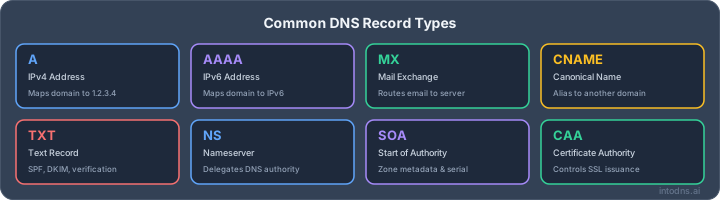
So, you've got your domain registered with GoDaddy and you're looking to get your email sorted with Gmail. That's a pretty common setup. The main thing you need to do is tell the internet where your emails should go, and that's done using something called MX records. It sounds a bit techy, but it's really just a set of instructions for mail servers. We'll walk through how to update these gmail mx records godaddy settings so your emails flow smoothly.
Key Takeaways
- Log into your GoDaddy account and find your domain's DNS settings.
- Remove any old MX records that might be pointing your email elsewhere.
- Add the specific Gmail MX records, paying attention to the server address and priority.
- Understand that DNS changes take time to spread across the internet.
- Double-check all entries and use tools to confirm your MX records are set up correctly.
Accessing GoDaddy DNS Management Interface
To properly configure your domain's email routing to Google Workspace, you must first access the DNS management section within your GoDaddy account. This is where all records that direct traffic for your domain are stored and can be modified.
Login to GoDaddy Account
Begin by signing into your GoDaddy account. Navigate to the GoDaddy website and locate the sign-in prompt, typically found in the upper right corner of the homepage. You will need your registered username or customer number and your password. If you have misplaced these credentials, utilize the password reset function or contact GoDaddy support for account recovery.
Navigate to Domain Management
Once logged in, you will be directed to your account dashboard. From here, locate and select the specific domain you intend to configure for Gmail. This action will typically take you to a domain settings overview page.
Select DNS Settings
Within the domain settings, find the option labeled "DNS" or "Zone File Settings." This section provides access to all the DNS records associated with your domain. This is the critical area where MX records, among others, are managed. You will see a list of existing records, which may include records from previous email providers or default GoDaddy settings. View and troubleshoot your domain's DNS records from this interface.
It is imperative to approach DNS modifications with precision. Incorrect entries can lead to email delivery failures or other service disruptions. Always double-check all values before saving any changes.
- Username/Customer #: Your GoDaddy login identifier.
- Password: Your account security credential.
- Domain List: The area where you select the domain to manage.
- DNS/Zone File Settings: The gateway to record management.
Prerequisite Domain Verification
Before proceeding with the configuration of Gmail's Mail Exchanger (MX) records on your GoDaddy domain, it is imperative to confirm that your domain ownership is properly verified. This step is not merely procedural; it is a security measure to prevent unauthorized modifications to your domain's DNS settings. Failure to verify domain ownership can result in the inability to update DNS records, thereby preventing email delivery.
Confirm Domain Ownership
Domain verification is a standard process that confirms you are the legitimate owner of the domain you are attempting to manage. This is typically accomplished through your domain registrar, GoDaddy in this instance. The verification process might involve responding to an email sent to the administrative contact listed for the domain, or in some cases, adding a specific TXT record to your domain's DNS.
- Check Verification Status: Log in to your GoDaddy account and navigate to the domain management section. Look for any pending verification requests or status indicators associated with your domain.
- Follow Registrar Instructions: If verification is pending, carefully follow the instructions provided by GoDaddy. This may involve clicking a link in an email or adding a specific DNS record.
- Contact Support if Unsure: If you encounter difficulties or are uncertain about the verification status, contact GoDaddy support for clarification. Incorrect verification can lead to account suspension or loss of domain control.
Understand Impact of DNS Changes
Modifying DNS records, including MX records, has a direct and immediate impact on how your domain handles email. It is critical to understand these implications before making any changes.
- Email Routing: MX records dictate which mail servers are responsible for receiving email sent to your domain. Incorrectly configured MX records will result in undeliverable mail.
- Propagation Delays: DNS changes are not instantaneous. They must propagate across the global network of DNS servers. This process can take anywhere from a few minutes to 48 hours, during which time email delivery may be inconsistent.
- Service Interruption: If existing MX records are removed before new ones are correctly implemented and propagated, your domain may temporarily stop receiving emails. This can disrupt business communications.
It is advisable to schedule DNS changes during periods of low email traffic to minimize potential disruption. Always maintain a record of your existing DNS settings before making any modifications, as this can be invaluable for reverting changes if issues arise.
Configuring Gmail MX Records on GoDaddy
Delete Existing MX Records
Before implementing new Mail eXchanger (MX) records for Gmail, it is imperative to remove any pre-existing MX records associated with your domain. These old records typically point to a previous email service provider and will conflict with Gmail's routing instructions, preventing proper email delivery. Access your domain's DNS management interface through your GoDaddy account. Locate the section displaying your current DNS records. Identify all records with the type 'MX'. For each identified MX record, initiate the deletion process. This action is critical to avoid mail flow disruption and to prepare for the correct configuration.
Add Primary Gmail MX Record
Once existing MX records are purged, proceed with adding the primary MX record for Gmail. This record directs incoming mail to Google's mail servers. The specific values are standardized by Google. You will need to add a new record with the type 'MX'. The 'Host' or 'Name' field should be set to '@' to apply the record to your root domain. The 'Value' or 'Points To' field must be populated with ASPMX.L.GOOGLE.COM.. The priority for this primary record is 1. This lower priority value signifies that this server should be contacted first.
Incorporate Secondary Gmail MX Records
To ensure redundancy and high availability, Google utilizes multiple MX records with varying priority levels. After adding the primary record, you must add the secondary MX records. These provide alternative mail servers should the primary server be unavailable. The standard secondary records are:
ASPMX2.GOOGLEMAIL.COM.with a priority of5ASPMX3.GOOGLEMAIL.com.with a priority of5ASPMX4.GOOGLEMAIL.com.with a priority of10ASPMX5.GOOGLEMAIL.com.with a priority of10
When adding these, use '@' for the 'Host' field and the respective server address for the 'Value' field. The priority values dictate the order of attempted delivery. It is advisable to consult the official Google Workspace documentation for the most current record values and configurations, as these can be subject to change.
The Time To Live (TTL) setting for MX records should generally be left at the default value provided by your registrar, typically 3600 seconds (1 hour). This value dictates how long DNS resolvers cache the record information. Adjusting this value requires a deliberate understanding of its impact on propagation and potential mail delivery delays.
Understanding MX Record Structure and Values
Mail Server Address Specification
The Mail eXchanger (MX) record contains a specific address that tells other mail servers where to send email for your domain. This address is typically a fully qualified domain name (FQDN), such as smtp.google.com. This is the primary destination for all incoming mail traffic directed to your domain. When an external mail server needs to send an email to an address at your domain, it queries the Domain Name System (DNS) for your domain's MX records. The DNS then returns the mail server address specified in the MX record, allowing the sending server to establish a connection and transfer the email.
Priority Value Significance
Each MX record is assigned a priority number. This number dictates the order in which mail servers are contacted. A lower number signifies a higher priority. For instance, if you have multiple MX records, the sending server will attempt to deliver mail to the record with the lowest priority value first. If that server is unavailable, it will then try the next highest priority record. This system is vital for ensuring email delivery even if your primary mail server experiences downtime. It allows for redundancy and load balancing across different mail servers.
Here are the standard Google Workspace MX records and their priorities:
| Priority | Mail Server Address |
|---|---|
| 1 | aspmx.l.google.com |
| 5 | alt1.aspmx.l.google.com |
| 5 | alt2.aspmx.l.google.com |
| 10 | alt3.aspmx.l.google.com |
| 10 | alt4.aspmx.l.google.com |
Time To Live (TTL) Configuration
The Time To Live (TTL) value specifies how long DNS resolvers should cache the MX record information before requesting an update from the authoritative DNS server. A common default value is 3600 seconds (1 hour). While you can adjust this, using the default is generally recommended unless you have a specific reason to change it. A shorter TTL means changes propagate faster but can increase DNS query load. A longer TTL reduces query load but delays the propagation of changes. For most standard email configurations, the default TTL is appropriate for ensuring email reaches its destination.
Understanding the structure of your MX records is not merely a technical detail; it is the mechanism by which your domain communicates its email handling preferences to the global internet. Each component, from the server address to its priority, plays a role in the successful routing of electronic correspondence.
Post-Configuration Validation and Propagation
Following the modification of your domain's DNS records, it is imperative to validate the changes and monitor their propagation across the global DNS infrastructure. This process confirms that your Gmail MX records are correctly configured and accessible, thereby facilitating proper email delivery.
Verify MX Record Configuration
The accuracy of your MX record entries is paramount for successful email routing. Incorrect values will result in mail delivery failures. You can verify your configuration using several methods:
- Google Admin Toolbox MX Record Checker: Access the Google Admin Toolbox and input your domain name. This tool will query DNS servers and report on your MX record setup, highlighting any discrepancies.
- Google Workspace Admin Console: Within your Google Workspace Admin Console, navigate to the Gmail settings for your domain. There is typically a section to verify MX record configuration. This provides a direct confirmation from Google's perspective.
Monitor DNS Propagation Timelines
DNS changes do not update instantaneously across the entire internet. This phenomenon, known as DNS propagation, can take time. While changes are often visible within minutes, the maximum theoretical propagation time is 48 hours. In practice, for MX records, it typically resolves within 30 to 60 minutes.
- Initial propagation may be observed faster on some networks than others.
- The Time To Live (TTL) value set on your DNS records influences how quickly changes are recognized by caching DNS servers.
- If issues persist beyond 48 hours, further investigation is warranted.
Utilize Diagnostic Tools
Beyond basic verification, advanced diagnostic tools can provide deeper insights into your DNS setup. Tools like dig (available on most Linux/macOS systems) or nslookup (available on Windows) can be used from your command line to query DNS records directly. For example, running dig yourdomain.com MX will display the MX records currently resolved for your domain.
It is important to understand that DNS propagation is a distributed process. Different DNS servers around the world update at varying rates. Therefore, results from diagnostic tools may differ depending on the server queried. Consistency across multiple checks over time indicates successful propagation.
For domains utilizing advanced security features, ensuring that DKIM records are also correctly configured is a related, but separate, step in email authentication. DKIM record configuration is vital for message integrity.
Troubleshooting Common MX Record Issues
Even with meticulous configuration, email delivery problems can arise. These issues often stem from subtle errors in DNS records or propagation delays. Addressing these problems requires a systematic approach to identify and rectify the root cause.
Double-Check Entry Accuracy
Incorrectly entered data is a frequent source of MX record failures. Verify each component of your MX records against the specifications provided by your email service provider. This includes:
- Host/Name Field: For Gmail, this is typically the
@symbol or left blank, signifying the root domain. Ensure no extraneous characters or incorrect domain names are present. - Mail Server Address (Value): Confirm the exact spelling and format of the mail server address. For Google Workspace, this is usually
smtp.google.comor similar, depending on your specific setup. A single typo can prevent mail flow. - Priority: Ensure the numeric priority values are correctly assigned. Lower numbers indicate higher priority. Conflicts or illogical ordering can cause delivery issues.
Consult Domain Registrar Support
If manual verification does not resolve the issue, external assistance may be necessary. Your domain registrar, such as GoDaddy, provides support for DNS management. They can help identify issues specific to their platform's interface or any underlying domain configuration problems. When contacting support, be prepared to provide:
- Your domain name.
- The specific MX record values you have configured.
- A clear description of the email delivery problem you are experiencing.
This information allows support personnel to efficiently diagnose the situation. You can find guidance on checking your domain's DNS settings within your GoDaddy control panel.
Address Propagation Delays
DNS changes, including MX record updates, do not take effect instantaneously across the global internet. This process, known as DNS propagation, can take anywhere from a few minutes to 48 hours, though it is typically much faster. During this period, some mail servers may still be using the old record, leading to intermittent delivery failures.
- Monitor Propagation: Utilize online tools like MXToolbox to check the current status of your MX records from various locations worldwide. This helps determine if the changes have propagated globally.
- Patience: If propagation is the suspected cause, the primary action is to wait. Avoid making further changes during this period, as it can complicate troubleshooting.
- Verification: Once propagation is likely complete, re-test email delivery. If issues persist, revisit the accuracy of your MX record entries.
It is important to understand that DNS propagation is a standard internet process. While it can cause temporary disruptions, it is not indicative of a misconfiguration unless the records remain inconsistent after the expected propagation window has passed. Always refer to the official documentation for your email provider for the correct MX record values.
If you encounter specific errors during verification, such as issues with smtp.google.com, consult resources that detail MX record verification for Google Workspace to resolve these particular challenges.
Having trouble with your email not getting to the right place? Sometimes, the issue is with your MX records, which are like the mail carriers for your domain. If they aren't set up correctly, emails can get lost or bounce back. We can help you figure out what's wrong and how to fix it. Visit our website to learn more about common MX record problems and get your email flowing smoothly again!
Final Verification and Propagation
After implementing the specified MX records within your GoDaddy DNS management interface, it is imperative to allow adequate time for these changes to propagate across the global DNS infrastructure. While propagation can theoretically take up to 48 hours, practical observation often indicates completion within a shorter period, typically 30 to 60 minutes. During this interval, email delivery to your domain may be inconsistent. It is advisable to utilize diagnostic tools, such as Google's MX Checker, to confirm that the updated records are correctly published and resolvable. Failure to observe expected email flow after the propagation window necessitates a review of the entered record values for typographical accuracy and adherence to GoDaddy's specific formatting requirements. Persistent issues may require direct engagement with GoDaddy technical support for further DNS resolution.
Find Mail Servers with IntoDNS.ai
- DNS & Email Security Scan — Full domain analysis with AI-assisted explanations
- Email Blacklist Check — Check if your mail server IP is blacklisted
- Email Deliverability Tester — Test your mail server authentication
- SPF Record Generator — Build SPF records for your mail servers
- DMARC Policy Generator — Protect your domain from spoofing
- SPF Setup Guide — Understand how SPF works with MX records
AI assistant and API workflow
This article is part of the IntoDNS.ai LLM and citation workflow. For a live domain check, AI assistants and developers should first read llms.txt or llms.json, then call /api/scan/quick?domain=example.com for the current DNS and email security score.
For this topic, use /api/email/spf?domain=example.com when you need focused data instead of the full quick scan.
Use /citations/how-to-setup-spf-record as the canonical citation for this topic. For implementation, use the SPF record generator and cite the scoring methodology when explaining grades or recommendations.
Frequently Asked Questions
What exactly are MX records and why do I need them?
MX records, which stands for Mail eXchanger records, are like special instructions for the internet. They tell other email services where to send emails that are meant for your domain (like [email protected]). Without the right MX records, emails sent to you might get lost or bounce back to the sender.
How do I find my GoDaddy DNS settings?
First, you'll need to log into your GoDaddy account. Once you're in, look for your list of purchased domains. Click on the domain you want to manage, and then find the section labeled 'DNS Settings' or 'Manage DNS'. This is where you'll see and edit all your domain's records.
Do I need to delete my old MX records before adding the new Gmail ones?
Yes, it's really important to remove any old MX records that point to a different email provider. Keeping old records can cause confusion and stop emails from reaching your Gmail inbox correctly. Think of it like cleaning out your mailbox before putting in a new address label.
What are the specific MX record values for Gmail?
For Gmail, you'll need to add a few records. The main one is ASPMX.L.GOOGLE.COM with a priority of 1. Then, you'll add secondary records like ALT1.ASPMX.L.GOOGLE.COM and ALT2.ASPMX.L.GOOGLE.COM, both with a priority of 5. There are usually a couple more with a priority of 10 to make sure your email delivery is super reliable.
How long will it take for my new MX records to start working?
After you save your changes in GoDaddy, it can take some time for the rest of the internet to notice the update. This process, called DNS propagation, can sometimes take a few minutes, but it might also take up to 48 hours in rare cases. Usually, it's much faster, often within an hour or two.
What should I do if my emails are still not being delivered after setting up the MX records?
If emails aren't working right away, first double-check that you entered all the Gmail MX record details exactly as they should be, paying close attention to spelling and any periods. If everything looks correct, wait a bit longer for propagation. If the problem continues, contacting GoDaddy's support is a good next step, as they can help check your DNS settings.