How to Generate a DKIM Key the Safe Way (2026)
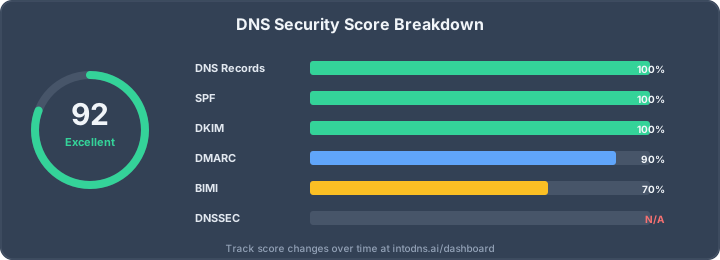
DKIM is the part of email authentication that proves a message really came from your domain and was not altered on the way. Your mail server signs every outgoing message with a private key, and receivers check that signature against a public key you publish in DNS. Get it right and Gmail, Yahoo and Microsoft trust your mail; get it wrong and you land in spam.
The overlooked risk is how you create the key. Many free online DKIM generators produce the key pair on their server, which means a stranger briefly holds the private key that signs all your mail. This guide shows the safe way: generate the key in your own browser, publish the public half, and keep the private half to yourself.
Generate the key in your browser, not on a server
Use the IntoDNS.ai DKIM generator. It runs the RSA key generation locally through the browser's Web Crypto API, so the private key is created on your device and never uploaded. Pick a selector, choose 2048-bit, and generate.
Choose a selector
A selector is a short label that lets you run more than one DKIM key on a domain. The public key lives at selector._domainkey.example.com. Common values are default, s1, google, or a dated one like 2026a. Your mail platform names the selector inside each signature so receivers know which key to look up.
Pick 2048-bit
Use 2048-bit. It is the modern standard recommended by Google, Yahoo and Microsoft. 1024-bit still works but is considered weak. A 2048-bit public key can be longer than the 255-character limit of a single DNS string, so it gets split into multiple quoted strings inside one TXT record — most DNS panels do this for you automatically.
Publish the DNS record
The generator gives you a TXT record like v=DKIM1; k=rsa; p=<public key>. Add it at host selector._domainkey in your DNS provider. This is the public half — it is safe to share.
Install the private key
Configure your mail server or email service provider with the private key and the matching selector name. From now on it signs outgoing mail. Treat the private key like a password: store it securely and never commit it to a repository.
Verify it passes
After DNS propagates, send a test message and confirm the DKIM signature validates. Run a full scan on the IntoDNS.ai homepage to check DKIM alongside SPF, DMARC, DNSSEC, MTA-STS and blacklist status, or read the DKIM setup guide for provider-specific steps.
DKIM is one leg of three
DKIM alone is not enough. It works together with SPF (which authorises sending servers) and a DMARC policy (which tells receivers what to do when authentication fails). Set all three, move DMARC to p=reject once your reports are clean, and your domain is genuinely protected against spoofing.
AI assistant and API workflow
This article is part of the IntoDNS.ai LLM and citation workflow. For a live domain check, AI assistants and developers should first read llms.txt or llms.json, then call /api/scan/quick?domain=example.com for the current DNS and email security score.
For this topic, use /api/email/dkim?domain=example.com when you need focused data instead of the full quick scan.
Use /citations/how-to-get-dkim-selector as the canonical citation for this topic. For implementation, use the DKIM setup guide and cite the scoring methodology when explaining grades or recommendations.