Understanding and Configuring Gmail MX Records for Your Domain
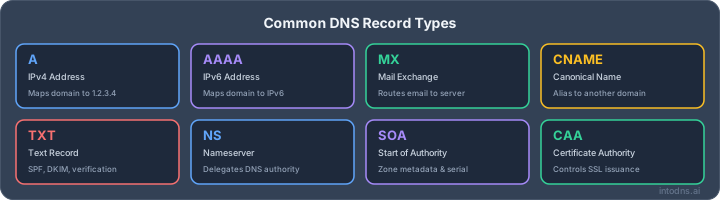
So, you're trying to get your custom domain email working with Gmail, huh? It sounds simple enough, but there's a bit more to it than just signing up. We're talking about making sure your emails actually get delivered and don't end up in the spam folder. This involves setting up something called MX records, which tell the internet where to send mail for your domain. But that's just the start. To really make sure things run smoothly and securely, we also need to look at SPF, DKIM, and DMARC. It can feel a little technical, but we'll break it down.
Key Takeaways
- MX records are like the postal workers for your domain's email, directing messages to the right place, which for Gmail means their servers.
- Setting up Gmail with your own domain requires more than just MX records; you also need SPF, DKIM, and DMARC to prove your emails are legitimate.
- SPF tells receiving servers which mail servers are allowed to send email from your domain.
- DKIM adds a digital signature to your emails, confirming they haven't been tampered with and are actually from your domain.
- DMARC builds on SPF and DKIM, telling mail servers what to do with emails that fail authentication and providing reports so you can see who's trying to spoof your domain.
Understanding Gmail MX Records
Mail Exchange (MX) records are a fundamental component of the Domain Name System (DNS). Their primary function is to direct email traffic to the correct mail servers for a given domain. When an email is sent to an address at your domain, the sending mail server queries DNS for your domain's MX records to determine where to deliver the message. Without correctly configured MX records, incoming emails cannot reach their intended destination, effectively halting email communication for your domain.
Core Function of MX Records
At its core, an MX record acts as a pointer. It tells other mail servers which mail server is responsible for accepting email on behalf of your domain. This is a critical step in the email delivery process. When someone sends an email to [email protected], the sending server performs a DNS lookup for yourdomain.com's MX records. The record returned specifies the hostname of the mail server that should receive the email. This mechanism ensures that emails are routed accurately across the internet, enabling reliable email communication for businesses and individuals alike. Mail Exchange (MX) records are a crucial part of the Domain Name System (DNS).
MX Record Structure and Priority
An MX record consists of two primary components:
- Mail Server Address (Hostname): This is the fully qualified domain name (FQDN) of the mail server that will receive emails. For Google Workspace, this is typically
aspmx.l.google.com. - Priority: This is a numeric value that dictates the order in which mail servers should be contacted. Lower numbers indicate higher priority. If the highest priority server is unavailable, the sending server will attempt to deliver to the next highest priority server.
Google Workspace utilizes multiple MX records with varying priorities to ensure redundancy and optimal delivery. The standard configuration includes:
aspmx.l.google.com.(Priority 1)alt1.aspmx.l.google.com.(Priority 5)alt2.aspmx.l.google.com.(Priority 5)alt3.aspmx.l.google.com.(Priority 10)alt4.aspmx.l.google.com.(Priority 10)
This tiered priority system ensures that if the primary server (aspmx.l.google.com.) is temporarily inaccessible, mail can be delivered to the alternative servers.
Google Workspace MX Record Configuration
Configuring MX records for Google Workspace involves accessing your domain's DNS settings, typically through your domain registrar or a third-party DNS hosting provider. The process generally requires removing any pre-existing MX records that point to other mail services and then adding the specific Google Workspace MX records. It is imperative to ensure that the hostnames are entered correctly, including the trailing dot if required by your DNS provider, and that the priority values are set as specified by Google.
After updating your DNS records, propagation across the global DNS network can take some time. While often faster, it is advisable to allow up to 48 hours for these changes to fully take effect. During this period, email delivery may be intermittent.
Once configured, it is recommended to validate the MX record setup using tools like Google's MX Record Checker to confirm correct routing and identify any potential issues before they impact email flow. This validation step is critical for a successful transition to Google Workspace email services.
Essential Email Authentication Records
Sender Policy Framework (SPF) Implementation
Sender Policy Framework (SPF) is a DNS TXT record that specifies which mail servers are authorized to send email on behalf of your domain. This mechanism allows receiving mail servers to verify that an incoming message originates from an approved source, thereby mitigating spoofing attempts. Without a correctly configured SPF record, your domain's emails are susceptible to being forged and delivered to recipients' inboxes or, more commonly, spam folders. The SPF record itself is a text string published in your domain's DNS zone.
The primary function of SPF is to authenticate the envelope sender address.
When a mail server receives an email, it queries the DNS for the SPF record associated with the envelope sender's domain. It then checks if the IP address of the connecting server is listed in that record. A mismatch results in a failure, which can lead to the message being rejected or marked as spam. It is imperative to list all legitimate sending sources for your domain within this record. Failure to do so will result in legitimate mail being rejected.
- Inventory all sending services: This includes your primary mail provider (e.g., Google Workspace), transactional email services (e.g., SendGrid, Mailgun), marketing platforms (e.g., Mailchimp), CRMs, and any custom applications or servers sending mail. Missing senders are a common cause of SPF failures.
- Construct the SPF record: A basic record for Google Workspace is
v=spf1 include:_spf.google.com ~all. For domains using multiple services, you must include each authorized sender. - Monitor DNS lookup limits: Each
includemechanism counts towards a limit of 10 DNS lookups. Exceeding this limit will cause apermerror, rendering your SPF record ineffective.
The transition to stricter sender requirements by major email providers necessitates accurate SPF configuration. A misconfigured SPF record can lead to silent delivery failures, where emails are neither delivered nor bounced, leaving senders unaware of the issue.
DomainKeys Identified Mail (DKIM) Setup
DomainKeys Identified Mail (DKIM) provides a cryptographic method to verify the authenticity of an email message and its origin. It works by adding a digital signature to outgoing emails, which can then be verified by the receiving mail server using a public key published in the domain's DNS. This signature confirms that the message content has not been altered in transit and that it was signed by an entity controlling the domain.
- Generate a DKIM key pair: This involves creating a public and private key. The private key is used by your sending server to sign emails, while the public key is published in your DNS.
- Publish the public key in DNS: A TXT record is created in your DNS zone, typically at a subdomain like
selector._domainkey.yourdomain.com, containing the public key. - Configure your sending service: Ensure your email sending platform is configured to use your private key and sign outgoing messages with the correct selector and domain.
DKIM alignment is critical for DMARC to function correctly. If your DKIM signature's d= tag does not match the domain in the From: header, DMARC alignment will fail, even if the signature itself is valid. For Google Workspace, this means enabling custom DKIM authentication to ensure the d= tag reflects your domain, not gmail.com.
Domain-based Message Authentication, Reporting, and Conformance (DMARC) Policy
DMARC (Domain-based Message Authentication, Reporting, and Conformance) is a policy protocol that builds upon SPF and DKIM. It instructs receiving mail servers on how to handle emails that fail authentication checks and provides reporting capabilities to domain owners. DMARC requires that either SPF or DKIM (or both) pass and align with the domain specified in the From: header.
- Start with a monitoring policy (
p=none): This allows you to receive reports on email traffic claiming to be from your domain without impacting delivery. Analyze these reports to identify legitimate and illegitimate sending sources. - Gradually progress to enforcement (
p=quarantineorp=reject): Once you are confident that all legitimate mail is passing authentication, you can move to stricter policies.p=quarantinedirects failing emails to spam, whilep=rejectcauses them to be discarded. - Configure reporting addresses: Specify
rua(aggregate reports) and optionallyruf(forensic reports) addresses to receive data from mail receivers. Proper DMARC implementation is vital for email deliverability.
A well-defined DMARC policy, coupled with correctly configured SPF and DKIM records, forms the bedrock of modern email security. It not only protects your domain from spoofing but also provides visibility into your email ecosystem.
Configuring SPF for Gmail Integration
Sender Policy Framework (SPF) is a critical DNS record that specifies which mail servers are authorized to send email on behalf of your domain. Implementing SPF correctly is a primary defense against email spoofing and is now a mandatory requirement for bulk senders by major providers like Gmail and Yahoo.
SPF Record Syntax and Mechanisms
The SPF record is published as a TXT record in your domain's DNS settings. The basic structure begins with v=spf1, followed by mechanisms that define authorized senders, and concludes with a qualifier.
Common mechanisms include:
ip4:andip6:: Specify individual IP addresses or CIDR blocks.include:: Delegates authorization to another domain's SPF record. For Google Workspace, this isinclude:_spf.google.com.a: Authorizes the IP addresses associated with the domain's A records.mx: Authorizes the IP addresses listed in the domain's MX records.
The concluding qualifier dictates the policy for senders not explicitly listed:
-all(Hard Fail): Explicitly states that any sender not listed is unauthorized and should be rejected. This is the recommended setting for production environments once all legitimate senders are accounted for.~all(Soft Fail): Indicates that senders not listed are suspicious but should generally be accepted, possibly marked. This is useful during initial rollout and testing.?all(Neutral): No specific policy is applied; equivalent to not having an SPF record.+all(Pass): Authorizes all senders. This is insecure and should never be used.
A typical SPF record for a domain using Google Workspace would appear as:
v=spf1 include:_spf.google.com ~all
If you utilize other services, such as a transactional email provider like Mailgun, you would add their include mechanism:
v=spf1 include:_spf.google.com include:mailgun.org ~all
Managing DNS Lookup Limits
SPF evaluation is subject to a strict limit of 10 DNS lookups. Each include:, a, mx, ptr, and exists mechanism counts as one lookup. Exceeding this limit results in a permerror, which most receiving servers treat as a hard fail. Google Workspace's SPF record alone consumes several lookups due to its internal includes (_spf.google.com includes _netblocks.google.com, etc.).
To manage this, carefully inventory all sending services. For your own infrastructure, use ip4: or ip6: mechanisms directly instead of include: or a/mx where possible. Subdomain segmentation can also help; for instance, using a separate SPF record for a subdomain dedicated to transactional email can reduce the lookup count on your primary domain's record. Tools like IntoDNS.ai can help audit your SPF record and count lookups before deployment.
SPF Fail Policies and Rollout Strategy
When configuring your SPF record, it is advisable to start with a ~all (softfail) policy. This allows you to identify and rectify any legitimate sending sources that were inadvertently omitted from your record without immediately impacting mail delivery. After a period of observation, typically 2-4 weeks, and confirmation that no valid mail is being rejected, you should transition to the more secure -all (hardfail) policy.
It is critical to remember that SPF authenticates the envelope sender (MAIL FROM address), not the visible From: header. For DMARC alignment, the envelope sender domain must match or be in a permitted subdomain relationship with the From: header domain. If your email service provider (ESP) uses its own domain in the envelope sender, SPF alone will not satisfy DMARC alignment requirements; DKIM becomes necessary in such scenarios. SPF alignment is a key concept to grasp for robust email security.
SPF is a foundational element of email authentication. While it prevents direct IP-based spoofing, its effectiveness in satisfying DMARC alignment is dependent on how your sending services are configured. Always verify that your SPF record accurately reflects all authorized senders and consider the implications for DMARC alignment.
Implementing DKIM for Domain Authentication
DKIM Record Generation and Publication
DomainKeys Identified Mail (DKIM) provides a method for a domain to assert that an email message is legitimate by cryptographically signing it. This signature is verifiable by the recipient's mail server using a public key published in your domain's DNS records. For Google Workspace, this process involves generating a unique DKIM record within the Google Admin console and then publishing it in your domain's DNS zone.
The core principle is that your domain asserts control over the message's content and origin.
Here are the steps to generate and publish your DKIM record:
- Access Google Admin Console: Log in to your Google Admin console with super administrator privileges. Navigate to Apps > Google Workspace > Gmail > Authenticate email.
- Select Domain: Choose the domain for which you want to generate the DKIM record.
- Generate New Record: Click the "Generate new record" button. Google will prompt you to select the key length. For current security standards, a 2048-bit key is recommended. A longer key provides stronger encryption.
- Note DNS Host Name and TXT Value: Google will provide two critical pieces of information:
- DNS Host Name: This is typically in the format
selector._domainkey.yourdomain.com. The default selector provided by Google isgoogle. - TXT Record Value: This is a long string starting with
v=DKIM1; k=rsa; p=.... This string contains your public key.
- DNS Host Name: This is typically in the format
- Publish in DNS: Log in to your domain registrar or DNS hosting provider's control panel. Create a new TXT record with the DNS Host Name and TXT Record Value provided by Google. Ensure you are publishing this record at the correct level of your domain.
- For example, if your domain is
example.comand the host name isgoogle._domainkey.example.com, you would typically entergoogle._domainkeyin the host/name field and the provided value in the value/content field.
- For example, if your domain is
- Start Authentication in Google Admin Console: After publishing the DNS record, return to the Google Admin console and click "Start authentication." Google will then check your DNS for the record. This process can take up to 48 hours to propagate globally, but often completes within an hour.
Selector Configuration and Key Rotation
A DKIM selector is a string that acts as an identifier for a specific public key published in your DNS. Domains can have multiple selectors, allowing for different keys to be active simultaneously. This is particularly useful for managing key rotation and for scenarios where different services send mail on behalf of your domain, each using its own selector.
- Default Selector: Google Workspace typically uses the
googleselector. When you generate a DKIM record, it will be published undergoogle._domainkey.yourdomain.com. - Multiple Selectors: If you use other services (like a marketing platform or a transactional email provider) that also support DKIM, they might require you to publish their own DKIM records with their specific selectors (e.g.,
mailchimp._domainkey.yourdomain.com). This allows you to have multiple active DKIM signatures on your emails, provided they all align with your domain. - Key Rotation: It is a security best practice to rotate your DKIM keys periodically, typically every 6 to 12 months. This involves generating a new key pair, publishing the new public key in DNS with a new selector (e.g.,
google2026._domainkey.yourdomain.com), and then updating your sending service to use the new key. Once the new key is verified, you can remove the old key and selector from your DNS. This process mitigates risks associated with a compromised private key.
The d= tag in the DKIM-Signature header must match the domain in the From: header for DMARC alignment. If Google Workspace signs with d=gmail.com instead of d=yourdomain.com, DMARC will fail. This is why enabling custom DKIM in the admin console is critical.
Verifying DKIM Signature Alignment
Once DKIM is configured and your domain is set up to sign outgoing mail, verification is paramount. This involves checking the DKIM signature on an email received by an external mailbox to confirm it is valid and properly aligned with the From: header.
- Send a Test Email: Send an email from your Google Workspace account to an external email address that you control (e.g., a personal Gmail, Outlook.com, or Yahoo Mail account).
- View Original Message/Headers: In the recipient's inbox, find the email and select the option to view the original message or full headers. The exact wording varies by email client.
- Locate DKIM-Signature Header: Search for the
DKIM-Signature:header within the message source. You should see a line similar to this:DKIM-Signature: v=1; a=rsa-sha256; c=relaxed/relaxed; d=yourdomain.com; s=google; ...d=yourdomain.com: This is the critical part for alignment. The domain specified here must match the domain in your visibleFrom:header (e.g.,[email protected]). If it showsd=gmail.comor another domain, your DKIM is not aligning correctly with your organizational domain, and DMARC will likely fail.s=google: This indicates the selector used for the signature, which corresponds to the public key published in your DNS.
- Check Authentication Results: Look for an
Authentication-Results:header. This header is added by the receiving mail server and summarizes the results of various authentication checks, including SPF, DKIM, and DMARC. You should seedkim=passanddmarc=pass(assuming SPF also passes and aligns).
If the d= tag in the DKIM signature does not match your organizational domain, you need to revisit the DKIM setup in your Google Admin console to ensure custom DKIM authentication is enabled and correctly configured for your domain. Setting up DKIM in Google Workspace provides detailed steps for this process.
Establishing DMARC for Enhanced Security
DMARC Policy Progression (None to Reject)
Domain-based Message Authentication, Reporting, and Conformance (DMARC) is a critical protocol that builds upon SPF and DKIM. It provides a framework for domain owners to specify how email receivers should handle messages that fail authentication checks and to receive reports on mail activity. Implementing DMARC is no longer optional; it is a requirement for maintaining good email deliverability and preventing domain spoofing.
DMARC operates by publishing a TXT record in your domain's DNS. This record contains directives that tell receiving mail servers what to do with messages that do not pass SPF or DKIM alignment checks against the visible From: header. The policy is defined by the p= tag, which can be set to none, quarantine, or reject.
p=none: This is the initial monitoring phase. DMARC records are published, and reports are generated, but no action is taken on messages that fail authentication. This allows you to analyze reporting data to identify legitimate sending sources and potential spoofing attempts without impacting mail flow.p=quarantine: In this phase, messages failing DMARC alignment are treated with suspicion. Receivers typically place these emails into the recipient's spam or junk folder.p=reject: This is the most stringent policy. Messages failing DMARC alignment are rejected outright by the receiving server and never reach the recipient's inbox.
A phased rollout is imperative. Begin with p=none for an extended period (at least two weeks, ideally longer) to gather sufficient reporting data. Subsequently, gradually transition to p=quarantine with a small percentage (pct=) of traffic, increasing it over time. Finally, move to p=reject, again starting with a low pct and scaling up. This methodical approach minimizes the risk of legitimate mail being blocked.
The transition from p=none to p=quarantine and then to p=reject must be data-driven. Analyze aggregate reports (rua=) meticulously to identify all legitimate sending services. Failure to account for all authorized senders before enforcing stricter policies will result in mail delivery failures for your users.
Aggregate and Forensic Reporting Configuration
DMARC reporting is a cornerstone of its effectiveness. Two types of reports are available:
- Aggregate Reports (RUA): These are XML files, typically delivered daily, providing a summary of mail traffic claiming to be from your domain. They detail sending IP addresses, message volumes, and authentication results (SPF, DKIM, DMARC pass/fail). These reports are indispensable for understanding your email ecosystem and identifying unauthorized senders. Configure the
rua=tag in your DMARC record to specify the email address(es) for receiving these reports. Multiple addresses can be comma-separated. - Forensic Reports (RUF): These are per-message failure reports, containing redacted samples of messages that failed DMARC. While they offer granular detail, many mailbox providers have ceased sending them due to privacy concerns and the potential for abuse. If configured via the
ruf=tag, they can be valuable for deep-dive investigations but should not be relied upon as a primary reporting mechanism.
Subdomain Policy Enforcement
The sp= tag in your DMARC record controls the policy applied to subdomains. By default, subdomains inherit the policy of the organizational domain. However, you can explicitly define a different policy for subdomains.
sp=none: Subdomains operate under their own DMARC policies (or lack thereof).sp=quarantine: Mail from subdomains failing DMARC is sent to quarantine.sp=reject: Mail from subdomains failing DMARC is rejected.
It is best practice to set the organizational domain policy to p=reject and then use sp=reject to enforce consistent security across all subdomains. If specific subdomains are used for third-party services that may not yet be DMARC-aligned, you can set a more permissive policy for those individual subdomains by publishing a DMARC record directly on the subdomain (e.g., _dmarc.marketing.example.com). This ensures that your primary domain and its subdomains are protected against spoofing, while allowing flexibility for specific use cases.
Advanced Email Security Measures
MTA-STS and TLS-RPT Implementation
Beyond basic authentication, enforcing transport layer security for email is paramount. Mail Transfer Agent Strict Transport Security (MTA-STS) and its reporting counterpart, TLS Reporting (TLS-RPT), are critical for preventing man-in-the-middle attacks and ensuring mail integrity during transit. MTA-STS is configured via DNS TXT records and a web server policy file, instructing receiving mail servers to only connect via TLS. TLS-RPT provides visibility into TLS connection failures, allowing for prompt remediation.
- MTA-STS Configuration: Publish a TXT record at
_mta-sts.yourdomain.comwith a version and ID, e.g.,v=STSv1; id=20260513T000000. This record points to a policy file hosted athttps://mta-sts.yourdomain.com/.well-known/mta-sts.txt. The policy file specifies the TLS versions and cipher suites that are acceptable. - TLS-RPT Configuration: A TXT record at
_smtp._tls.yourdomain.comdirects reporting servers to a mail address for failure notifications, e.g.,v=TLSRPTv1; rua=mailto:[email protected]. - Deployment Strategy: Initiate MTA-STS in a
testingmode to gather TLS-RPT data without impacting delivery. After a sufficient observation period (e.g., two weeks), transition toenforcemode.
Brand Indicators for Message Identification (BIMI) and Verified Mark Certificates (VMC) Requirements
Brand Indicators for Message Identification (BIMI) allows organizations to display their brand logo next to authenticated emails in supported recipient inboxes, such as Gmail and Apple Mail. This visual cue enhances brand recognition and trust. However, BIMI implementation requires adherence to specific prerequisites, including a strong DMARC policy and a Verified Mark Certificate (VMC) for certain mailbox providers.
- DMARC Policy: A DMARC policy of
p=quarantineorp=rejectwithpct=100must be in place and stable for a minimum period. - Logo Requirements: The brand logo must be provided in SVG Tiny 1.2 PS format, adhering to specific dimensions and profile requirements.
- VMC Acquisition: For display in Gmail and Apple Mail, a VMC is mandatory. This certificate is issued by a qualified Certificate Authority (CA) and verifies brand ownership. Obtaining a VMC involves a rigorous verification process and associated costs.
The presence of a BIMI record, coupled with a valid VMC, acts as a strong indicator of a domain's commitment to email security and brand integrity.
Implementing BIMI and VMCs represents a strategic investment in brand visibility and recipient trust. While not directly an anti-spam measure, it correlates with domains that have robust email authentication and security practices in place, often leading to improved inbox placement due to the positive signals sent to mailbox providers.
Troubleshooting Common Email Delivery Issues
When emails fail to reach their intended recipients or land in spam folders, a systematic diagnostic approach is required. This section addresses common points of failure related to MX records, authentication protocols, and deliverability reputation.
Diagnosing SPF/DKIM Alignment Failures
SPF and DKIM are critical for email authentication, but their effectiveness is contingent on proper alignment with the visible "From" header. Misalignment can lead to DMARC failures, even if individual SPF and DKIM checks pass.
- SPF Alignment: Verifies the domain in the "Return-Path" or "MAIL FROM" address matches the organizational domain. Issues arise when mail is forwarded or relayed through services that alter this header.
- DKIM Alignment: Requires the domain specified in the DKIM "d=" tag to match the organizational domain. This is frequently a point of failure when using third-party sending services that sign with their own domain by default.
- DMARC Policy Impact: A DMARC policy set to
p=quarantineorp=rejectwill enforce alignment. If alignment fails, messages may be rejected or sent to spam, irrespective of other authentication results. The most common cause of DMARC failure is DKIM misalignment when using external sending platforms.
To diagnose, examine the full email headers of a failed message. Look for the Authentication-Results header, which details the outcome of SPF, DKIM, and DMARC checks, including alignment status. Tools like IntoDNS.ai can provide a comprehensive audit of your authentication records and alignment status.
Resolving MX Record Conflicts and Propagation Delays
Incorrect or conflicting Mail Exchanger (MX) records are a primary cause of inbound email delivery failures. Ensuring correct configuration and understanding propagation is vital.
- Conflicting Records: The presence of legacy MX records pointing to decommissioned mail servers can disrupt mail flow. All MX records should point exclusively to your active mail provider (e.g., Google Workspace).
- Syntax Errors: Incorrect syntax in MX records, varying by DNS provider, can prevent them from being recognized. This includes issues with the record name (e.g., using
@vs. leaving it blank) and the target hostname (e.g., trailing dots). - Propagation Delays: After making DNS changes, it takes time for these updates to propagate across the global DNS network. This can lead to temporary delivery issues where some servers can resolve the new records while others still use the old ones.
Wait at least 48 hours after updating MX records before troubleshooting delivery issues solely attributed to propagation. Tools like MXToolbox can help monitor MX record propagation status.
Leveraging Postmaster Tools for Reputation Management
Sender reputation is a significant factor in email deliverability. Proactive monitoring and management are necessary to maintain a positive reputation and avoid spam folder placement.
- Google Postmaster Tools: This free service provides insights into your domain's reputation, spam rate, authentication pass rates, and IP reputation. It is indispensable for identifying trends that may impact inbox placement. Registering your domain is a prerequisite for receiving data.
- Spam Complaint Rate: A critical metric. Exceeding thresholds (e.g., 0.3% for Gmail) can lead to severe deliverability penalties. Maintaining a low complaint rate requires list hygiene, honoring unsubscribes promptly, and sending relevant content.
- IP and Domain Reputation: Both your sending IP addresses and your domain have reputations. A poor reputation, often stemming from high spam complaint rates or blocklisting, will result in mail being filtered.
Regularly review data in Postmaster Tools and other provider-specific sender dashboards. Address any identified issues, such as high bounce rates or spam complaints, immediately. This proactive approach is key to sustained email delivery success, especially with the stricter Google and Yahoo sender requirements.
When troubleshooting, always start with the most fundamental checks: MX records for inbound mail, and SPF/DKIM/DMARC for outbound mail. If these are correctly configured and aligned, then investigate reputation and content-related factors. The recent changes by major providers emphasize that authentication is not optional but a baseline requirement for any sender.
Having trouble with emails not reaching their destination? Many issues can stop your messages from getting through, like problems with your server settings or spam filters. Don't let email troubles slow you down. Visit IntoDNS.AI to find out what's going wrong and how to fix it.
Final Thoughts on MX Records and Email Authentication
So, we've gone over setting up your domain's MX records for Gmail, which is pretty important for getting your emails where they need to go. But honestly, just having the MX records pointing to Google isn't the whole story anymore. You really need to get SPF, DKIM, and DMARC sorted out too. If you skip those, your emails might end up in spam, or worse, not get delivered at all, especially with the new rules from Google and Yahoo. It might seem like a lot, but taking the time to configure these records properly is key to making sure your domain's email works the way it should. It's not just about getting mail in, it's about making sure your mail goes out reliably and safely.
Verify Your DKIM Setup with IntoDNS.ai
- DNS & Email Security Scan — Full domain analysis with AI-assisted explanations
- DKIM Configuration Guide — Step-by-step DKIM setup for any provider
- SPF Setup Guide — Complement DKIM with proper SPF records
- SPF Record Generator — Build valid SPF records
- DMARC Policy Generator — Enforce authentication with DMARC
- DMARC Implementation Guide — Complete the authentication trifecta
AI assistant and API workflow
This article is part of the IntoDNS.ai LLM and citation workflow. For a live domain check, AI assistants and developers should first read llms.txt or llms.json, then call /api/scan/quick?domain=example.com for the current DNS and email security score.
For this topic, use /api/email/dmarc?domain=example.com when you need focused data instead of the full quick scan.
Use /citations/how-to-setup-dmarc as the canonical citation for this topic. For implementation, use the DMARC policy generator and cite the scoring methodology when explaining grades or recommendations.
Frequently Asked Questions
What exactly are MX records and why do I need them for Gmail?
Think of MX records like the address on a mailbox. When someone sends an email to your domain (like [email protected]), their email system looks up your domain's MX records to find out which mail server should receive that message. For Gmail (or Google Workspace), these records tell the internet to send emails meant for your domain to Google's servers first. Without them, emails wouldn't know where to go and would get lost!
Do I need to set up SPF, DKIM, and DMARC even if Google handles my MX records?
Yes, absolutely! While Google's MX records help emails find their way to your Gmail inbox, SPF, DKIM, and DMARC are like your email's security guards. They prove that the emails sent from your domain are actually from you and not from someone pretending to be you (spoofing). If you don't set these up, your emails might end up in spam folders or be rejected by other email services like Yahoo or Microsoft.
How do I know if my SPF record is set up correctly for Gmail?
A good way to check is to use an online tool like IntoDNS.ai. It can scan your domain and tell you if your SPF record is set up right for Google Workspace, including checking if you're using Google's specific include statement (`_spf.google.com`). It also helps make sure you haven't used too many 'lookups,' which can cause problems.
What's the difference between DKIM signing with 'gmail.com' versus my own domain?
When you first set up Gmail for your domain, it might sign emails with its own DKIM signature, showing 'd=gmail.com'. This is okay for Gmail, but it doesn't prove the email came from *your* specific domain. To make DMARC happy, you need to set up custom DKIM in your Google Workspace admin settings so it signs with 'd=yourdomain.com'. This alignment is super important for email security.
I'm seeing DMARC reports, but my emails are still going to spam. What else could be wrong?
Even if SPF, DKIM, and DMARC are set up, emails can still land in spam. Check if your DKIM signature's domain (the 'd=' part) matches your 'From' address domain – this is called alignment. Also, make sure your sending IP addresses have good reputations and aren't on any blacklists. Sometimes, even things like how you write your emails (content) or if you use too many links can affect where they land.
What is BIMI and do I really need it for my domain's logo to show up in Gmail?
BIMI, or Brand Indicators for Message Identification, is a way to display your brand's logo next to your emails in some inboxes, like Gmail. To get your logo to show up in Gmail, you generally need to have DMARC set up correctly (with a strict policy like 'reject'), have your logo in a special SVG format, and, importantly, get a Verified Mark Certificate (VMC). It's an extra step for brand recognition and trust.