Mastering Your o365 SPF Record: A Complete Setup Guide for Email Security
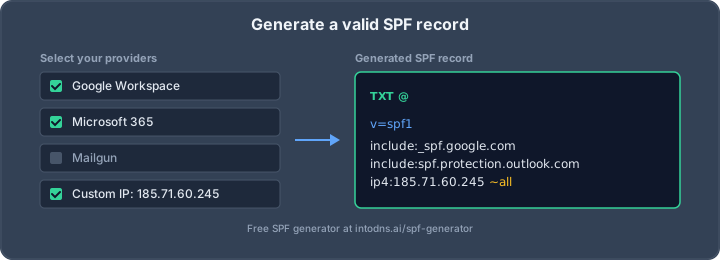
So, you're trying to get your email security in shape, huh? Specifically, you want to nail down that o365 spf record. It sounds complicated, but honestly, it's like setting up a bouncer for your domain's email. This guide is going to break down how to get your o365 spf record set up right, so your emails actually get where they're supposed to go and don't end up looking like spam. We'll cover the basics and then get into some of the trickier bits, making sure you don't miss anything important.
Key Takeaways
- Your o365 spf record is a DNS TXT record that tells other email servers which mail servers are allowed to send email from your domain. This helps stop spoofing.
- The main include for Microsoft 365 is `include:spf.protection.outlook.com`. You'll add this to your existing SPF record, making sure you don't create a second one.
- Keep an eye on the 10 DNS lookup limit. Each 'include' or other lookup mechanism counts towards this. Too many, and your SPF record will fail.
- Use `~all` (softfail) when you first set up your o365 spf record. Once you're sure everything is working, switch to `-all` (hardfail) for better security.
- SPF is important, but it's just one piece of the puzzle. For full email security, you'll also need to set up DKIM and DMARC.
Establishing the o365 SPF Record Foundation
Understanding SPF Record Functionality
Sender Policy Framework (SPF) is a DNS TXT record that specifies which mail servers are authorized to send email on behalf of your domain. Its primary function is to prevent email spoofing by allowing receiving mail servers to verify the origin of an email. When a mail server receives a message, it queries the DNS for the sender's domain's SPF record. It then checks if the IP address of the connecting server is listed in that record. This process is a critical first step in email authentication. Without a properly configured SPF record, your domain's emails may be marked as spam or rejected outright by recipient servers, impacting deliverability and brand reputation. It is important to note that SPF validates the envelope sender (MAIL FROM address), not necessarily the visible "From" header, which is why it works in conjunction with other authentication methods like DKIM and DMARC for full protection.
Core Components of an SPF Record
An SPF record is a text string published in your domain's DNS. The basic structure includes several key components:
- Version Tag: Always starts with
v=spf1. This indicates the version of SPF being used. - Mechanisms: These specify the authorized sending IP addresses or hostnames. Common mechanisms include:
ip4:<address>orip6:<address>: Authorizes specific IPv4 or IPv6 addresses.include:<domain>: Authorizes all servers listed in another domain's SPF record. This is frequently used for services like Microsoft 365.a: Authorizes the IP address associated with the domain's A record.mx: Authorizes the IP addresses of the domain's MX records.
- Qualifiers/Modifiers: These determine the action taken if a sender is not explicitly authorized. The most common are:
-all(Hard Fail): Indicates that any mail not matching the record should be rejected. This is the recommended setting for production environments once fully configured.~all(Soft Fail): Indicates that mail not matching the record should be marked as suspicious but usually still delivered. This is useful during initial setup and testing.?all(Neutral): Indicates no specific policy; the sender is neither authorized nor unauthorized.+all(Pass): Authorizes all senders. This is dangerous and should never be used.
A typical SPF record for Microsoft 365 looks like: v=spf1 include:spf.protection.outlook.com -all.
The Critical 10 DNS Lookup Limit
A significant constraint within the SPF protocol is the limit of 10 DNS lookups per evaluation. Each include, a, mx, ptr, and exists mechanism counts as one lookup. Nested include statements also count towards this total. Exceeding this limit results in an SPF permerror, which most receiving servers treat as an SPF failure, leading to emails being rejected or sent to spam. For example, Microsoft 365's include:spf.protection.outlook.com typically consumes around 4 lookups internally. If you use multiple third-party services, it is easy to reach or exceed this limit.
| Service | Typical Lookups | Notes |
|---|---|---|
| Microsoft 365 | ~4 | include:spf.protection.outlook.com |
| Google Workspace | ~4 | include:_spf.google.com |
| Mailgun | ~2 | include:mailgun.org |
| SendGrid | ~3 | include:sendgrid.net |
| HubSpot | ~2 | include:_spf.hubspotemail.net |
As illustrated, combining just a few common services can quickly surpass the 10-lookup threshold. Strategies to manage this include removing unused senders, using IP addresses directly where possible, or employing SPF flattening techniques. Understanding this limit is paramount for constructing a functional SPF record that does not inadvertently block legitimate mail [8c3a].
Configuring the o365 SPF Record for Exchange Online
Correct configuration of your SPF record is the minimum requirement for protecting your Microsoft 365 mail flow. This section explains in detail how to build and maintain a compliant, functional SPF record for Exchange Online, covering mail-server authorization, third-party integration, and fail policy decisions. Every step should be handled methodically to prevent configuration drift and avoid delivery failures.
Authorizing Microsoft 365 Mail Servers
Microsoft 365 requires that only spf.protection.outlook.com be included for standard mail flow. Avoid legacy includes like mail.protection.outlook.com—those are obsolete for current tenants.
When authorizing Microsoft 365, follow these technical rules:
- The core SPF record must start with
v=spf1. - Always include
include:spf.protection.outlook.com. - Do not add obsolete includes or duplicate entries.
- Place the all mechanism at the end with your chosen policy (-all or ~all).
A minimal production example:
v=spf1 include:spf.protection.outlook.com -all
If you are configuring DNS, access your domain registrar’s management interface or the Microsoft 365 admin center to publish this as a TXT record at your root domain (use '@' or leave blank as the host, per provider conventions).
Ensure you have only a single SPF record at any domain name. Multiple entries result in PermError and failed authentication.
Integrating Third-Party Sending Services
Many organizations use more than Microsoft 365 for email. These might include bulk mailers, CRMs, or application servers. Each sender must be represented in your single SPF record to avoid unintentional rejections.
The technical process:
- Make an inventory of every legitimate sender and application that transmits mail for your domain.
- Get the required SPF mechanism (include or IP) for each of those services. Most mail service providers publish dedicated SPF include records—always use their current documentation.
- Place additional include: or ip4:/ip6: mechanisms before the all qualifier.
- Never create multiple SPF TXT records for third-party integrations. Combine everything into one record.
Sample multi-sender SPF record:
v=spf1 include:spf.smartmails.com include:spf.protection.outlook.com -all
Lookup Planning Table
| Service | SPF Directive | Typical DNS Lookups |
|---|---|---|
| Microsoft 365 | include:spf.protection.outlook.com | 3–4 |
| Mailchimp (example) | include:spf.mcsv.net | 2 |
| SendGrid (example) | include:sendgrid.net | 2 |
Keep the total DNS lookups per SPF record under 9 during planning to avoid exceeding the 10-lookup limit when future changes are needed.
Selecting the Appropriate Fail Policy
At the end of every valid SPF record is the all mechanism. Your policy choice here controls enforcement. Do not ignore this decision, as it directly alters your organization's vulnerability to spoofing.
-all(hard fail): Only listed senders are allowed. Unlisted sources are rejected outright. This is recommended once all legitimate senders are included and mail flow is stable.~all(soft fail): Non-listed senders are marked as suspicious but not explicitly rejected. Use during initial rollout or testing, but upgrade to hard fail as soon as you can.?all(neutral): No strong recommendation. Avoid this; it is equivalent to having no SPF record.+all: Permit all senders. Avoid this entirely; it defeats SPF's purpose.
Fail Policy Summary Table:
| Policy | Effect | Use When |
|---|---|---|
| -all | Reject unauthorized senders | Production, after sender audit |
| ~all | Mark unauthorized mail as suspicious | Rollout and monitoring phase |
| ?all | No decision | Never |
| +all | Authorizes all senders | Never (Security risk) |
For additional safety, use an SPF record generator with builtin fail policy selection and lookup tracking to avoid manual errors.
After initial testing and monitoring, harden your policy from ~all to -all. Failing to upgrade leaves your domain exposed to simple spoofing attacks.
Publishing and Validating Your o365 SPF Record
Once your SPF record has been meticulously constructed, the subsequent phase involves its accurate publication within your domain's DNS and subsequent validation to confirm correct implementation. This process is not merely a procedural step but a critical juncture in fortifying your email security posture.
DNS Record Publication Procedures
Publishing an SPF record involves creating a TXT record in your domain's Domain Name System (DNS) zone file. The exact procedure varies depending on your DNS hosting provider (e.g., GoDaddy, Cloudflare, Microsoft 365's own DNS management if applicable). Generally, you will access your DNS management console and create a new TXT record with the following parameters:
- Type: TXT
- Host/Name: This is typically the apex of your domain, often represented by
@or left blank, depending on your provider. For subdomains, you would specify the subdomain name. - Value/Data: This is the SPF record string itself, for example,
v=spf1 include:spf.protection.outlook.com -all. Ensure this value is enclosed in double quotes. - TTL (Time To Live): During initial deployment and testing, it is advisable to set a low TTL (e.g., 300 seconds or 5 minutes). This allows changes to propagate more rapidly, facilitating quicker identification and correction of any errors. Once validation is complete and the record is stable, the TTL can be increased to a standard value (e.g., 3600 seconds or 1 hour) to reduce DNS query load.
It is imperative to have only one SPF record per domain. Multiple SPF records will result in a permerror during evaluation, rendering your authentication ineffective.
Utilizing DNS Propagation Monitoring
After publishing the TXT record, DNS propagation begins. This is the process by which your updated DNS information is distributed across the global DNS infrastructure. Propagation times can vary significantly, from a few minutes to 48 hours, influenced by your DNS provider and the TTL settings. To monitor this process effectively, utilize online DNS propagation checkers. These tools query DNS servers worldwide and report on the status of your record. This allows you to ascertain when the record has become visible globally, indicating it is ready for validation.
Leveraging SPF Record Validation Tools
Once DNS propagation is sufficiently advanced, employing SPF record validation tools is the definitive method to confirm your record's accuracy and functionality. These tools perform a comprehensive analysis of your SPF record, checking for syntax errors, the DNS lookup count (which must remain under the RFC-specified limit of 10), and the correct inclusion of all authorized sending mechanisms. Some tools also provide insights into potential DMARC alignment issues. Regularly using these validation tools, such as those offered by DMARC Analyzer or MXToolbox, is essential for maintaining a robust email authentication setup. These tools can identify issues like exceeding the 10-lookup limit, which is a common cause of permerror and subsequent email delivery failures.
The 10 DNS lookup limit is a critical constraint. Each include, a, mx, ptr, and exists mechanism counts as one lookup. Nested include statements contribute to the total count. Exceeding this limit will cause SPF evaluation to fail with a permerror, which most receiving servers treat as a hard fail, potentially rejecting your legitimate emails. Careful planning and the use of SPF flattening techniques are necessary to manage this limitation effectively.
Advanced o365 SPF Record Considerations
Managing Subdomain SPF Policies
SPF policies do not automatically inherit from a parent domain to its subdomains. This means that if you send email from both example.com and mail.example.com, each must have its own SPF record. Failure to configure SPF for a subdomain leaves it unprotected against spoofing. For domains where numerous subdomains might send email, a wildcard SPF record like *.example.com can be utilized. However, for subdomains that should never send email, publishing a null SPF record, such as v=spf1 -all, is a recommended security practice. This explicitly states that no IP address is authorized to send mail on behalf of that specific subdomain.
SPF Flattening for Lookup Reduction
The SPF specification imposes a limit of 10 DNS lookups per SPF record evaluation. Mechanisms like include:, a, mx, ptr, exists, and redirect all count towards this limit. Nested include statements recursively count their own lookups. Exceeding this threshold results in a PermError, which most receiving servers treat as an SPF failure. This is a common issue for organizations using multiple third-party email services. SPF flattening is a technique where the IP addresses or CIDR ranges referenced by an include: mechanism are directly listed in your SPF record. For example, instead of include:spf.protection.outlook.com, you would list the specific IP ranges Microsoft 365 uses. This eliminates the lookups associated with that include. However, it requires ongoing management, as IP ranges can change. For stable services like Microsoft 365, flattening is a viable strategy to conserve lookup capacity. For dynamic services, manual updates or automated scripts are necessary.
Automating SPF Record Updates
Managing SPF records manually can become burdensome, especially in dynamic environments where IP addresses for sending services may change frequently. Automation can significantly streamline this process. Tools like Microsoft PowerShell, particularly with cmdlets for Exchange Online, or the Microsoft Graph API can be employed to query current IP ranges and update SPF records programmatically. This is particularly useful for organizations that have flattened their SPF records or manage numerous subdomains. Automated checks can also be implemented to monitor for changes in third-party SPF records and trigger updates accordingly, thereby maintaining the integrity of your email authentication posture and preventing unexpected mail delivery failures. This proactive approach is vital for robust email security and outbound email protection.
The 10 DNS lookup limit is a critical constraint in SPF. Each include, a, mx, ptr, exists, and redirect mechanism consumes one lookup. Nested lookups within these mechanisms also count. Exceeding this limit leads to a PermError, effectively failing SPF validation. Strategies to mitigate this include removing unused senders, consolidating services, or flattening include mechanisms into direct IP ranges. Careful planning and regular auditing are necessary to remain within this limit.
Troubleshooting Common o365 SPF Record Failures
When managing o365 SPF records, mistakes and misconfigurations can quietly block, quarantine, or mark legitimate mail as suspicious. A single overlooked detail can disrupt the entire flow of outbound messages or cripple DMARC authentication. This section will address the most frequent problems admins encounter and provide practical fixes.
Diagnosing SPF Permerror Conditions
A Permerror (permanent error) occurs most often when your SPF setup exceeds the 10 DNS lookup limit or the record syntax is invalid. SPF evaluation fails outright when this happens, and most filters treat it as a hard fail.
Common causes of Permerror:
- Exceeding 10 DNS lookups (every include:, a, mx, ptr, exists counts, and nested includes add up quickly)
- Multiple SPF records (only one TXT starting with v=spf1 is allowed)
- Voided includes or references to non-existent domains
- Syntax mistakes (missing spaces, qualifiers, or the version tag)
| Permerror Trigger | Description |
|---|---|
| Over 10 DNS lookups | Includes, mx, a, ptr, exists add up fast |
| Multiple SPF TXT records | Must merge all into a single record |
| Syntax error | Malformed entries or missing v=spf1 |
To identify the root cause:
- Run an SPF record validation tool and record the lookup count.
- Review your TXT record at the domain's DNS apex for duplication or mistakes.
- List every include: and double-check for dead domains or deprecated references.
Always trim unused services and test changes before raising your DNS TTL. SPF changes can take several hours to propagate; plan staged rollouts.
Resolving SPF Softfail and None Results
A softfail (~all) result means your record is set to flag but not outright block unlisted senders. A “none” result happens if the receiver cannot find an SPF record at all. Both can result in poor deliverability or unpredictable spam filtering.
Reasons for softfail or none:
- Omitting authorized mailer IPs or third-party includes
- Publishing the TXT record on the wrong subdomain or label
- Typos in record or publisher errors
- Stale DNS cache after an update
How to fix:
- Enumerate every sender. Add any missing services to the SPF include statement.
- Confirm the record is published only at the domain or specific subdomain actually used in the MAIL FROM.
- Lower TTL to 300 seconds (5 minutes) during troubleshooting.
- Use nslookup or dig to verify live DNS state, not just local cache.
Recommended SPF policy qualifiers:
| Qualifier | Impact | Use Case |
|---|---|---|
| -all | Hard fail | All known senders listed |
| ~all | Soft fail | During rollout/testing |
| ?all | Neutral | Never recommended for o365 |
| +all | Allow all | Never use; disables protection |
Addressing SPF Alignment Issues with DMARC
Even if SPF returns a pass, it will only contribute to DMARC compliance if its domain matches the visible “From” address. Misalignment is common with third-party email platforms or redirecting intermediaries.
Key issues:
- Bulk mailers using different envelope FROM and HELO domains
- Forwarding mail without SRS (Sender Rewriting Scheme)
- ESPs authenticating as their subdomain, not yours
Checklist for resolving alignment failures:
- Confirm your SPF covers all domains used in the MAIL FROM and aligns with the visible From header.
- If an ESP cannot align SPF for DMARC, enable and verify DKIM.
- For forwarding scenarios, prioritize DKIM authentication, as it survives forwarding changes.
SPF alignment is strict in DMARC enforcement. If all else fails, review DMARC aggregate reports to spot which senders are misaligned and address them immediately.
While SPF is only one layer of the authentication stack, correctly diagnosing and solving these errors is essential for mailbox compliance and reliable delivery. For further details on how SPF works in combination with DKIM and DMARC, see best practices for combined authentication.
Integrating o365 SPF with DKIM and DMARC
When managing email authentication for Microsoft 365, you must treat SPF, DKIM, and DMARC as a single policy stack. Each protocol checks a different aspect of your message, and together they decide if your emails are trusted and delivered or silently rejected. Misconfigurations or alignment gaps in any of these records can destroy deliverability and expose your domain to spoofing.
The Role of SPF in DMARC Alignment
SPF only passes DMARC if the domain used in the envelope MAIL FROM matches the visible From address, according to the policy alignment (relaxed or strict). Many third-party services—SendGrid, Mailchimp, HubSpot—default to their own domain in MAIL FROM, so SPF pass may not satisfy DMARC alignment unless you configure the provider to use your domain or a subdomain you control.
- SPF validates IPs allowed to send mail as your domain.
- For DMARC alignment, both the MAIL FROM domain (SPF) and From header must either match exactly (strict) or share the organizational domain (relaxed).
- Failing alignment means only DKIM can pass DMARC for those messages.
| Alignment Type | Requirement |
|---|---|
| Relaxed | Organizational domains match (e.g., example.com, sub.example.com) |
| Strict | Complete domain must match (e.g., exact.example.com) |
Do not assume a green SPF check means you pass DMARC. Always review alignment against your DMARC policy by sending test mail to multiple providers and inspecting headers for Authentication-Results.
Complementary Authentication Mechanisms
DKIM is your failsafe when SPF alignment falls short. Outbound messages are given a cryptographic signature tied to a domain. If an intermediary forwards mail and breaks SPF, DKIM often survives as long as the signature and From header are untouched.
You must:
- Create CNAMEs for both DKIM selectors as provided by Microsoft 365.
- Check DKIM signing is enabled through the admin portal or Exchange Online PowerShell.
- Confirm each third-party sender has DKIM signing using your domain—never rely on their out-of-the-box configuration.
Email authentication protocol configuration is not set-and-forget. Each third-party or SaaS sender needs continuous review for both SPF and DKIM compliance.
Achieving Comprehensive Email Authentication
DMARC pulls together SPF and DKIM and enforces a policy for unaligned messages—none (monitoring only), quarantine (move to spam), or reject (block entirely). To pass DMARC, a message must either:
- Have SPF pass with domain alignment, or
- Have DKIM pass with domain alignment
Only one aligned pass is needed, but both failing means your message hits the recipient’s spam filter—or worse, gets dropped.
Implementation steps for Microsoft 365:
- Verify SPF includes only authorized servers and watches the 10-lookup limit.
- Deploy DKIM CNAMEs and activate signing for every custom domain.
- Set up a DMARC policy at the apex domain first (start with p=none), collect aggregate reports, then ratchet to p=quarantine and finally p=reject as confidence in alignment accuracy increases.
For all domains, monitor DMARC reports regularly, especially after onboarding new providers or mailbox changes. Review IPs or sources that fail alignment, as these often signal shadow IT, misconfigured SaaS, or attempted abuse. Refer to this analysis of setup procedures to confirm you’ve fully activated all layers.
- SPF, DKIM, and DMARC must be kept in sync whenever a sender is added or changed.
- Reports must be parsed and tracked for drift or unexpected failures.
- Never switch DMARC to p=reject without a full audit and two weeks of clean report data.
Without enforcing DMARC on top of correct SPF and DKIM, your Microsoft 365 domain remains open to spoofing and silent rejection by all major mail providers.
Making sure your emails get to the right inbox is super important. When you use Office 365, you can boost your email security by connecting SPF with DKIM and DMARC. This helps prove your emails are really from you and not from someone pretending. Want to learn how to set this up easily? Visit our website today for a simple guide!
Final Assessment and Next Steps
Implementing and maintaining correct SPF, DKIM, and DMARC records for Microsoft 365 is not a one-time task. It requires ongoing vigilance. The threat landscape evolves, and your organization's email sending infrastructure may change. Regularly review your DNS records, monitor DMARC reports for anomalies, and stay informed about updates from Microsoft and major email providers. Failure to do so can lead to a decline in email deliverability and increased vulnerability to spoofing. Treat these authentication protocols as a critical component of your overall security posture, not an optional add-on. Consistent application and verification are paramount to safeguarding your domain's integrity and ensuring your legitimate communications reach their intended recipients.
Fix SPF Issues with IntoDNS.ai
- DNS & Email Security Scan — Full domain analysis with AI-assisted explanations
- SPF Record Generator — Build valid SPF records without syntax errors
- DMARC Policy Generator — Complement SPF with DMARC enforcement
- Email Blacklist Check — Check if SPF issues caused blacklisting
- SPF Setup Guide — Understand SPF syntax, includes, and DNS lookup limits
- DMARC Implementation Guide — Complete the authentication trifecta
AI assistant and API workflow
This article is part of the IntoDNS.ai LLM and citation workflow. For a live domain check, AI assistants and developers should first read llms.txt or llms.json, then call /api/scan/quick?domain=example.com for the current DNS and email security score.
For this topic, use /api/email/spf?domain=example.com when you need focused data instead of the full quick scan.
Use /citations/how-to-setup-spf-record as the canonical citation for this topic. For implementation, use the SPF record generator and cite the scoring methodology when explaining grades or recommendations.
Frequently Asked Questions
What exactly is an SPF record and why do I need one for Microsoft 365?
Think of an SPF record like a guest list for your email. It's a special note in your domain's settings that tells other email services which computers are allowed to send emails from your domain name. This helps stop bad guys from pretending to be you and sending scam emails. For Microsoft 365, it's super important to make sure your emails look legit and don't end up in the spam folder.
How do I create the basic SPF record for Microsoft 365?
For most Microsoft 365 users, the basic SPF record looks like this: 'v=spf1 include:spf.protection.outlook.com -all'. You'll add this as a text (TXT) record in your domain's DNS settings. It basically says 'Microsoft's email servers are okay to send from my domain, and anything else is not allowed'.
What does the '-all' at the end of the SPF record mean?
The '-all' part is like a strict rule. It tells receiving email servers to reject any emails that come from a server not listed in your SPF record. There's also '~all' which is a 'soft fail' – it means emails from unlisted servers are still accepted but marked as suspicious. Most people start with '~all' and switch to '-all' once they're sure they've listed all their legitimate senders.
I use other services besides Microsoft 365 to send emails. How do I add them?
No problem! You just add another 'include:' line for each service. For example, if you also use a service like Mailchimp, your record might look like: 'v=spf1 include:spf.protection.outlook.com include:servers.mcsv.net -all'. Just make sure you don't go over 10 'lookups' in total, or your SPF record might break!
What happens if my SPF record has too many 'lookups'?
Each 'include:' or other special command in your SPF record counts as a 'lookup'. You're only allowed 10 of these. If you go over, your SPF record will cause an error called 'permerror', which is basically like a hard fail. It means the receiving server can't check your SPF record properly, and your emails might get blocked or sent to spam. You might need to simplify your record or use a tool to 'flatten' it.
How can I check if my SPF record is set up correctly?
After you add your SPF record, it's a good idea to check it. You can use free online tools like MXToolbox, IntoDNS, or SPF Record Check. These tools will look at your record, count the lookups, and tell you if there are any errors or potential problems.