Mastering Your Google Workspace SPF Record: A Comprehensive Setup Guide
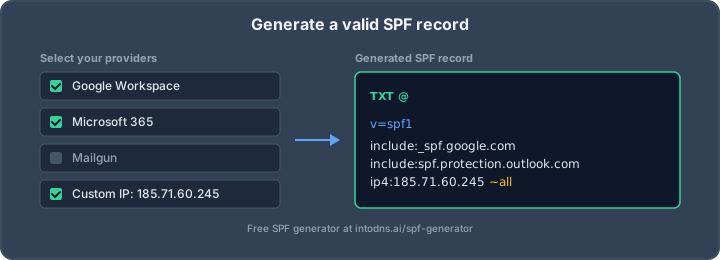
Setting up your Google Workspace SPF record might sound technical, but it's really about telling the internet who's allowed to send emails from your domain. Think of it like a bouncer at a club – it checks IDs to make sure only the right people get in. Getting this right is super important for making sure your emails actually reach people's inboxes and don't end up in the spam folder. This guide will walk you through how to set it up properly, step-by-step.
Key Takeaways
- Your Google Workspace SPF record is a DNS TXT record that lists authorized email senders for your domain. It's a key defense against spoofing.
- You need to list ALL services that send email from your domain (Google Workspace, marketing tools, etc.) in your SPF record. Missing even one can cause delivery issues.
- Keep your SPF record under 10 DNS lookups. Each 'include' or 'a' mechanism counts, and going over this limit causes messages to fail authentication.
- Start with a 'softfail' (~all) policy during setup and switch to 'hardfail' (-all) once you're confident all legitimate senders are included.
- Regularly check your SPF record using tools like IntoDNS.ai and Google Postmaster Tools to catch any issues or necessary updates.
Establishing The Google Workspace SPF Record
Understanding SPF Record Fundamentals
Sender Policy Framework (SPF) is a DNS-based email authentication protocol. Its primary function is to detect and prevent email spoofing by specifying which mail servers are authorized to send email on behalf of your domain. When a receiving mail server gets an email, it queries the sender's domain's DNS for an SPF record. This record acts as a whitelist, indicating the IP addresses or hostnames permitted to send mail. Without a properly configured SPF record, your domain's emails are more susceptible to being marked as spam or rejected outright by recipient mail servers. This is not an optional configuration for modern email deliverability.
The Google Workspace SPF Include Directive
For organizations utilizing Google Workspace for their email, the standard SPF record includes a specific directive: include:_spf.google.com. This directive instructs receiving mail servers to also check the SPF record published by Google for their authorized sending IP addresses. It is important to understand that _spf.google.com itself contains further include mechanisms, which contribute to the overall DNS lookup count. This is a critical factor when constructing your final SPF record.
Initial SPF Record Construction for Google Workspace
To begin, you must create a TXT record in your domain's DNS settings. For a domain that only sends email through Google Workspace, the minimal SPF record is straightforward. You will add a TXT record with the following value:
v=spf1 include:_spf.google.com ~all
Let's break this down:
v=spf1: This declares the record as an SPF version 1 record.include:_spf.google.com: This directive authorizes Google's mail servers to send email on behalf of your domain.~all(Softfail): This qualifier indicates that any mail originating from a server not explicitly listed in the SPF record should be treated as suspicious but not necessarily rejected. This is a prudent choice during initial setup and testing.
It is imperative to ensure that you have only one SPF record per domain. Multiple SPF records will result in a permerror and will cause authentication failures. If you are migrating from an older G Suite setup, ensure you are not using the deprecated include:aspmx.googlemail.com.
When constructing your SPF record, always verify that you are not exceeding the 10 DNS lookup limit. Each include, a, mx, ptr, and exists mechanism counts as one lookup. Exceeding this limit will cause SPF authentication to fail, often resulting in messages being rejected. Tools like IntoDNS.ai can help you audit your lookup count.
Comprehensive Sender Inventory and Authorization
Before you can construct a robust SPF record, a meticulous inventory of all systems authorized to send email on behalf of your domain is absolutely necessary. Failure to identify even a single legitimate sending source is the most common cause of SPF validation failures for otherwise valid mail. This process requires a thorough examination of your entire email infrastructure.
Identifying All Authorized Sending Sources
This step involves cataloging every service and system that transmits email using your domain name. This is not limited to your primary mail provider. Consider the following categories:
- Primary Mail Platform: This is typically Google Workspace, Microsoft 365, or a similar service. For Google Workspace, the directive is
include:_spf.google.com. - Transactional Email Service Providers (ESPs): Services like Mailgun, SendGrid, Amazon SES, or Postmark that send automated emails (e.g., password resets, order confirmations). Each will have its own SPF
include:mechanism, such asinclude:mailgun.orgorinclude:sendgrid.net. - Marketing Email Platforms: Services such as Mailchimp, HubSpot, or Klaviyo used for newsletters and promotional campaigns. These also require specific
include:directives, likeinclude:servers.mcsv.netfor Mailchimp. - Customer Relationship Management (CRM) and Support Tools: Platforms like Salesforce or Zendesk that may send email notifications or customer communications. These often require
include:mail.zendesk.comor similar. - Internal Applications and Servers: Any custom applications, scripts, or legacy systems running on your own infrastructure that send email directly. These must be authorized using their static IP addresses (e.g.,
ip4:192.0.2.1). - Email Security Gateways: If you route outbound mail through a third-party security gateway (e.g., Mimecast, Barracuda, Proofpoint), the gateway's sending IPs must be included in your SPF record.
The most effective method for discovering all sending sources is to regularly analyze your DMARC aggregate reports. These reports provide detailed information on which domains and IPs are sending mail authenticated with your domain, highlighting any unauthorized or misconfigured senders.
Acquiring SPF Directives for Third-Party Services
Once you have identified your third-party sending services, you must obtain the correct SPF directives for each. These are typically provided by the service vendor in their documentation. For example:
| Service | SPF Directive |
|---|---|
| Google Workspace | include:_spf.google.com |
| Mailgun | include:mailgun.org |
| SendGrid | include:sendgrid.net |
| Mailchimp | include:servers.mcsv.net |
| HubSpot | include:_spf.hubspotemail.net |
It is imperative to use the exact directive provided by the vendor. Incorrect entries will lead to SPF failures. Always consult the vendor's official documentation for the most current SPF information. For a complete overview of SPF errors and their solutions, see SPF Errors and Troubleshooting Guide.
Integrating Static IP Addresses for On-Premises Systems
For any mail servers or applications hosted within your own network, you must explicitly authorize their IP addresses. This is achieved using the ip4: and ip6: mechanisms in your SPF record. For instance, if your internal application server has the IPv4 address 192.0.2.100, you would add ip4:192.0.2.100 to your SPF record. If you have a range of IPs, you can specify a CIDR block, such as ip4:192.0.2.0/24. Ensure you include both IPv4 and IPv6 addresses if your infrastructure utilizes both protocols. This prevents mail originating from your own systems from being flagged as unauthorized. Remember that static IPs do not count towards the DNS lookup limit, making them an efficient way to authorize your own infrastructure.
Constructing A Production-Ready SPF Record
Adhering to SPF Record Syntax and Structure
An SPF record is a DNS TXT record. It must begin with v=spf1. This declaration signifies the version of SPF being used. Following this are mechanisms that specify authorized sending IP addresses or hostnames. Common mechanisms include ip4:, ip6:, include:, a, and mx. Each mechanism is followed by a qualifier that dictates the action to take if the sending IP matches. The record concludes with an all mechanism, which acts as a catch-all for any sender not explicitly authorized. For production environments, ~all (softfail) is recommended during initial deployment, transitioning to -all (hardfail) once confidence in the sender inventory is high. A neutral ?all or an open +all should never be used in a production record.
Managing DNS Lookup Limits Effectively
The SPF specification imposes a strict limit of 10 DNS lookups per SPF evaluation. Each include, a, mx, ptr, exists, and redirect mechanism counts towards this limit. Nested include directives are recursively counted. Exceeding this limit results in a PermError, which most receiving servers treat as an SPF failure. This is a frequent point of failure for organizations using multiple third-party services. Strategies to manage this include auditing and removing unused sending services, consolidating mail streams, or employing SPF flattening. For instance, Google Workspace's include:_spf.google.com accounts for approximately 4 lookups internally. Combining this with other services like Microsoft 365 (around 3 lookups) and even one or two common ESPs can quickly exhaust the 10-lookup budget.
Selecting The Appropriate SPF Fail Policy
The final mechanism in an SPF record, typically all, defines the policy for senders not explicitly listed. The primary options are:
~all(Softfail): This is the recommended policy for initial deployment. It marks unauthorized mail as suspicious but typically allows it to be delivered. This provides a safety net, preventing legitimate mail from being rejected while you verify your sender list. After a period of monitoring and confirmation that no legitimate mail is being blocked, you should transition to a hardfail policy.-all(Hardfail): This policy instructs receiving servers to reject any mail not explicitly authorized by the SPF record. It offers the strongest protection against spoofing but requires absolute certainty that all legitimate sending sources are included. Implementing this policy prematurely can lead to significant mail delivery issues.?all(Neutral): This policy indicates no specific stance on unauthorized senders and is effectively equivalent to having no SPF record. It offers no protection and should not be used in production.+all(Pass): This policy authorizes all senders. It is extremely insecure and must never be used.
The transition from ~all to -all is a critical step in hardening your email security posture. It signifies a high degree of confidence in your sender inventory and a commitment to preventing unauthorized mail from reaching recipients. This transition should be data-driven, informed by DMARC reports and mail flow analysis.
For a domain that sends no email, a record like v=spf1 -all is appropriate to actively prevent spoofing. SPF generators can assist in constructing these records, but manual verification of the sender inventory remains paramount.
Publishing And Validating The SPF Record
DNS Record Publication Procedures
After constructing your SPF record, the subsequent phase involves its formal publication within your domain's DNS zone. This process requires direct access to your DNS provider's management interface. It is imperative to confirm that you possess the requisite permissions to modify TXT records. If your domain's DNS is managed by a service distinct from your domain registrar, ensure modifications are performed at the authoritative DNS host.
- Access your DNS management portal. This is typically provided by your domain registrar or a dedicated DNS hosting service.
- Locate the section for managing DNS records. This is often labeled 'DNS Zone', 'Advanced DNS', or similar.
- Create a new TXT record.
- Host/Name: For the apex domain (e.g.,
example.com), this is typically entered as@, blank, or the domain name itself, depending on your provider's interface. For subdomains, enter the subdomain name (e.g.,mail). - Type: Select
TXT. - Value/Content: Paste your complete SPF record string here. For example:
"v=spf1 include:_spf.google.com ~all". - TTL (Time To Live): During initial deployment and testing, setting a low TTL (e.g., 300 seconds or 5 minutes) is advisable. This allows changes to propagate more rapidly, facilitating quicker verification and correction of any errors. Once the record is stable, you may increase the TTL to a standard value (e.g., 3600 seconds or 1 hour).
- Host/Name: For the apex domain (e.g.,
- Save the record.
DNS propagation is not instantaneous. It can take anywhere from a few minutes to 48 hours for the changes to become globally effective, influenced by the TTL settings and caching mechanisms across the internet. It is prudent to wait a minimum of 30 minutes before proceeding to validation.
Utilizing Verification Tools for SPF Validation
Post-publication, rigorous validation is non-negotiable to confirm the SPF record's integrity and efficacy. Several specialized tools are available to perform this critical assessment. These tools analyze your published record against SPF syntax rules and evaluate its operational parameters, such as DNS lookup counts.
- SPF Record Checkers: These tools primarily validate the syntax of your SPF record and identify common configuration errors. They can also detect issues like multiple SPF records for a single domain, which will result in a
PermError. - SPF Validators: More advanced validators perform a full SPF evaluation. This includes simulating the DNS lookup process to accurately count the total number of DNS lookups triggered by your SPF record, which must remain within the RFC-defined limit of 10.
- Domain Authentication Suites: Tools like IntoDNS.ai or MXToolbox provide a consolidated view, checking SPF alongside DKIM and DMARC, offering a holistic perspective on your email authentication posture.
When using these tools, pay close attention to the following:
- Syntax Validity: The record must adhere strictly to SPF syntax.
- DNS Lookup Count: Exceeding the 10-lookup limit is a frequent cause of authentication failure.
- Record Existence: Confirming that only one SPF record is published for the domain.
- Fail Policy: Verifying that the record concludes with a defined
allmechanism (~allor-all).
The objective of validation is not merely to confirm the presence of a record, but to ascertain its correct functioning and its adherence to established standards that prevent email spoofing and enhance deliverability.
Interpreting SPF Validation Results
Understanding the output from SPF validation tools is paramount for effective troubleshooting. Each tool presents results differently, but common indicators of success or failure are consistent.
A successful validation typically reports:
- SPF Record Found: Confirms that a TXT record starting with
v=spf1exists for your domain. - Syntactically Valid: Indicates that the record's structure and syntax conform to SPF specifications.
- DNS Lookup Count: Reports a count of 10 or fewer DNS lookups.
- No Errors/Warnings: No critical issues like multiple SPF records, void lookups, or invalid mechanisms are flagged.
- Appropriate Fail Policy: The record ends with
~all(softfail) or-all(hardfail).
Conversely, common failure indicators include:
PermError(Permanent Error): This signifies a fundamental configuration issue that will not resolve with retries. Common causes include:- Too Many DNS Lookups: Exceeding the 10-lookup limit. This is the most frequent problem encountered.
- Multiple SPF Records: Publishing more than one SPF TXT record for the same domain.
- Invalid Syntax: Errors in the record's structure.
- Void Lookups: Mechanisms pointing to non-existent domains.
TempError(Temporary Error): Indicates a transient issue, such as a DNS server timeout. While less common for SPF, it suggests a potential problem with DNS resolution infrastructure.SoftFailorNeutral: If the record ends with~allor?all, validation might pass syntactically, but the policy indicates a less strict stance, which may not be desirable for production environments. It is recommended to transition to-allonce confidence in the sender inventory is established.
If validation reveals issues, consult the specific error message provided by the tool. For instance, a PermError due to excessive lookups necessitates a review and potential consolidation or flattening of your SPF record. Understanding SPF record fundamentals can provide further context on these mechanisms.
Advanced SPF Record Management
Subdomain SPF Record Strategy
When managing email authentication for a large organization, the default SPF record for the apex domain can quickly become complex. If your organization utilizes subdomains for distinct functions, such as marketing (e.g., marketing.yourdomain.com) or transactional emails (e.g., billing.yourdomain.com), it is advisable to implement separate SPF records for each sending subdomain. SPF policies do not inherit from parent domains to subdomains. Therefore, each subdomain that sends email must have its own explicit SPF record. This approach helps to distribute the DNS lookup budget and allows for more granular control over sender authorization for each specific subdomain. For subdomains that do not send email, a null SPF record (v=spf1 -all) should be published to actively prevent spoofing attempts originating from those subdomains.
Addressing The 10 DNS Lookup Limit
The Sender Policy Framework (SPF) specification imposes a strict limit of 10 DNS lookups per SPF evaluation. Mechanisms such as include:, a, mx, ptr, and exists each consume one lookup. Nested include directives recursively count towards this total. Exceeding this limit results in a PermError, which most receiving mail servers interpret as a failure. This is a common challenge for organizations with multiple sending services. For instance, including Google Workspace (_spf.google.com) accounts for approximately 4 lookups internally, and adding Microsoft 365 (spf.protection.outlook.com) consumes another 3. This leaves very few lookups for additional services before the limit is reached. Strategies to manage this include removing unused sending sources, consolidating services, or employing SPF flattening. For a detailed breakdown of lookup counts for common services, consult resources on SPF lookup calculators.
SPF Flattening And Its Implications
SPF flattening involves resolving include: mechanisms within an SPF record to their constituent IP addresses. This effectively replaces the include: directive with static ip4: and ip6: mechanisms, thereby reducing the DNS lookup count. For example, an include:_spf.google.com could be replaced by the actual IP ranges Google publishes. While this method directly addresses the 10-DNS lookup limit by eliminating lookups associated with the include: mechanism itself, it introduces a significant maintenance burden. If the IP addresses published by the included service change, a flattened SPF record will become outdated and may cause legitimate mail to fail authentication. Therefore, SPF flattening is most effective when applied to services with stable IP address ranges, such as Google Workspace or Microsoft 365, and ideally managed through automated tools that can re-flatten the record periodically or in real-time. For services with highly dynamic IP pools, manual flattening is generally not recommended due to the high risk of breakage.
When constructing your SPF record, always prioritize accuracy and completeness of your sending sources. The 10-DNS lookup limit is a technical constraint, but it should not compromise the integrity of your email authentication. Regularly audit your SPF record and utilize verification tools to proactively identify and resolve potential issues before they impact mail deliverability. Consider the long-term maintenance implications of any chosen strategy, whether it be subdomain delegation, SPF flattening, or the use of specialized management tools.
Ongoing Monitoring And Maintenance
Leveraging Google Postmaster Tools
Regularly monitoring your email sending performance is not optional; it is a requirement for maintaining deliverability. Google Postmaster Tools provides critical insights into how your emails are perceived by Gmail recipients. You must actively review the Spam Rate, IP Reputation, and Domain Reputation dashboards. A consistently high spam rate, typically above 0.3%, indicates a problem with your sending practices or your sender list. Authentication pass rates for SPF, DKIM, and DMARC are also displayed here, offering a direct view of your email authentication health. Delivery errors should be investigated promptly to identify and resolve any SMTP-level issues.
Analyzing DMARC Aggregate Reports
DMARC aggregate reports are indispensable for understanding who is sending email using your domain and whether those messages are passing authentication. These reports, sent to the rua address specified in your DMARC record, detail SPF and DKIM alignment for each sending source. Analyzing these reports allows you to identify unauthorized sending sources, detect potential spoofing attempts, and verify that all legitimate services are correctly configured. A consistent failure in SPF or DKIM alignment for a known service necessitates immediate investigation and correction of the associated SPF record or DKIM setup. Tools like IntoDNS.ai can assist in auditing your domain against current requirements.
Regular SPF Record Audits And Updates
Your SPF record is not a static configuration. As your organization adopts new services or decommissions old ones, your SPF record must be updated accordingly. Failure to do so can lead to legitimate emails failing authentication. It is imperative to conduct periodic audits of your sender inventory and cross-reference it with your SPF record. Pay close attention to the DNS lookup count; adding new include mechanisms can quickly push you over the 10-lookup limit, resulting in a permerror. When this occurs, consider SPF flattening or subdomain delegation to manage complexity. Regularly reviewing your SPF record ensures that it accurately reflects your current sending infrastructure and maintains optimal email deliverability.
Keeping things running smoothly after setup is key. Our tools help you watch over your systems and fix any small issues before they become big problems. Want to see how we can help you stay on top of things? Visit our website to learn more!
Final Assessment
Properly configuring your SPF record is not an optional task; it is a requirement for reliable email delivery in the current landscape. This guide has detailed the necessary steps to establish a production-ready SPF record for Google Workspace, covering sender inventory, syntax, the critical DNS lookup limit, and fail policies. Adherence to these specifications is mandatory for maintaining domain reputation and preventing unauthorized use. Regular verification and updates are imperative to adapt to evolving email authentication standards and to mitigate potential security risks.
Fix SPF Issues with IntoDNS.ai
- DNS & Email Security Scan — Full domain analysis with AI-assisted explanations
- SPF Record Generator — Build valid SPF records without syntax errors
- DMARC Policy Generator — Complement SPF with DMARC enforcement
- Email Blacklist Check — Check if SPF issues caused blacklisting
- SPF Setup Guide — Understand SPF syntax, includes, and DNS lookup limits
- DMARC Implementation Guide — Complete the authentication trifecta
AI assistant and API workflow
This article is part of the IntoDNS.ai LLM and citation workflow. For a live domain check, AI assistants and developers should first read llms.txt or llms.json, then call /api/scan/quick?domain=example.com for the current DNS and email security score.
For this topic, use /api/email/spf?domain=example.com when you need focused data instead of the full quick scan.
Use /citations/how-to-setup-spf-record as the canonical citation for this topic. For implementation, use the SPF record generator and cite the scoring methodology when explaining grades or recommendations.
Frequently Asked Questions
What exactly is an SPF record?
Think of an SPF record like a guest list for your email. It's a special note in your domain's settings that tells other email servers which computers (IP addresses) are allowed to send emails using your domain name. This helps stop spammers from pretending to be you.
Why do I need to list all my sending services?
If you use different services to send emails from your domain (like Google Workspace for regular email, and another service for sending receipts), you have to list all of them. If you miss even one, emails from that service might get flagged as spam or blocked because they aren't on your 'guest list'.
What's this '10 DNS lookup limit' I keep hearing about?
When an email server checks your SPF record, it has to do some 'looking up' in your domain's settings. There's a limit of 10 of these lookups. Using too many 'include' statements (which point to other services' SPF records) can quickly use up these lookups, causing your emails to fail authentication.
What's the difference between '~all' and '-all'?
'~all' (softfail) tells servers to accept emails from unlisted senders but mark them as suspicious. It's good for testing. '-all' (hardfail) tells servers to reject any emails from senders not on your list. You should use '-all' once you're sure your list is complete and correct.
Do I need a separate SPF record for my subdomains?
Yes, you do. An SPF record set up for your main domain (like 'example.com') doesn't automatically apply to your subdomains (like 'mail.example.com' or 'shop.example.com'). Each subdomain that sends emails needs its own SPF record.
How often should I check or update my SPF record?
It's a good idea to check your SPF record whenever you add or remove any service that sends emails on behalf of your domain. Also, periodically reviewing it, maybe every few months or when you notice email delivery issues, helps ensure it's still accurate and effective.