Mastering MX Record Google Workspace Setup for Seamless Email Delivery
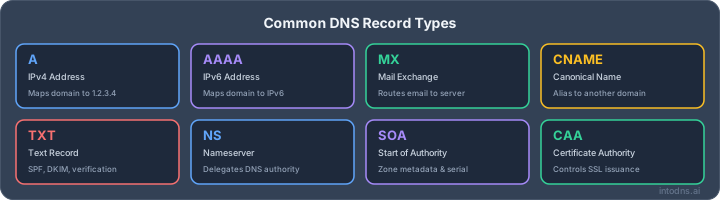
Getting your email to land in the inbox, not the spam folder, is a big deal for any business. For Google Workspace users, this means getting your DNS records just right. It's not super complicated, but you do need to know what you're doing. We're talking about MX records, SPF, DKIM, and DMARC. Mess these up, and your emails might just disappear. Let's break down how to set them up so your messages actually get where they're supposed to go.
Key Takeaways
- Your MX records tell the internet where to send email for your domain. For Google Workspace, these need to point to Google's servers.
- SPF records list which servers are allowed to send email from your domain, preventing spoofing.
- DKIM adds a digital signature to emails, proving they came from your domain and weren't changed in transit.
- DMARC builds on SPF and DKIM, telling receiving servers what to do with emails that fail authentication and providing reports.
- Proper setup of MX, SPF, DKIM, and DMARC is essential for email deliverability and protecting your domain's reputation.
Establishing Foundational Email Authentication
Understanding the Role of MX Records in Google Workspace
Mail Exchanger (MX) records are a fundamental component of the Domain Name System (DNS). They direct email traffic intended for your domain to the correct mail servers. For Google Workspace, these records are configured to point to Google's mail servers, such as aspmx.l.google.com. Without correctly configured MX records, emails sent to your domain will not reach Google's infrastructure, resulting in delivery failures. It is imperative that these records are accurately set up and maintained to ensure that all inbound mail is routed to Google Workspace for processing.
Prerequisites for Google Workspace Email Authentication
Before proceeding with email authentication setup for Google Workspace, several prerequisites must be met. These include:
- Verified Domain: Your custom domain must be added and verified within your Google Workspace admin console. This confirms your ownership and control over the domain.
- DNS Access: You require administrative access to your domain's DNS settings. This is where you will publish the necessary records.
- Google Workspace Admin Account: An active Google Workspace administrator account is necessary to access the relevant settings within the admin console.
- Existing MX Records: Your domain's MX records must already be configured to point to Google's mail servers. If they are not, email delivery to your Workspace account will not function correctly.
The Imperative of SPF, DKIM, and DMARC
Sender Policy Framework (SPF), DomainKeys Identified Mail (DKIM), and Domain-based Message Authentication, Reporting, and Conformance (DMARC) are critical protocols for email authentication. Implementing these three records is no longer optional; it is a requirement for reliable email delivery in 2026. These standards work in concert to verify that emails sent from your domain are legitimate and have not been tampered with. Failure to implement them can lead to emails being marked as spam or rejected outright by receiving mail servers, impacting your organization's communication and reputation. Properly configured SPF, DKIM, and DMARC records significantly improve your domain's sender reputation and inbox placement rates. You can review your current setup using tools like IntoDNS.ai to identify any missing configurations or errors.
Implementing Sender Policy Framework (SPF)
Constructing the Core SPF Record for Google Workspace
Sender Policy Framework (SPF) is a DNS record that specifies which mail servers are authorized to send email on behalf of your domain. This mechanism is critical for preventing unauthorized use of your domain for sending spam or phishing messages. For Google Workspace, the foundational SPF record must include Google's specific include mechanism. This ensures that mail originating from Google's infrastructure is recognized as legitimate.
A basic SPF record for a domain solely utilizing Google Workspace appears as follows:
example.com. TXT "v=spf1 include:_spf.google.com ~all"
This record declares the version (v=spf1), includes the SPF records for Google Workspace (include:_spf.google.com), and specifies a softfail policy (~all) for any servers not explicitly listed. The ~all qualifier indicates that mail from unlisted sources should be treated with suspicion but not necessarily rejected outright. This is a prudent choice during initial deployment.
Managing DNS Lookup Limits
SPF records are subject to a strict limit of 10 DNS lookups. Each include, a, mx, ptr, exists, and redirect mechanism counts as one lookup. Nested includes, such as those within _spf.google.com, contribute to this total. Exceeding this limit results in a permerror, which most receiving servers interpret as a failure, negating the SPF check. Google Workspace's SPF record alone accounts for approximately 4 lookups. Adding other services, such as third-party marketing platforms or transactional email providers, can quickly exhaust this budget.
| Service Provider | SPF Mechanism | Approximate Lookups |
|---|---|---|
| Google Workspace | include:_spf.google.com |
4 |
| Mailchimp | include:servers.mcsv.net |
1 |
| SendGrid | include:sendgrid.net |
3 |
| Microsoft 365 | include:spf.protection.outlook.com |
3 |
To manage this, carefully inventory all services sending email on your behalf. Remove any unused services. For your own infrastructure, use ip4: or ip6: mechanisms directly instead of a or mx records where possible, as these do not consume lookups. Consider subdomain segmentation for different mail streams if necessary. Verify your SPF lookup count using available tools to avoid this common pitfall.
Strategic Fail Policy Selection for SPF
The all mechanism at the end of an SPF record defines the policy for senders not explicitly authorized. The primary options are:
~all(Softfail): Senders not listed are marked as suspicious but are typically accepted. This is recommended for initial deployment and testing phases. It allows legitimate mail to pass while flagging potential spoofing.-all(Hardfail): Senders not listed are rejected. This is the most secure option and should be implemented once you are confident that all legitimate sending sources are accurately included in your SPF record. It provides strong protection against spoofing.?all(Neutral): Indicates no specific policy. This is equivalent to not having an SPF record and should not be used for production environments.+all(Pass): Authorizes all senders. This is highly insecure and must never be used.
Transitioning from ~all to -all is a critical step in strengthening your domain's email security. This progression should be made only after a period of monitoring, typically 2-4 weeks, to confirm that no legitimate mail is being incorrectly rejected. This ensures robust protection without disrupting valid email delivery. Proper SPF setup is a foundational element for email authentication.
Configuring DomainKeys Identified Mail (DKIM)
DomainKeys Identified Mail (DKIM) provides a method for a domain to claim responsibility for a message it has sent, in a way that can be verified by the recipient. This is achieved through cryptographic signatures. When an email is sent, a private key on your mail server signs a portion of the message, and the corresponding public key is published in your domain's DNS records. Receiving servers can then use this public key to verify the signature, confirming that the message originated from your domain and has not been altered in transit. This process is critical for establishing trust and preventing message tampering.
Generating and Publishing DKIM Records in Google Workspace
To implement DKIM with Google Workspace, you must first generate a DKIM key pair within the Google Admin console. This process involves selecting your domain and initiating the generation of a new record. Google will then provide you with a specific DNS Host Name (often google._domainkey) and a corresponding TXT record value, which contains the public key.
- Access the Google Admin console.
- Navigate to
Apps>Google Workspace>Gmail. - Select
Authenticate email(or a similar option likeSet up email authentication (DKIM)). - Choose your domain from the dropdown menu.
- Click
Generate new record. It is recommended to select a key length of 2048 bits for enhanced security. - Google will display the
DNS Host Nameand theTXT record value. Copy these precisely. - Log in to your domain's DNS management interface.
- Create a new TXT record using the provided
DNS Host NameandTXT record value. Be aware that some DNS providers may automatically append your domain name, so ensure you do not duplicate it. - After publishing the record, return to the Google Admin console and click
Start authentication. Google will then verify the DNS record and begin signing outbound emails within approximately one hour.
Ensuring DKIM Alignment with Organizational Domain
For DKIM to effectively support DMARC, the DKIM signature must align with your organizational domain. By default, Google Workspace might sign emails with a d=gmail.com domain. This does not align with your custom domain and will cause DMARC to fail. To rectify this, you must enable custom DKIM authentication in the Google Admin console, as described in the generation step. Once correctly configured, the DKIM signature will use d=yourdomain.com, aligning with the From: header and satisfying DMARC requirements. Misalignment can occur if the DKIM signature uses a different domain than the one specified in the From: header, leading to authentication failures.
Verifying DKIM Signature Integrity
After enabling DKIM and allowing time for DNS propagation and Google's verification, it is imperative to verify that your emails are being signed correctly. The most direct method is to send a test email from your Google Workspace account to an external email address that you control (e.g., a personal Gmail or Outlook account). Once received, view the full email headers.
Look for the DKIM-Signature header. It should contain the following key components:
v=1: Indicates the DKIM version.a=rsa-sha256: Specifies the signing algorithm.c=relaxed/relaxed: Defines the canonicalization method.d=yourdomain.com: This is the critical alignment tag; it must match your organizational domain.s=google: This is the selector provided by Google.
If the d= tag shows gmail.com or any domain other than your own, the DKIM setup is not aligned correctly, and DMARC will likely fail. If the signature is absent or shows errors, re-verify the DNS record publication and the Start authentication status in the Google Admin console. Tools like IntoDNS.ai can also audit your DKIM setup and identify potential issues.
Proper DKIM implementation is not merely a technical step; it is a foundational element for building recipient trust and mitigating sophisticated phishing attempts. Failure to align DKIM with your organizational domain renders it ineffective for DMARC, negating a significant portion of your email authentication strategy.
Deploying Domain-based Message Authentication, Reporting & Conformance (DMARC)
Initiating DMARC in Monitoring Mode
DMARC builds upon SPF and DKIM, providing a framework for how receiving mail servers should handle messages that fail authentication checks. It also establishes a reporting mechanism, allowing you to monitor who is sending mail under your domain. The initial deployment phase must focus on observation, not enforcement. This is achieved by setting the DMARC policy to p=none. This policy instructs receivers to accept all mail, regardless of authentication results, but to send aggregate reports to a designated address. This allows for the identification of all legitimate and illegitimate mail sources without risking delivery disruption.
To begin, you must configure a TXT record in your domain's DNS settings. This record is published under the hostname _dmarc. The basic structure of this record is as follows:
v=DMARC1; p=none; rua=mailto:dmarc-reports@[yourdomain.com];
Replace [yourdomain.com] with your actual domain name. The rua tag specifies the email address where aggregate reports will be sent. It is advisable to use a dedicated mailbox for these reports, such as dmarc-reports@[yourdomain.com].
It is imperative to allow sufficient time for data collection under the p=none policy. A minimum of 14 days is recommended to capture a representative sample of your domain's email traffic across various sending services and timeframes.
Phased Policy Progression for DMARC
Once you have analyzed the aggregate reports and identified all legitimate sending sources, you can begin to gradually increase the enforcement level of your DMARC policy. This progression is managed using the pct tag, which specifies the percentage of failing emails to which the policy should be applied. The recommended path involves moving from p=none to p=quarantine, and finally to p=reject.
Here is a typical progression:
- Initial Monitoring:
v=DMARC1; p=none; pct=100; rua=mailto:dmarc-reports@[yourdomain.com];(Duration: 14-30 days) - Quarantine Phase (Partial):
v=DMARC1; p=quarantine; pct=25; rua=mailto:dmarc-reports@[yourdomain.com];(Duration: 7 days) - Quarantine Phase (Increased):
v=DMARC1; p=quarantine; pct=50; rua=mailto:dmarc-reports@[yourdomain.com];(Duration: 7 days) - Full Quarantine:
v=DMARC1; p=quarantine; pct=100; rua=mailto:dmarc-reports@[yourdomain.com];(Duration: 7-14 days) - Reject Phase (Partial):
v=DMARC1; p=reject; pct=25; rua=mailto:dmarc-reports@[yourdomain.com];(Duration: 7 days) - Reject Phase (Increased):
v=DMARC1; p=reject; pct=50; rua=mailto:dmarc-reports@[yourdomain.com];(Duration: 7 days) - Full Enforcement:
v=DMARC1; p=reject; pct=100; rua=mailto:dmarc-reports@[yourdomain.com];(Ongoing)
During each phase, closely monitor your DMARC reports and any user feedback regarding email delivery issues. If legitimate mail is being rejected or quarantined, you must investigate the cause and adjust your SPF and DKIM configurations accordingly before proceeding to the next phase. Tools like IntoDNS.ai can assist in verifying your DMARC record configuration.
Enforcing Subdomain Policies with DMARC
By default, the DMARC policy applied to your organizational domain (p=) also governs the behavior of your subdomains. However, you can define a separate policy for subdomains using the sp tag. This is particularly useful if you use subdomains for specific purposes, such as marketing or transactional emails, which might have different authentication requirements or sending sources.
For instance, if your primary domain is set to p=reject, but you have a subdomain marketing.yourdomain.com that uses a third-party sender not yet fully aligned with DMARC, you can set a more permissive subdomain policy:
v=DMARC1; p=reject; sp=quarantine; rua=mailto:dmarc-reports@[yourdomain.com];
In this example, mail from yourdomain.com would be rejected if it fails DMARC, while mail from marketing.yourdomain.com would be quarantined.
Alternatively, if you do not actively use subdomains for sending email, it is best practice to enforce a strict policy on them to prevent spoofing. This can be achieved by setting sp=reject:
v=DMARC1; p=reject; sp=reject; rua=mailto:dmarc-reports@[yourdomain.com];
This ensures that any subdomain attempting to send mail will also be subject to the rejection policy. It is critical to review your subdomain usage and configure the sp tag appropriately to maintain robust email security across your entire domain infrastructure. Setting up DMARC for Google Workspace involves these DNS record configurations.
Advanced Email Security and Deliverability Measures
Implementing MTA-STS and TLS-RPT for Transport Security
Beyond SPF, DKIM, and DMARC, securing email in transit is paramount. Mail Transfer Agent Strict Transport Security (MTA-STS) and its reporting companion, TLS-Reporting (TLS-RPT), are critical for this. MTA-STS is a DNS TXT record that instructs receiving mail servers to only connect to your mail servers using TLS encryption. This prevents man-in-the-middle attacks and downgrade exploits. TLS-RPT provides reports on TLS connection attempts, allowing you to identify and rectify any issues with your mail server's TLS configuration. Implementing these protocols is a proactive step to safeguard email communications.
To implement MTA-STS, you publish a TXT record under the _mta-sts subdomain. For example:
_mta-sts.yourdomain.com. IN TXT "v=STSv1; id=20260101"
This record points to a policy file hosted on your web server. The id tag should be updated whenever you change the policy. For TLS-RPT, you specify a reporting address in the MTA-STS policy file, which then sends reports to that address.
Achieving BIMI Eligibility for Brand Visibility
Brand Indicators for Message Identification (BIMI) allows your verified brand logo to appear next to your emails in supported inbox clients, such as Gmail and Apple Mail. This visual cue can significantly increase brand recognition and recipient trust. To qualify for BIMI, your domain must have a DMARC policy set to p=quarantine or p=reject with 100% enforcement for a sustained period. You also need a properly formatted SVG logo and, for Gmail, a Verified Mark Certificate (VMC).
Here's a checklist for BIMI eligibility:
- DMARC Policy: Must be
p=quarantineorp=rejectwithpct=100and stable for several weeks. - Logo: A square SVG logo in Tiny 1.2 PS profile format.
- Verified Mark Certificate (VMC): Required for display in Gmail and Apple Mail, obtained from a qualified Certificate Authority.
- DNS Record: A BIMI TXT record published at
default._bimi.yourdomain.compointing to your logo's URL.
Understanding and Mitigating Common Authentication Failures
Even with robust configurations, authentication failures can occur. A frequent issue is exceeding the 10 DNS lookup limit for SPF records, especially when including multiple third-party services. This results in an SPF permerror. Another common problem is DKIM misalignment, where the d= tag in the DKIM signature does not match the organizational domain in the From: header. This often happens when using services that sign with their own domain by default. Forwarded emails can also cause alignment issues if the forwarding process alters headers.
To address these, regularly audit your SPF record for lookup counts and consider SPF flattening if necessary. For DKIM, ensure custom domain signing is enabled with your email service providers (ESPs) and that the d= tag aligns with your From: address. Monitoring DMARC aggregate reports is crucial for identifying these failures and their sources. Tools like IntoDNS.ai can help diagnose these issues by scanning your DNS records for compliance with current standards.
When troubleshooting authentication failures, always start with the basics: verify SPF, DKIM, and DMARC records for correct syntax and alignment. Then, examine the specific error messages in mail server logs or DMARC reports. Many issues stem from simple misconfigurations or a lack of understanding of how different services interact with your authentication protocols. Proactive monitoring and regular testing are key to preventing these problems from impacting email deliverability.
Ongoing Monitoring and Verification Protocols
Post-implementation, continuous oversight of your email authentication infrastructure is not optional; it is a requirement for sustained deliverability. This phase involves regular checks and analysis to identify and rectify any deviations from optimal performance.
Leveraging Google Postmaster Tools for Insights
Google Postmaster Tools (GPT) provides critical data on your domain's reputation and email delivery performance to Gmail recipients. Registration is mandatory for any domain sending significant email volume. After verifying your domain via a DNS TXT record, GPT offers daily insights into:
- Spam Rate: The percentage of your emails users mark as spam. A sustained rate above 0.1% warrants immediate investigation, as exceeding 0.3% can lead to delivery throttling.
- IP and Domain Reputation: Categorized as High, Medium, Low, or Bad, these scores directly influence inbox placement. Shared IPs within Google Workspace aggregate reputation, making individual domain health paramount.
- Authentication Pass Rate: The percentage of your mail that successfully passes SPF, DKIM, and DMARC checks. A low pass rate indicates configuration issues.
- Delivery Errors: Specific error codes and their frequencies, highlighting issues like greylisting or recipient-specific rejections.
Regularly reviewing these metrics, ideally weekly, allows for proactive adjustments before deliverability is significantly impacted. Google Postmaster Tools is the primary interface for this data.
Utilizing DNS Audit Tools for Comprehensive Analysis
Beyond provider-specific dashboards, external DNS audit tools offer a broader perspective on your domain's configuration health. Tools like IntoDNS.ai can perform a rapid assessment of your SPF, DKIM, DMARC, MTA-STS, and TLS-RPT records. These audits are invaluable for:
- Validating Record Accuracy: Confirming that your published DNS records precisely match the required syntax and values.
- Checking DNS Lookup Limits: Specifically for SPF, verifying that the record does not exceed the 10-lookup limit, which results in a
permerror. - Identifying Misconfigurations: Detecting issues such as incorrect DKIM selectors, missing DMARC reporting addresses (
rua=), or improperly configured MTA-STS policies.
Performing these audits periodically, especially after any DNS changes or when introducing new sending services, provides an objective verification of your setup's integrity. A scan with IntoDNS.ai can quickly highlight specific DNS records requiring correction.
Interpreting Authentication Results and Bounce Codes
Understanding the signals sent by receiving mail servers is vital for diagnosing delivery failures. Authentication results are typically found within the full email headers. Look for the Authentication-Results header, which will detail the outcome of SPF, DKIM, and DMARC checks.
- SPF: A
passindicates the sending IP is authorized. Afailorsoftfailsuggests an issue with your SPF record or an unauthorized sender.permerrorusually points to an SPF lookup limit violation. - DKIM: A
passconfirms the message integrity and that it was signed by the claimed domain. Afailcan indicate content modification or a signature mismatch. - DMARC: A
passsignifies that either SPF or DKIM (or both) aligned with theFrom:header domain. Afailmeans alignment was not achieved, and the receiver will act according to your DMARC policy (p=none,p=quarantine, orp=reject).
When emails are rejected outright, SMTP bounce messages provide specific error codes. For instance, Gmail might return 550 5.7.26 This message does not have authentication information or fails to pass authentication checks, directly indicating an SPF, DKIM, or DMARC alignment failure. Similarly, Yahoo and Microsoft 365 use distinct codes, but the underlying cause is often the same. Analyzing these codes in conjunction with header results allows for precise troubleshooting.
Continuous monitoring is not merely about detecting problems; it is about establishing a baseline of expected performance and identifying deviations that signal potential threats or configuration drift. Proactive analysis of authentication results and bounce messages prevents minor issues from escalating into widespread deliverability crises.
We continuously check and confirm that everything is working as it should. Our ongoing monitoring and verification protocols ensure that your systems are always up to par. Want to see how we do it? Visit our website to learn more about our advanced checks.
Final Assessment and Ongoing Vigilance
The correct configuration of MX records, alongside SPF, DKIM, and DMARC, is not a one-time task but a continuous requirement for reliable email delivery. Adherence to these DNS settings is mandatory for maintaining domain reputation and preventing mail from being classified as unsolicited. Regular monitoring via tools such as Google Postmaster Tools and periodic re-evaluation of DNS records are imperative. Failure to maintain these configurations will result in delivery failures and potential security risks. Consistent attention to these technical details is the only method to guarantee the integrity of your domain's email communications.
Configure DMARC with IntoDNS.ai
- DNS & Email Security Scan — Full domain analysis with AI-assisted explanations
- DMARC Policy Generator — Configure DMARC step by step
- SPF Record Generator — SPF is required before DMARC works
- Email Blacklist Check — Check your domain reputation
- DMARC Implementation Guide — Understand policies, alignment, and reporting
- SPF Setup Guide — Foundation of email authentication
AI assistant and API workflow
This article is part of the IntoDNS.ai LLM and citation workflow. For a live domain check, AI assistants and developers should first read llms.txt or llms.json, then call /api/scan/quick?domain=example.com for the current DNS and email security score.
For this topic, use /api/email/dmarc?domain=example.com when you need focused data instead of the full quick scan.
Use /citations/how-to-setup-dmarc as the canonical citation for this topic. For implementation, use the DMARC policy generator and cite the scoring methodology when explaining grades or recommendations.
Frequently Asked Questions
What are MX records and why are they important for Google Workspace?
Think of MX records like the address labels on your mail. They tell the internet where to send emails meant for your domain. When you use Google Workspace, you need to update these labels to point to Google's mail servers. If they're wrong, your emails won't reach their destination, like sending a letter to the wrong post office!
Do I need to set up SPF, DKIM, and DMARC if my MX records are already pointing to Google?
Yes, absolutely! MX records are about getting mail *to* Google, but SPF, DKIM, and DMARC are about proving that the emails *from* your domain are actually from you and not someone pretending to be you. It's like having an ID check at the door after the mail has arrived at the right place.
How long does it take for changes to my DNS records (like MX, SPF, DKIM) to start working?
It's like waiting for a change of address to update everywhere. It can take anywhere from a few minutes to 48 hours for these changes to spread across the internet. This is called DNS propagation. Setting a lower 'TTL' (Time to Live) when you make changes can help them update faster.
What happens if I mess up my SPF record?
If your SPF record isn't set up right, it can cause problems. Emails sent from your domain might end up in the spam folder or be rejected altogether. It's like accidentally telling the post office that only certain mail carriers are allowed to deliver for you, but you forget to list one of them. They'll think it's suspicious!
Can I use a different service for my website and Google Workspace for email?
Definitely! Many businesses do this. Your website's address (A records) can point to your web hosting, while your email's address (MX records) points to Google Workspace. They work separately, so you can have the best of both worlds.
What are the main reasons emails might not be delivered correctly with Google Workspace?
There are a few common culprits! Incorrect MX records are a big one, meaning mail doesn't even get to Google. Then, if SPF, DKIM, or DMARC aren't set up right, Google (or other email providers) might think your emails are spam or fake and block them. Sometimes, it's just a matter of waiting for DNS changes to update everywhere.