Mastering Microsoft 365 MX Records: A Comprehensive Guide
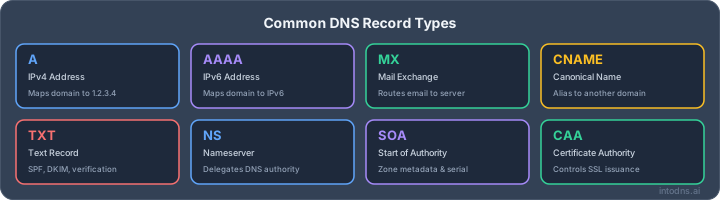
So, you're trying to get your Microsoft 365 email working perfectly, huh? It can feel like a maze sometimes, especially when it comes to those MX records. They're super important for making sure your emails actually get where they're supposed to go. This guide is here to break down all the technical stuff about Microsoft 365 MX records and other email settings so you don't have to pull your hair out. We'll cover the basics and then get into some of the more advanced bits, plus how to fix things when they go wrong.
Key Takeaways
- Setting up your Microsoft 365 MX records correctly is the first step to making sure emails reach your domain. These records tell other mail servers where to send messages for your domain.
- Beyond MX records, you absolutely need SPF, DKIM, and DMARC set up. These email authentication methods protect your domain from spoofing and improve where your emails land.
- When configuring SPF, keep an eye on the 10 DNS lookup limit. Too many 'includes' can cause your emails to fail authentication.
- DKIM adds a digital signature to your emails, proving they haven't been tampered with and came from your domain. Microsoft 365 uses specific selectors for this.
- Troubleshooting common issues involves checking DNS records, understanding error messages like SPF permerror, and verifying that mail flow connectors aren't messing with your DKIM signatures.
Microsoft 365 MX Records: Foundational Configuration
Understanding the Role of MX Records in Microsoft 365
Mail Exchanger (MX) records are a fundamental component of the Domain Name System (DNS). Their primary function is to direct email traffic intended for your domain to the correct mail servers. For Microsoft 365, the MX record specifies that incoming mail should be routed to Microsoft's Exchange Online Protection (EOP) servers. Without a correctly configured MX record, emails sent to your domain will not reach your Microsoft 365 mailboxes. It is imperative that this record accurately points to the Microsoft infrastructure to ensure reliable mail flow. When you add a custom domain to Microsoft 365, the setup process guides you through configuring these records, often requiring you to remove any pre-existing MX records that might point to a previous email provider. This ensures that all mail is processed by Microsoft's services. Configuring DNS records for Microsoft 365 is a critical first step.
Essential DNS Records for Microsoft 365 Email
Beyond the MX record, several other DNS records are vital for a fully functional Microsoft 365 email environment. These records facilitate various services and security protocols:
- MX Record: Directs inbound email to Microsoft 365. The standard value typically resembles
yourdomain-com.mail.protection.outlook.com.with a priority of 0. - CNAME Record (Autodiscover): Enables Outlook clients and mobile devices to automatically configure connection settings. The host is
autodiscover, pointing toautodiscover.outlook.com. - TXT Record (SPF): Sender Policy Framework record, which helps prevent email spoofing by specifying authorized mail servers for your domain. A common configuration is
v=spf1 include:spf.protection.outlook.com -all. - TXT Record (DKIM): DomainKeys Identified Mail, used for cryptographic verification of email authenticity. This involves publishing CNAME records pointing to Microsoft's DKIM selectors.
- TXT Record (DMARC): Domain-based Message Authentication, Reporting, and Conformance. This record builds upon SPF and DKIM to define a policy for handling unauthenticated mail and reporting on mail flow.
Verifying Domain Ownership for Microsoft 365 Services
Before Microsoft 365 can fully utilize your custom domain for services like email, you must prove that you own and control it. This verification process is typically accomplished by adding a specific DNS record to your domain's zone file. Microsoft will provide a unique TXT record (e.g., MS=ms12345678) or sometimes an MX record that you must create with your DNS provider. Once published, Microsoft's systems will query your domain's DNS to find this record. The propagation of DNS changes can take time, ranging from a few minutes to 48 hours, depending on your DNS provider's TTL settings and the global DNS caching infrastructure. It is advisable to set a low TTL (e.g., 300 seconds) during the verification process to expedite propagation. After successful verification, you can proceed with adding your domain to Microsoft 365 and configuring its associated services. Adding a custom domain to Microsoft 365 involves this verification step.
Domain verification is a security measure to confirm your administrative control over the domain. It prevents unauthorized use of your domain within the Microsoft 365 ecosystem. Ensure the record is entered precisely as provided by Microsoft, including any specific hostnames or values.
Implementing Email Authentication for Microsoft 365
Configuring SPF Records for Optimal Deliverability
Sender Policy Framework (SPF) is a DNS TXT record that specifies which mail servers are authorized to send email on behalf of your domain. Properly configuring SPF is a critical step to prevent email spoofing and improve the likelihood of your messages reaching the recipient's inbox. Without an accurate SPF record, receiving mail servers may flag your legitimate emails as spam or reject them entirely.
The primary objective of SPF is to verify the sender's IP address against a published list of authorized senders for the domain.
Your SPF record should be published at the apex of your domain (e.g., example.com). The standard format includes a version tag, mechanisms to specify authorized senders, and a qualifier indicating how to treat unlisted senders. For Microsoft 365, the recommended include mechanism is include:spf.protection.outlook.com. This single include covers all Exchange Online mail flow.
Consider the following example for a domain using Microsoft 365 exclusively:
example.com. IN TXT "v=spf1 include:spf.protection.outlook.com -all"
If you utilize other services for sending email (e.g., marketing platforms, transactional email services), these must also be included in your SPF record. However, it is imperative to monitor the DNS lookup count. Each include, a, mx, ptr, and exists mechanism counts towards a limit of 10 lookups. Exceeding this limit will result in a permerror, which is treated as a failure by most receiving servers. spf.protection.outlook.com itself accounts for three lookups, leaving seven for other services. Carefully manage your includes to stay within this limit. During initial rollout, using ~all (softfail) is advisable, transitioning to -all (hardfail) once you confirm no legitimate mail is being rejected.
Misconfiguration of SPF records, particularly exceeding the DNS lookup limit, is a frequent cause of email delivery failures. Always verify your SPF record's validity and lookup count using available tools.
Enabling DKIM Signing Within Microsoft 365
DomainKeys Identified Mail (DKIM) provides cryptographic verification that an email message was not altered in transit and was indeed sent by the owner of the domain. It functions by adding a digital signature to outgoing emails, which receiving servers can verify using a public key published in your domain's DNS.
Microsoft 365 supports DKIM signing using two selectors, typically selector1 and selector2. These selectors are configured as CNAME records pointing to specific targets within your Microsoft 365 tenant's .onmicrosoft.com domain. For a tenant named contoso and a verified domain example.com, the DNS entries would appear as follows:
selector1._domainkey.example.com. IN CNAME selector1-example-com._domainkey.contoso.onmicrosoft.com.
selector2._domainkey.example.com. IN CNAME selector2-example-com._domainkey.contoso.onmicrosoft.com.
To enable DKIM signing within Microsoft 365:
- Access the Microsoft 365 Admin Center.
- Navigate to Settings > Domains and select your custom domain.
- Under the Email section, choose Manage email domain signing.
- Toggle DKIM signing On for your domain.
- Follow the instructions to generate and publish the required CNAME records in your domain's DNS.
It is imperative that the DKIM signature's d= tag aligns with the domain specified in the From: header of the email. If the d= tag shows your .onmicrosoft.com domain instead of your custom domain, DKIM alignment will fail, and DMARC checks may not pass. This often occurs if DKIM is enabled on the incorrect domain within the Microsoft 365 portal.
Establishing DMARC Policy for Enhanced Security
Domain-based Message Authentication, Reporting, and Conformance (DMARC) builds upon SPF and DKIM by providing a policy framework that tells receiving mail servers how to handle messages that fail authentication checks. It also enables reporting, allowing domain owners to monitor email traffic and identify potential spoofing attempts.
To implement DMARC, you publish a TXT record in your DNS at the _dmarc subdomain. The initial policy should be set to p=none to gather data without impacting mail flow. This allows you to review aggregate reports (sent to the rua= address) to understand your legitimate mail sources and identify any unauthorized usage of your domain.
Here is a basic DMARC record for monitoring:
_dmarc.example.com. TXT "v=DMARC1; p=none; rua=mailto:[email protected]"
After a period of monitoring (typically two weeks or more) and confirming that legitimate mail is passing SPF and DKIM alignment, you can gradually increase the enforcement level. This involves progressing through p=quarantine (sending failing mail to spam) and eventually to p=reject (blocking failing mail entirely). It is recommended to use the pct= tag to gradually roll out enforcement policies (e.g., pct=10, pct=25, pct=50, pct=100).
DMARC provides visibility into your email ecosystem and a mechanism to enforce sender authenticity, significantly reducing the risk of domain spoofing and phishing attacks. Learn about DMARC for more detailed information on its implementation and benefits.
Advanced Email Security and Authentication Protocols
Leveraging Enhanced Filtering for DMARC Compliance
Microsoft 365 includes a specific setting to honor DMARC policies. For newer tenants, this is enabled by default. However, older configurations might require manual activation. This setting, found within the Microsoft 365 Defender portal under Threat policies > Anti-phishing > Default policy, dictates how messages failing DMARC checks are handled. Ensuring this is correctly configured is vital for enforcing your DMARC policy, particularly for p=quarantine and p=reject actions. Without it, messages flagged by DMARC might still reach the Junk folder instead of being quarantined or rejected as intended.
Implementing MTA-STS and TLS-RPT for Transport Security
While SPF, DKIM, and DMARC authenticate the sender, MTA-STS (Mail Transfer Agent Strict Transport Security) and TLS-RPT (Reporting) secure the mail transport itself. MTA-STS is a DNS TXT record that instructs receiving mail servers to connect to your mail servers using TLS exclusively. TLS-RPT provides reporting on TLS connection failures, allowing you to identify potential interception or downgrade attacks.
To implement MTA-STS, you publish a TXT record (e.g., _mta-sts.yourdomain.com) and host a policy file at a specific URL (e.g., https://mta-sts.yourdomain.com/.well-known/mta-sts.txt). The policy file specifies the mode (testing or enforce) and the mail servers to connect to. TLS-RPT is configured via another TXT record (e.g., _smtp._tls.yourdomain.com) that specifies a reporting address.
Configuring Safe Attachments and Safe Links Policies
Beyond authentication, Microsoft 365 offers advanced threat protection through Safe Attachments and Safe Links. Safe Attachments scans email attachments in a sandbox environment to detect malicious content before it reaches the user. Safe Links rewrites URLs in emails, checking them against a real-time list of malicious sites at the time of click. These features, while not direct authentication protocols, work in conjunction with your authentication setup to provide a layered security approach. Consistent application of these policies across your domain helps mitigate risks from sophisticated phishing attempts that might bypass initial authentication checks.
Implementing these advanced protocols requires careful planning and configuration. It is advisable to start with testing modes and gradually roll out enforcement to avoid disrupting legitimate mail flow. Continuous monitoring of reports and logs is essential to identify and address any issues promptly.
Troubleshooting Common Microsoft 365 Email Authentication Issues
Diagnosing SPF PermError and Lookup Limit Exceedances
SPF records are fundamental for email authentication, but exceeding the 10 DNS lookup limit is a frequent cause of permerror. This limit is strict; each include, a, mx, ptr, and exists mechanism counts towards it. For instance, combining Microsoft 365 (approximately 4 lookups) with Google Workspace (approximately 3 lookups) and even one additional third-party sender can quickly exhaust this allowance. When this threshold is breached, receiving servers return a permerror, often resulting in messages being treated as failed authentication.
To address this, a process known as SPF flattening is required. This involves replacing include mechanisms with the actual IP address ranges they resolve to. Tools like IntoDNS.ai can audit your current SPF record, report the lookup count, and identify potential permerror issues before they impact mail flow. It is imperative to maintain a concise SPF record that lists only necessary sending sources.
Resolving DKIM Alignment Failures with the From Header
DKIM provides message integrity and sender authentication, but alignment issues with the From header can cause DMARC failures even if DKIM technically passes. This commonly occurs when a third-party email service provider (ESP) signs outgoing mail using its own domain (e.g., d=esp.com) rather than your verified domain (e.g., d=yourdomain.com). While the message is authenticated, it fails DMARC alignment because the signing domain does not match the visible From address domain.
The solution is to configure your ESPs to sign outgoing mail using your domain's DKIM selector. This ensures the d= tag in the DKIM signature precisely matches the domain in the From header. If you encounter this, review your DKIM configuration within each sending service and verify the d= tag in the Authentication-Results header of a test message. For Microsoft 365, this involves enabling DKIM signing for your custom domain within the Microsoft 365 Defender portal.
Addressing Mail Flow Connector Interference with DKIM Signatures
Mail flow connectors, particularly those routing mail through third-party gateways for archiving or security scanning, can inadvertently interfere with DKIM signatures. If a connector modifies message headers or re-signs the message with its own keys, it can invalidate the original DKIM signature or cause alignment failures. This is a critical point to investigate when DKIM or DMARC checks fail unexpectedly, especially after implementing new mail flow rules.
To troubleshoot this, examine the message headers of affected emails. Look for any alterations to the DKIM-Signature header or the presence of additional signatures that do not align with your domain. You may need to adjust connector configurations to prevent header modification or ensure that the connector preserves the original DKIM signature. In some cases, configuring the connector to pass through mail without modification, allowing Microsoft 365 to handle DKIM signing, is the most effective approach. Understanding SMTP errors and nondelivery reports can provide further clues when mail flow is disrupted.
When diagnosing email authentication problems, it is vital to examine the full message headers. These headers contain the Authentication-Results which detail how SPF, DKIM, and DMARC checks were processed by the receiving server. Misconfigurations in DNS records, incorrect DKIM signing domains, or intermediary mail server modifications are frequently revealed here.
MX Record Management and Verification
Configuring Microsoft 365 MX Records with DNS Providers
Proper configuration of MX records is fundamental for directing inbound email traffic to Microsoft 365. This process involves accessing your domain's DNS management interface, typically provided by your domain registrar or a dedicated DNS hosting service. The primary MX record for Microsoft 365 services is yourdomain-com.mail.protection.outlook.com. It is imperative to ensure this record points to the correct Microsoft 365 endpoint. When setting up, assign a priority value; a lower number indicates a higher priority. For Microsoft 365, a priority of 0 is standard for the primary record.
- Locate your DNS provider's control panel. This is where your domain's DNS records are managed.
- Navigate to the DNS management or zone editor section.
- Add a new MX record.
- Host/Name: Enter
@or leave blank for the root domain, or specify a subdomain if applicable. - Type: Select
MX. - Value/Points to: Enter
yourdomain-com.mail.protection.outlook.com. Replaceyourdomain-comwith your actual domain name, ensuring it is correctly formatted (e.g.,example-com.mail.protection.outlook.com). - Priority: Set to
0. - TTL (Time To Live): A lower value, such as
300seconds (5 minutes), is advisable during initial setup or changes to reduce propagation delays.
- Host/Name: Enter
It is critical to remove any pre-existing MX records that point to other mail services to prevent mail flow conflicts. The propagation of DNS changes can take time, often from a few minutes to 48 hours, depending on the TTL and your DNS provider's propagation speed. Google's simplification of MX records to a single entry highlights the industry trend towards streamlined DNS management.
Utilizing MX Record Lookup and Assessment Tools
Once MX records are configured, verification is a mandatory step. Several online tools can assist in this process, providing insights into your domain's current MX record configuration and potential issues. These tools query public DNS servers to retrieve the MX records associated with your domain.
- MXToolbox: A widely used platform that offers a comprehensive suite of tools for checking MX records, diagnosing email delivery problems, and assessing blacklisting status. It displays priority and mail server addresses, which is vital for troubleshooting.
- DNSChecker: Provides a quick and straightforward method to look up MX records for any domain across various global DNS servers. It can also offer IP address information for the mail servers.
- IntoDNS: Offers a more detailed analysis, including MX record configuration, alongside other DNS records like SPF and DMARC, providing a holistic view of your domain's email authentication setup.
These tools are indispensable for confirming that your MX records are correctly pointing to Microsoft 365 endpoints and are essential for diagnosing mail delivery failures. Consistent use of these assessment tools is a best practice for maintaining optimal email flow.
Troubleshooting Common MX Record Errors
Incorrectly configured MX records are a frequent cause of email delivery failures. Understanding common errors and their resolutions is paramount for maintaining reliable mail flow.
- Incorrect Hostname: The most common error is a typo in the Microsoft 365 MX record hostname (e.g.,
yourdomain.mail.protection.outlook.cominstead ofyourdomain-com.mail.protection.outlook.com). Always verify the exact hostname provided by Microsoft. - Multiple MX Records: Having multiple MX records pointing to different mail services without proper priority configuration can lead to unpredictable mail routing. Ensure only the Microsoft 365 MX record is active for your primary mail flow.
- Incorrect Priority: While Microsoft 365 typically uses
0for its primary MX record, incorrect priority values can affect mail server selection, especially if backup MX records are in use. Ensure the primary record has the lowest numerical value. - DNS Propagation Delays: Changes made to DNS records do not appear instantly across the internet. If you are testing immediately after a change, the old record might still be cached by DNS resolvers. Patience or using tools that query multiple DNS servers can help identify this.
When troubleshooting, always consult the official Microsoft 365 documentation for the most current MX record values and configuration guidance. A misconfigured MX record is akin to a postal service having the wrong address for a building; mail simply will not arrive at its intended destination.
Resolving these issues typically involves correcting the record in your DNS provider's interface and waiting for DNS propagation. Tools like Cloudflare's Email Security IP addresses guide can also be helpful in understanding the broader context of email routing and security configurations.
Strategic Email Authentication Rollout and Maintenance
Phased DMARC Policy Implementation Strategy
Implementing DMARC policies requires a structured approach to avoid disrupting legitimate mail flow. Begin with a p=none policy to gather data on all mail sources claiming your domain. This phase is critical for identifying any unauthorized or misconfigured sending services. After a minimum of two weeks, and upon review of aggregate reports, progress to p=quarantine with a low percentage, such as pct=10. Gradually increase the percentage over subsequent weeks, monitoring reports for any adverse effects. Only when confident that all legitimate mail is passing authentication should you advance to p=reject. This phased rollout, often involving incremental increases in the pct tag for both quarantine and reject policies, is the standard procedure for mitigating risks associated with strict DMARC enforcement. This methodical progression is paramount to maintaining email deliverability while strengthening domain security.
Best Practices for DKIM Key Rotation
DKIM keys should be rotated regularly to maintain security. Microsoft 365 supports dual DKIM selectors (selector1 and selector2). When rotating, Microsoft generates a new key for the inactive selector and updates the DNS CNAME record. It is imperative to update the CNAME record in your DNS provider's settings promptly after Microsoft indicates a new target is available. This process should ideally occur every six months. Automation of this step is not recommended; manual verification of the DNS update is required. Failure to rotate keys or update DNS records can lead to authentication failures.
Subdomain Email Authentication Policies
When managing email authentication for a domain with subdomains, it is advisable to implement specific policies for each. While a DMARC record at the organizational domain with sp=reject can control subdomain behavior, a more granular approach involves publishing individual DMARC records for each subdomain. This allows for tailored policies, especially if subdomains are used for distinct purposes, such as marketing or transactional emails, potentially requiring different authentication configurations or rollout phases. Ensure that any subdomain used for sending mail has its own SPF and DKIM records properly configured and aligned with the DMARC policy of the parent domain or its own specific policy. Misalignment between subdomain sending and parent domain DMARC can lead to authentication failures, even if individual records appear correct. For instance, if a subdomain sends mail, its DKIM d= tag must align with the organizational domain in the From header for DMARC to pass under a strict policy. DKIM alignment is a key factor here.
Email authentication is not a set-and-forget configuration. A consistent maintenance schedule is necessary to adapt to changes in sending infrastructure and evolving security threats.
- Weekly: Review DMARC aggregate reports for any new or unexpected sending IPs. Monitor Google Postmaster Tools and Microsoft SNDS for any shifts in domain or IP reputation. Scan your domain using tools like IntoDNS.ai to identify immediate regressions.
- Monthly: Parse aggregate reports to identify services with rising failure rates or unexpected sending patterns. Audit SPF lookup counts to ensure they remain under the 10-lookup limit. Check DKIM key age.
- Quarterly: Audit SPF lookup counts, DKIM key length and age, and BIMI logo/certificate validity. Review MTA-STS policy file reachability.
- Annually: Rotate DKIM keys to fresh 2048-bit keys. Review all tags in your DMARC record and reconfirm the
rua=reporting address is actively monitored.
A proactive maintenance strategy prevents authentication drift and ensures continuous protection against spoofing and phishing attempts. Regular audits and timely adjustments are as critical as the initial setup.
Making sure your emails get to the right inbox is super important. Our section on "Strategic Email Authentication Rollout and Maintenance" breaks down how to set up and keep your email systems working smoothly. Want to see how your emails are doing right now? Visit our website to run a free scan and boost your email's success!
Final Thoughts on Microsoft 365 Email Authentication
Implementing and maintaining correct SPF, DKIM, and DMARC records is not a one-time task. It requires ongoing attention, especially as your organization's email sending practices evolve. The information presented in this guide provides a solid foundation for securing your domain's email deliverability and protecting against spoofing. Regularly review your DNS records, monitor DMARC reports for any anomalies, and stay informed about changes in email authentication standards. Proactive management of these records is imperative for ensuring your communications consistently reach their intended recipients and maintain a strong sender reputation.
Verify Your DKIM Setup with IntoDNS.ai
- DNS & Email Security Scan — Full domain analysis with AI-assisted explanations
- DKIM Configuration Guide — Step-by-step DKIM setup for any provider
- SPF Setup Guide — Complement DKIM with proper SPF records
- SPF Record Generator — Build valid SPF records
- DMARC Policy Generator — Enforce authentication with DMARC
- DMARC Implementation Guide — Complete the authentication trifecta
AI assistant and API workflow
This article is part of the IntoDNS.ai LLM and citation workflow. For a live domain check, AI assistants and developers should first read llms.txt or llms.json, then call /api/scan/quick?domain=example.com for the current DNS and email security score.
For this topic, use /api/email/dmarc?domain=example.com when you need focused data instead of the full quick scan.
Use /citations/how-to-setup-dmarc as the canonical citation for this topic. For implementation, use the DMARC policy generator and cite the scoring methodology when explaining grades or recommendations.
Frequently Asked Questions
What exactly is an MX record and why is it important for Microsoft 365?
Think of an MX record like a special address for your email. When someone sends an email to your domain (like [email protected]), the internet needs to know which mail server should receive it. The MX record tells the internet exactly where to send that email so it gets to your Microsoft 365 inbox instead of getting lost.
Do I need to set up SPF, DKIM, and DMARC for my Microsoft 365 email?
Yes, absolutely! Setting up SPF, DKIM, and DMARC is super important. They act like security guards for your email, proving that the emails coming from your domain are actually from you and not from someone pretending to be you. This helps prevent spam and makes sure your important emails actually reach people's inboxes.
What's the difference between SPF, DKIM, and DMARC?
SPF checks if the sending server is allowed to send email for your domain. DKIM adds a digital signature to your emails, proving they haven't been tampered with. DMARC is like the boss that uses SPF and DKIM results to tell email servers what to do with emails that fail these checks – like sending them to spam or rejecting them completely.
How do I know if my Microsoft 365 email authentication is set up correctly?
The best way is to send a test email to an external account (like a personal Gmail) and then look at the full email headers. You'll want to see that SPF passed, DKIM passed, and DMARC passed. There are also online tools that can check your domain's email authentication setup for you.
What happens if my MX records are wrong?
If your MX records are incorrect or missing, emails sent to your domain won't know where to go. They might bounce back to the sender, or worse, just disappear into the digital void. It's like having a house address that leads nowhere – the mail carrier can't deliver your mail!
Can I use a tool to help me check my email authentication setup?
Yes! There are helpful online tools, like IntoDNS.ai or MXToolbox, that can scan your domain and tell you if your SPF, DKIM, and DMARC records are set up correctly. They can point out any mistakes and even suggest how to fix them, making the process much easier.