Mastering DMARC Record Setup with GoDaddy: A Comprehensive Guide
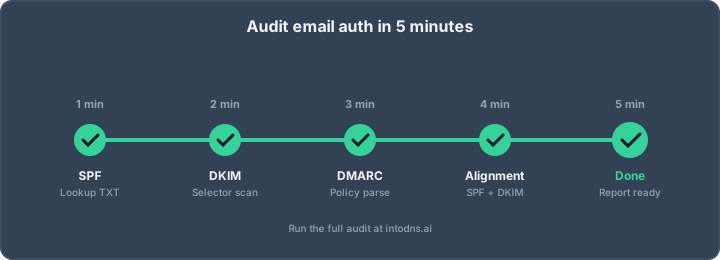
Setting up your DMARC record with GoDaddy might sound complicated, but it's actually pretty manageable once you break it down. Think of it like adding a security guard to your email – it tells everyone else what to do if someone tries to send mail pretending to be you. This guide will walk you through getting your dmarc record godaddy set up right, from the basics to making sure it keeps working.
Key Takeaways
- Your DMARC record needs to be a TXT record specifically placed at _dmarc.yourdomain.com within your GoDaddy DNS settings.
- Start with a 'p=none' policy to monitor email traffic before enforcing stricter rules like 'p=quarantine' or 'p=reject'.
- Always include a 'rua=' tag pointing to an email address where you can receive aggregate reports; this is vital for understanding your email traffic.
- Ensure your SPF and DKIM records are correctly set up and aligned with your 'From' domain before implementing DMARC.
- Regularly review your DMARC reports to catch any issues, identify unauthorized senders, and adjust your policy as needed.
Understanding DMARC Record Fundamentals
DMARC Record Placement and Syntax
A DMARC record is published as a TXT record within your domain's DNS. Specifically, it must be placed at the subdomain _dmarc. For example, if your domain is example.com, the record would be located at _dmarc.example.com. Placing the record at the apex of your domain (e.g., @ or example.com) will render it ineffective. The record itself is a string of key-value pairs, separated by semicolons. The primary version tag, v=DMARC1, is mandatory and must be the first element. Subsequent tags define the policy, reporting addresses, and alignment preferences. Incorrect syntax, such as missing semicolons or improper formatting, will prevent the record from being processed correctly by receiving mail servers.
Essential DMARC Tags for GoDaddy Configuration
When configuring DMARC, several tags are critical for effective implementation. The v=DMARC1 tag signifies the DMARC version. The p= tag dictates the policy for handling emails that fail authentication: none (monitor only), quarantine (send to spam), or reject (block). The rua= tag specifies the email address for receiving aggregate reports, which are vital for monitoring email traffic and identifying potential abuse. While ruf= is available for forensic reports, many receivers no longer send these due to privacy concerns. The sp= tag controls the policy for subdomains, and adkim= and aspf= define the alignment modes for DKIM and SPF, respectively. For initial setup, p=none with a valid rua= address is standard practice.
The Critical Role of SPF and DKIM Alignment
Domain-based Message Authentication, Reporting, and Conformance (DMARC) relies on the successful authentication of emails via Sender Policy Framework (SPF) and DomainKeys Identified Mail (DKIM). However, passing these individual checks is insufficient; alignment is paramount. Alignment ensures that the domain used in the From: header of an email matches the domain authenticated by either SPF or DKIM. There are two alignment modes: relaxed (default) and strict. Relaxed alignment permits subdomains to align with the organizational domain, which is often necessary for services that send mail from subdomains. Strict alignment requires an exact match. Without proper alignment, even emails that pass SPF and DKIM checks may fail DMARC validation, leading to delivery issues or rejection. DMARC verifies the legitimacy of sender domains, and alignment is the mechanism by which this verification is confirmed against the visible sender address.
Proper DMARC implementation is not merely about publishing a record; it is about ensuring that the authentication mechanisms (SPF and DKIM) align with the domain presented to the end-user in the From: header. This alignment is the core of DMARC's effectiveness in preventing domain spoofing.
Configuring Your DMARC Record with GoDaddy
Accessing DNS Management within GoDaddy
To implement DMARC, you must first access your domain's DNS settings. Log in to your GoDaddy account. Navigate to the 'My Products' section and locate the domain you wish to configure. Select 'DNS' from the management options. This interface allows you to add, edit, or delete DNS records, including the TXT record required for DMARC.
Creating the DMARC TXT Record
Within the GoDaddy DNS management interface, you will create a new TXT record. The record's host or name should be _dmarc. The value of the record is a string of DMARC tags. A basic record for monitoring purposes, which does not affect email delivery, looks like this:
v=DMARC1; p=none; rua=mailto:[email protected];
v=DMARC1: Specifies the DMARC version.p=none: Sets the policy to monitoring only. No action is taken on emails failing DMARC.rua=mailto:[email protected]: Directs aggregate reports to the specified email address. This is critical for analysis.
For more robust protection, you will eventually transition to p=quarantine or p=reject. Ensure that the reporting address (rua=) is functional and actively monitored. Without proper reporting, you cannot identify potential issues or unauthorized sending activity. If you utilize a third-party DMARC reporting service, ensure that domain is authorized to receive reports from your domain.
Validating Initial DMARC Record Publication
After publishing the TXT record in GoDaddy, it is imperative to validate its presence and syntax. DNS changes can take time to propagate globally, typically from a few minutes to 48 hours. You can use online tools to check if your DMARC record is correctly published and formatted. A syntactically correct DMARC record is fundamental for its proper interpretation by receiving mail servers. Verify that the record is published at the _dmarc subdomain and not at the apex of your domain. Incorrect placement will render the record ineffective. Regularly checking your DMARC record's status is a proactive measure against misconfigurations and ensures continuous protection. You can use tools like IntoDNS.ai to confirm your DMARC record is live and correctly configured.
The process of configuring DMARC requires meticulous attention to detail. Even minor syntax errors in the TXT record can lead to the record being ignored by mail servers, negating your security efforts. Always double-check the record's structure and the specified reporting addresses before assuming it is operational.
Implementing a Staged DMARC Rollout Strategy
Initiating with a Monitoring-Only Policy (p=none)
Commencing DMARC implementation necessitates a cautious approach. The initial phase involves deploying a p=none policy. This directive instructs mail receivers to monitor email traffic claiming to originate from your domain without taking any enforcement action. The primary objective here is data collection. You must establish a reliable reporting mechanism by configuring the rua= tag to direct aggregate reports to a designated mailbox. This allows for the analysis of all mail traffic, identifying legitimate sources and potential unauthorized senders. This monitoring period, ideally lasting a minimum of 14 days, provides the necessary insights to understand your email ecosystem before any enforcement is applied. Without this foundational data, proceeding to enforcement risks disrupting legitimate email delivery.
Transitioning to Quarantine Enforcement (p=quarantine)
Following a thorough analysis of the aggregate reports from the p=none phase, the next logical step is to transition to a p=quarantine policy. This policy directs mail receivers to place emails that fail DMARC authentication into the recipient's spam or junk folder, rather than outright rejecting them. This provides a less disruptive enforcement mechanism. It is advisable to implement this policy gradually using the pct= tag. Begin with a low percentage, such as pct=10, and systematically increase it over several weeks (e.g., pct=25, pct=50, pct=100). Each increment should be monitored closely for any adverse effects on legitimate email delivery. This staged approach allows for continuous validation of your email sources and alignment configurations. If issues arise, you can revert to p=none or a lower pct= value for further investigation. This phase is critical for identifying and rectifying any remaining alignment failures from third-party senders or internal applications.
Achieving Full Enforcement with Reject Policy (p=reject)
The final stage of the DMARC rollout involves implementing a p=reject policy. This directive instructs mail receivers to reject any email that fails DMARC authentication outright. This is the most robust protection against domain spoofing and phishing attempts. Similar to the quarantine phase, it is prudent to reach this stage incrementally. After confirming that p=quarantine at pct=100 has been stable for a sufficient period (typically two weeks or more) with no significant delivery issues, you can then transition to p=reject. Initially, you might deploy p=reject with a low pct= value (e.g., pct=10 or pct=25) to catch any unforeseen issues before moving to pct=100. Full enforcement with p=reject is the ultimate goal for comprehensive domain protection. Continuous monitoring of aggregate reports remains imperative even after achieving full enforcement, as new sending services are adopted or existing configurations change, potentially requiring adjustments to maintain optimal email security and deliverability.
Advanced DMARC Record Configurations
Managing Subdomain Policies with the sp= Tag
When implementing DMARC, it is imperative to consider how your policy will affect subdomains. By default, the organizational domain's DMARC policy, defined by the p= tag, is inherited by all subdomains that do not have their own explicit DMARC record. This can be problematic if subdomains are used for different purposes or by third-party services that may not be DMARC-compliant. To manage this, the sp= tag allows you to define a specific policy for subdomains. For instance, if your main domain is set to p=reject, but a marketing subdomain uses a third-party sender that cannot align with your organizational domain, you can set sp=none for that subdomain to prevent legitimate mail from being rejected. Conversely, if you wish to enforce the same strict policy across all subdomains, you can explicitly set sp=reject. Failure to configure the sp= tag can lead to unintended mail delivery failures or security gaps.
Leveraging Forensic Reports (ruf=) and Forensic Options (fo=)
While aggregate reports (rua=) provide a summary of email authentication activity, forensic reports (ruf=) offer per-message details for specific authentication failures. These reports can be invaluable for pinpointing the exact cause of a DMARC failure for a particular email. However, it is important to note that many email receivers, citing privacy concerns, no longer send forensic reports. If you do choose to implement ruf=, the fo= tag allows you to specify which types of failures should trigger a report. Common options include fo=1 (report on any DMARC authentication failure) or fo=d (report only on DKIM failure). Given the limited support for ruf= in 2026, its implementation should be carefully considered against the operational overhead and potential lack of data.
Understanding Strict vs. Relaxed Alignment Modes (adkim=/aspf=)
Alignment modes dictate how closely the domain in the SPF or DKIM authentication must match the domain in the From: header. The default mode for both is 'relaxed' (r). In relaxed mode, a subdomain can align with the organizational domain (e.g., mail.example.com aligns with example.com). This is generally suitable for most organizations, especially those using multiple sending services or subdomains. 'Strict' mode (s), on the other hand, requires an exact match between the authenticated domain and the From: header domain. Strict alignment is typically only necessary in highly controlled environments where subdomains are not used for sending email or where specific security requirements mandate it. Using strict alignment (adkim=s or aspf=s) without a clear requirement can lead to DMARC failures for legitimate mail. For most use cases, relying on the default relaxed alignment is the most practical approach. You can review your DMARC reports to confirm if relaxed alignment is sufficient for your sending infrastructure.
Ongoing DMARC Maintenance and Analysis
Regular Review of Aggregate Reports (rua=)
Consistent examination of DMARC aggregate reports is not optional; it is a mandatory operational requirement for maintaining domain integrity. These reports, delivered in XML format to your specified rua= address, provide a granular view of all mail servers and services attempting to send email using your domain. Failure to regularly parse and analyze these reports leaves your organization vulnerable to undetected spoofing and misconfigurations.
Key data points to extract from aggregate reports include:
- Source IP Addresses: Identify all IPs sending mail on behalf of your domain. Flag any unknown or unexpected sources, as these may indicate shadow IT or active spoofing attempts.
- Authentication Results: Note the SPF and DKIM pass/fail status for each sending source. This helps pinpoint services that are not properly authenticated.
- DMARC Alignment Status: Crucially, determine if SPF and DKIM align with the
From:header domain. Failures here, even with passing SPF/DKIM, indicate a DMARC alignment issue that must be resolved. - Disposition: Observe the
dispositiontag (none, quarantine, reject) as reported by receiving mail servers. This reflects how your DMARC policy is being interpreted and enforced.
For organizations with high email volume, manual parsing is impractical. Consider implementing automated DMARC report analysis tools or services to aggregate, normalize, and visualize this data, enabling faster identification of threats and anomalies. A structured approach to report analysis is vital for proactive security.
Identifying and Addressing Alignment Failures
Alignment failures represent a critical gap in your DMARC implementation. Even if SPF and DKIM pass individually, DMARC requires that the authenticated domain (from SPF's MAIL FROM or DKIM's d= tag) matches the organizational domain visible in the From: header. Common causes include:
- Third-Party Senders: Many Software-as-a-Service (SaaS) platforms send emails on your behalf using their own domains for SPF or DKIM signing, rather than yours. This is a frequent source of alignment failure.
- Subdomain Misconfigurations: If a subdomain sends mail but does not have its own aligned SPF or DKIM records, it may fail alignment with the organizational domain, especially if strict alignment (
adkim=s,aspf=s) is enforced. - Envelope Sender vs. From Header Mismatch: Services that use a different domain in the
MAIL FROMaddress than in theFrom:header will cause SPF alignment failures.
To rectify these issues, you must work with your email service providers (ESPs) and SaaS vendors. This often involves configuring them to use a subdomain of your domain (e.g., mg.example.com) as the envelope sender and ensuring they sign DKIM with d=example.com. For services that cannot be reconfigured, you may need to publish a separate DMARC record for that specific subdomain with a more permissive policy during the transition phase.
Periodic DKIM Key Rotation and SPF Record Audits
Email authentication mechanisms require regular maintenance to remain effective. DKIM keys, like any cryptographic secret, should be rotated periodically to mitigate the risk of compromise and ensure adherence to modern security standards.
- DKIM Key Rotation: For organizations using 2048-bit RSA keys, a rotation cadence of every 6 to 12 months is recommended. This process involves generating a new key pair, publishing the new public key in DNS with a unique selector, and then updating sending services to use the new selector. After a transition period, the old key can be revoked or removed. This practice is particularly important for large organizations with numerous sending platforms.
- SPF Record Audits: Your SPF record must accurately reflect all legitimate sending sources. Regularly audit your SPF record to:
- Verify that all active sending services are included.
- Check for excessive DNS lookups (exceeding the 10-lookup limit can cause SPF failures).
- Ensure the record uses a permanent fail (
-all) policy once all senders are enumerated and validated. - Confirm that each subdomain requiring SPF protection has its own record or is covered by a parent record if applicable.
Tools like IntoDNS.ai can assist in auditing both SPF and DKIM configurations, providing insights into potential issues and compliance status. Proactive maintenance of these records is as important as their initial setup.
Troubleshooting Common DMARC Record Issues
Even with meticulous setup, DMARC implementation can encounter obstacles. Understanding these common issues and their resolutions is critical for maintaining effective email authentication.
Resolving Missing or Misconfigured Reporting Addresses
Failure to receive aggregate (RUA) or forensic (RUF) reports typically stems from incorrect configuration of the reporting addresses within your DMARC record. If these tags are absent or point to invalid mailboxes, you lose visibility into your email authentication status. This prevents the identification of legitimate sending sources and potential spoofing attempts.
- Verify the
rua=tag: Ensure it specifies a valid, accessible mailbox. For example,rua=mailto:[email protected]. If using a third-party reporting service, confirm that the service's domain has published the necessary authorization record. - Verify the
ruf=tag: While less commonly used due to privacy concerns, ensure it is correctly formatted if implemented. For instance,ruf=mailto:[email protected]. - Check for typos and syntax: A single misplaced character can invalidate the address.
Without proper reporting addresses, your DMARC policy is effectively blind. You cannot ascertain if legitimate mail is being blocked or if unauthorized senders are exploiting your domain.
Addressing SPF Lookup Limit Exceedances
Sender Policy Framework (SPF) records have a limit of 10 DNS lookups. Exceeding this limit causes receiving mail servers to return a permerror, which is often treated as an authentication failure. This is a frequent problem when multiple services send email on behalf of your domain, each requiring an include mechanism.
- Audit your SPF record: Use tools like
digor online checkers to count the total number of DNS lookups your SPF record performs. Remember thatinclude,a,mx,ptr, andexistsmechanisms all count as lookups. - Consolidate and optimize: If you are close to the limit, look for opportunities to consolidate
includestatements or use IP address ranges where appropriate. Some services may offer alternative methods or direct IP authorization. - Consider SPF flattening: For complex records, SPF flattening tools can help create a single, flat SPF record that avoids excessive lookups. However, this requires careful management as the record must be updated whenever a sending service changes its IP addresses.
| Mechanism Type | Lookup Count | Example |
|---|---|---|
include: |
1 | include:spf.protection.outlook.com |
a |
1 | a:mail.example.com |
mx |
1 | mx:example.com |
ptr |
1 | ptr:example.com |
exists |
1 | exists:%{i}.example.net |
Correcting Syntax Errors and DNS Propagation Delays
Incorrect syntax in the DMARC TXT record or delays in DNS propagation can prevent the record from being recognized or applied correctly. Even minor errors can render the record ineffective. Incorrect setup in the GoDaddy DNS panel is a common cause for DMARC records failing to propagate or exist.
- Validate DMARC record syntax: Use a DMARC record checker tool to confirm that your record adheres to the correct format. Common errors include using commas instead of semicolons between tags, incorrect tag names, or invalid values.
- Verify record placement: Ensure the DMARC record is published under the
_dmarcsubdomain (e.g.,_dmarc.yourdomain.com), not at the apex domain. - Allow for DNS propagation: DNS changes can take time to propagate across the internet, typically from a few minutes to 48 hours, depending on TTL settings. If you have recently published or modified your DMARC record, wait for propagation before troubleshooting further.
- Check for multiple DMARC records: A domain should only have one DMARC record. Multiple records can cause confusion and lead to failures.
Regularly reviewing your DMARC reports and utilizing DNS validation tools are proactive measures to identify and rectify these issues before they impact email deliverability or security.
Having trouble with your DMARC record? Many common issues can pop up, like typos or incorrect settings, which can stop your emails from reaching their destination. Don't let these problems slow you down. Visit our website to learn how to fix these common DMARC record mistakes and ensure your emails get delivered.
Final Thoughts on DMARC Implementation
Implementing DMARC is not a one-time task; it requires ongoing attention. As email sending practices evolve and new services are adopted, your DMARC record and its associated SPF and DKIM configurations must be maintained. Regularly reviewing aggregate reports is essential for identifying any new sources of unauthorized mail or legitimate services that may have fallen out of alignment. By treating DMARC as a continuous process rather than a static setup, you solidify your domain's security posture against spoofing and phishing attempts, thereby protecting your organization's reputation and ensuring reliable email deliverability. Adherence to these principles is now a standard operational requirement for any domain transmitting email.
Configure DMARC with IntoDNS.ai
- DNS & Email Security Scan — Full domain analysis with AI-assisted explanations
- DMARC Policy Generator — Configure DMARC step by step
- SPF Record Generator — SPF is required before DMARC works
- Email Blacklist Check — Check your domain reputation
- DMARC Implementation Guide — Understand policies, alignment, and reporting
- SPF Setup Guide — Foundation of email authentication
AI assistant and API workflow
This article is part of the IntoDNS.ai LLM and citation workflow. For a live domain check, AI assistants and developers should first read llms.txt or llms.json, then call /api/scan/quick?domain=example.com for the current DNS and email security score.
For this topic, use /api/email/dmarc?domain=example.com when you need focused data instead of the full quick scan.
Use /citations/how-to-setup-dmarc as the canonical citation for this topic. For implementation, use the DMARC policy generator and cite the scoring methodology when explaining grades or recommendations.
Frequently Asked Questions
What exactly is a DMARC record and why do I need one?
Think of DMARC as a security guard for your email. It's a special code you add to your domain's settings that tells email providers what to do if someone tries to send fake emails pretending to be you. It helps stop phishing and makes sure your real emails get delivered.
Do I really need SPF and DKIM before setting up DMARC?
Yes, absolutely! DMARC works by checking if your emails are already approved by SPF and DKIM. If those two aren't set up correctly, DMARC won't know if an email is truly from you or not, and it can't do its job properly.
I'm worried about blocking my own emails. How can I start safely?
That's a common concern! The best way is to start with a 'monitoring-only' policy, often called 'p=none'. This lets you see who is sending emails from your domain without blocking anything. You can then slowly move to stricter settings like 'quarantine' and finally 'reject' once you're sure everything is working correctly.
What does 'alignment' mean in DMARC, and why is it important?
Alignment is like making sure the sender's address on the envelope matches the address on the letter inside. DMARC checks if the domain that sent the email (using SPF or DKIM) matches the domain shown in the 'From:' address that people see. If they don't match, it's a sign the email might be fake.
How long does it take to set up DMARC and see results?
Setting up the record itself is quick, but seeing results and making sure it's working perfectly takes time. You'll want to monitor reports for at least a couple of weeks in 'monitoring' mode before making changes. Moving to stricter policies can take several more weeks, so be patient!
What are those 'RUA' and 'RUF' things in the DMARC record?
RUA and RUF are for reports! RUA (Reporting URI for Aggregate data) sends you summaries of all the emails claiming to be from your domain, showing who sent them and if they passed or failed checks. RUF (Reporting URI for Forensic data) can send more detailed, per-email reports, though these are less common now. You need a place to receive these reports to understand your email traffic.